AdGuard VPN Browser Extension v2.12: Managing custom profiles just got easier
When we introduced custom profiles in v2.10, the idea was simple: let you switch VPN setups depending on what you’re doing — whether it’s streaming, working, or casual browsing.
The feature was welcomed warmly, but there was still room for improvement. Settings were partially duplicated across different tabs, making it tricky to tell which option affected the active profile and which applied to the entire extension.
With AdGuard VPN Browser Extension v2.12, we gave custom profiles a complete UX overhaul. We clearly separated profile-specific settings from global ones, made your active profile visible at a glance, and made switching between setups seamless.
Cleaner settings
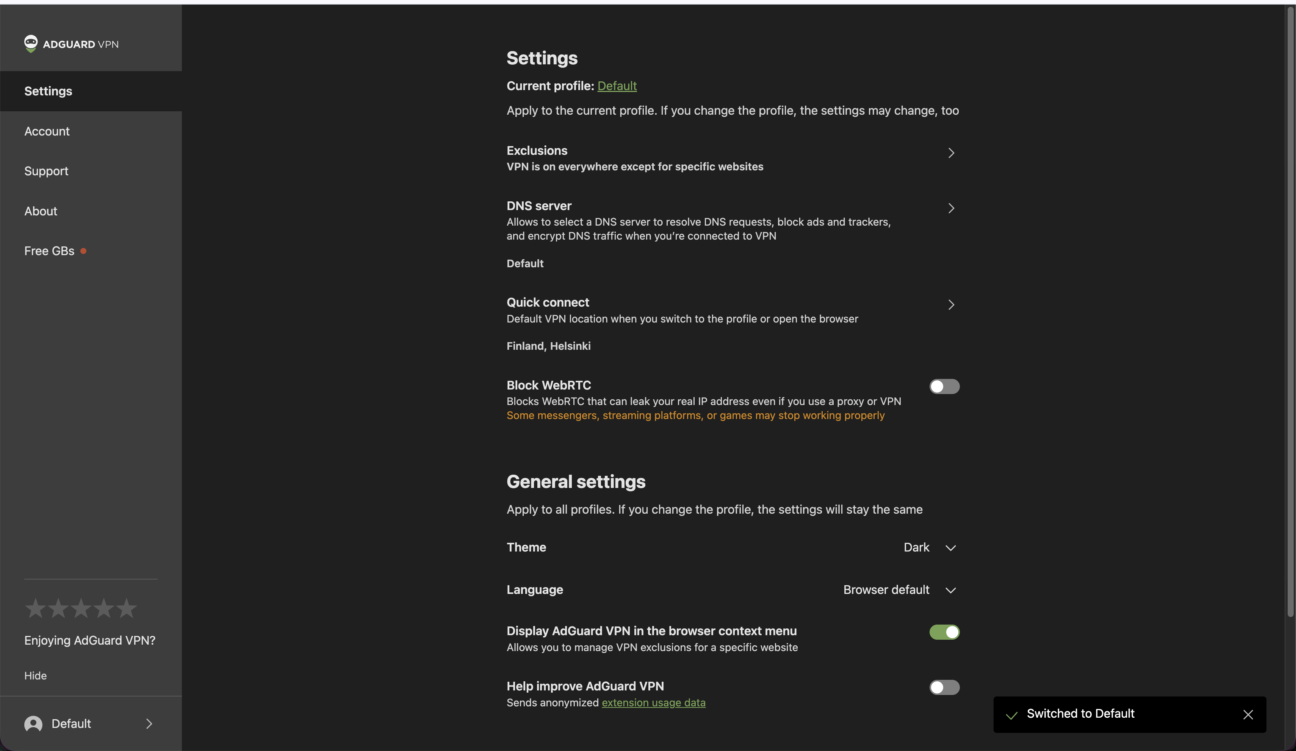
To eliminate guesswork, we removed the standalone Profile tab from the sidebar navigation. Everything is now neatly organized inside a single Settings menu, split into two distinct areas:
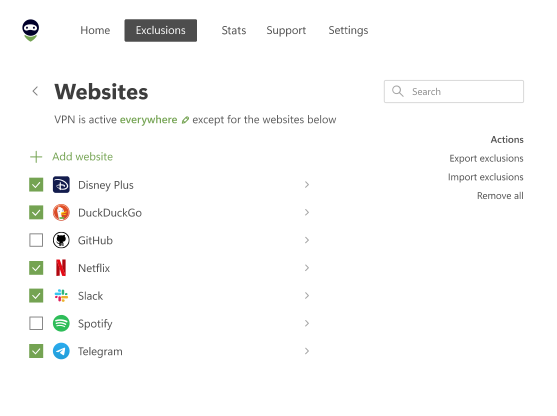
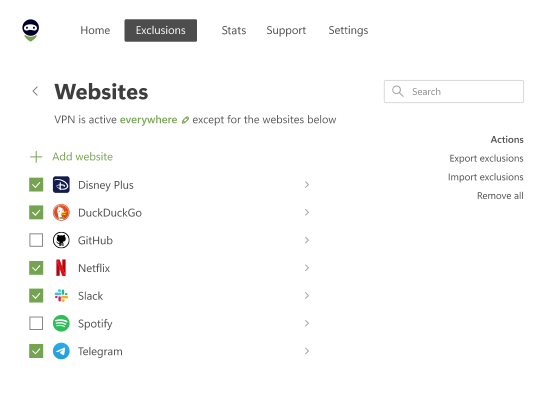
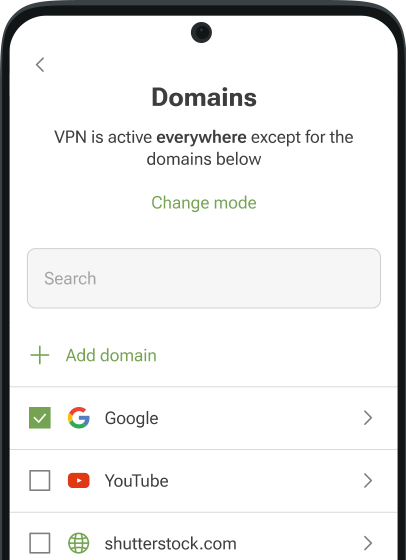
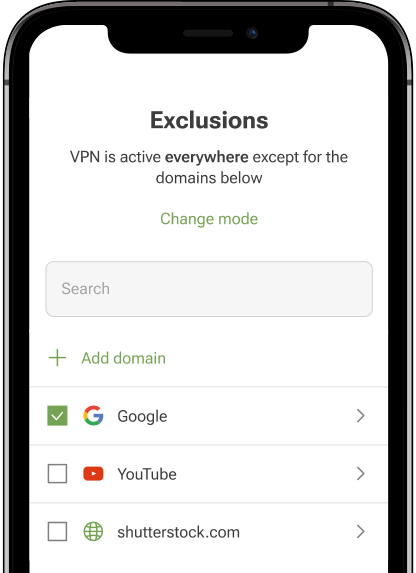
- Settings (profile-specific): Options here belong strictly to your currently active profile. This is where you configure Exclusions, select a DNS server, set up Quick connect, and toggle Block WebRTC.
- General settings (global): Preferences that apply to the entire extension regardless of the profile you are using. These include Theme, Language, Display AdGuard VPN in the browser context menu, and diagnostic options to Help improve AdGuard VPN.
Unified Quick connect
Previously, General settings had a Quick connect option with choices between the fastest or last-used location, while each individual profile had its own Locations tab where you could pick a specific country. Having these preferences separated across screens made it confusing to predict where the VPN would actually connect.
In v2.12, we consolidated everything into a single, intuitive Quick connect screen:
- Fastest location
- Last used location
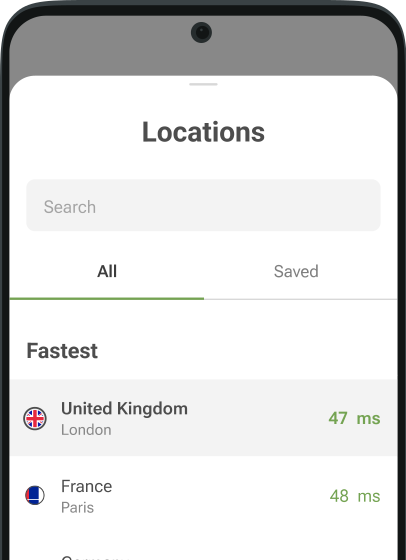
- Specific countries and servers
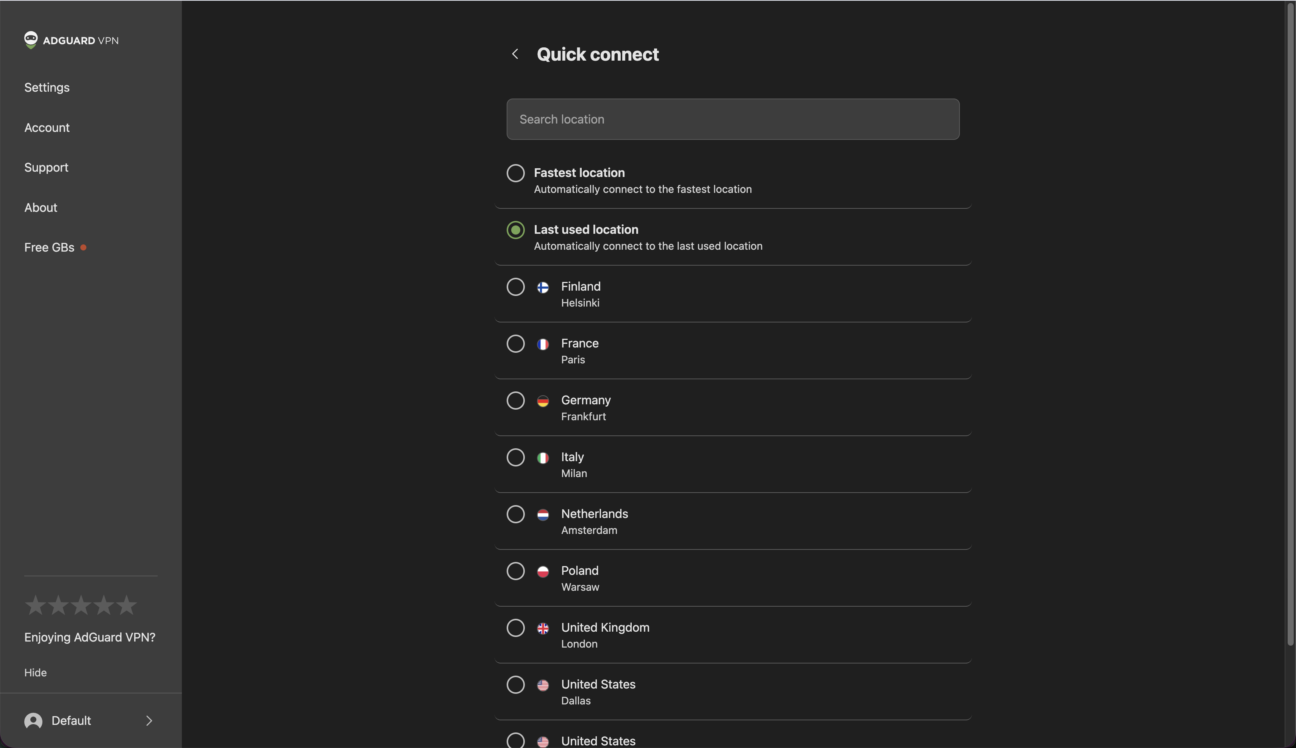
You can configure Quick connect for your current profile directly from the main Settings tab, or manage it for any profile via the Manage profiles menu — more on that below.
Easier profile management
You shouldn't have to dig through menus just to check which profile is active. Now, your current profile is displayed right in the main popup, directly beneath the connection button. Simply click the profile name to open a dropdown and switch setups on the fly.
Prefer the sidebar? Click the extension icon, tap the hamburger menu (☰), and head to Settings. There’s a persistent profile widget in the bottom-left corner, accessible from any screen, letting you swap profiles or jump straight into Manage profiles.
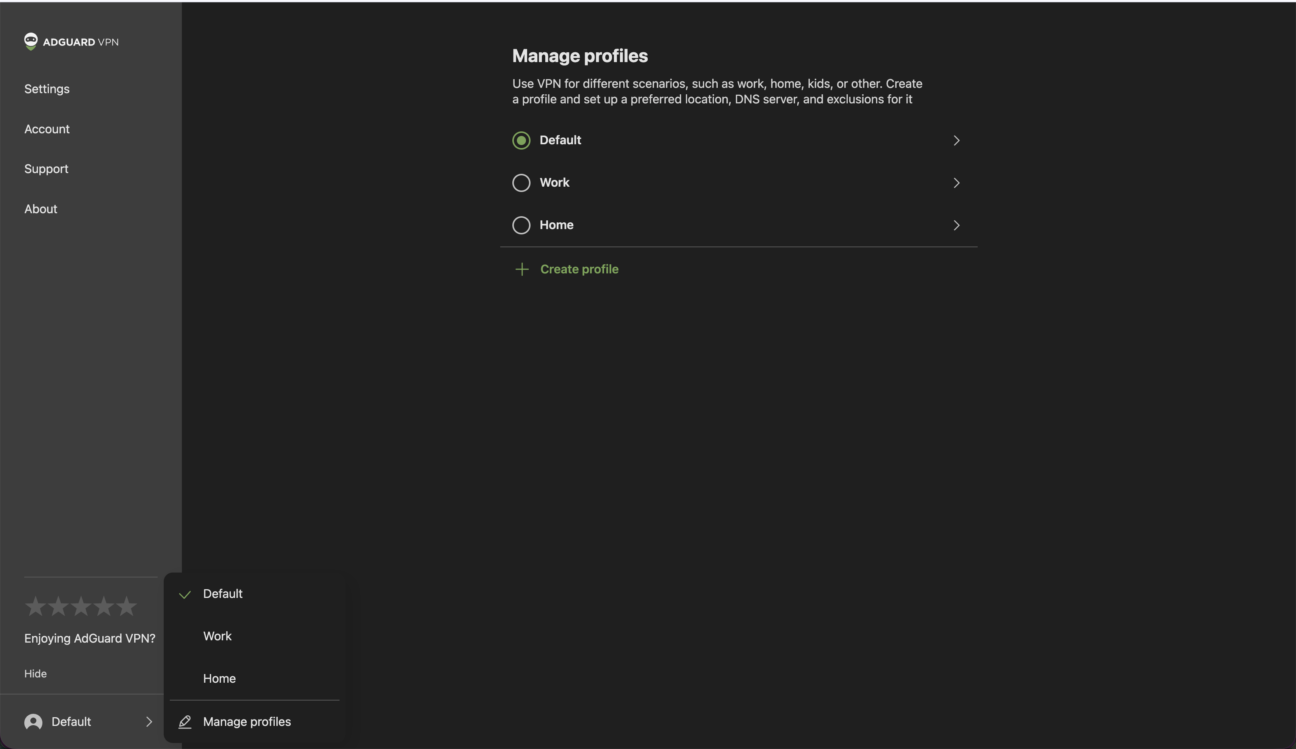
In the Manage profiles view, you can easily tailor setups for different scenarios — such as work, home, or streaming — as well as rename or delete existing ones.
To prevent accidental disruptions, the Default profile remains permanently protected and cannot be renamed or deleted.
Give it a spin!
Update the extension to v2.12 and check out the changes. Did we make profile setup and switching easier?
We’re always eager to hear what you think. If you run into any issues or have ideas on how to make things even better, don’t hesitate to contact us via whichever platform you prefer.