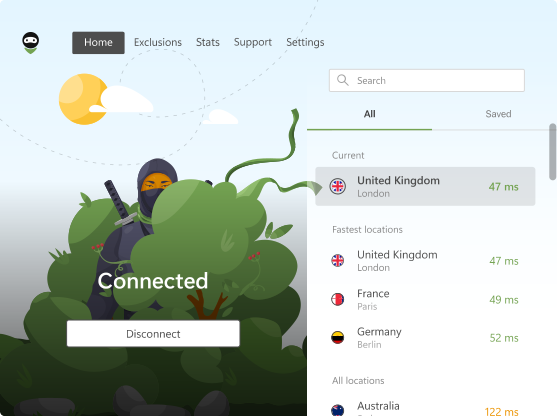
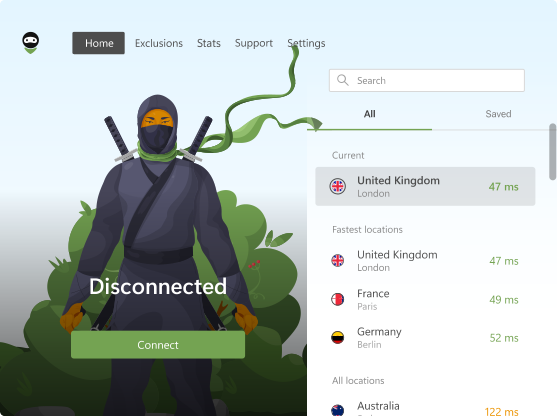
AdGuard VPN Browser Extension v2.10: Switch between VPN setups in one click
Switching VPN settings for every task gets annoying fast. One moment you need a work-friendly setup, the next — a different location for streaming or safer browsing on public Wi-Fi.
In AdGuard VPN Browser Extension v2.10, we’ve added custom profiles. Now you can save different VPN setups and switch between them instantly.
Custom profiles
You may use your VPN differently throughout the day: one setup for work, another for studying, and a third for streaming or watching cartoons with your kid. Each case may require a different VPN location, DNS server, or exclusion list.
Custom profiles make switching easier. You can save a set of VPN settings once and return to it whenever you need. The VPN extension supports up to 10 profiles in total.
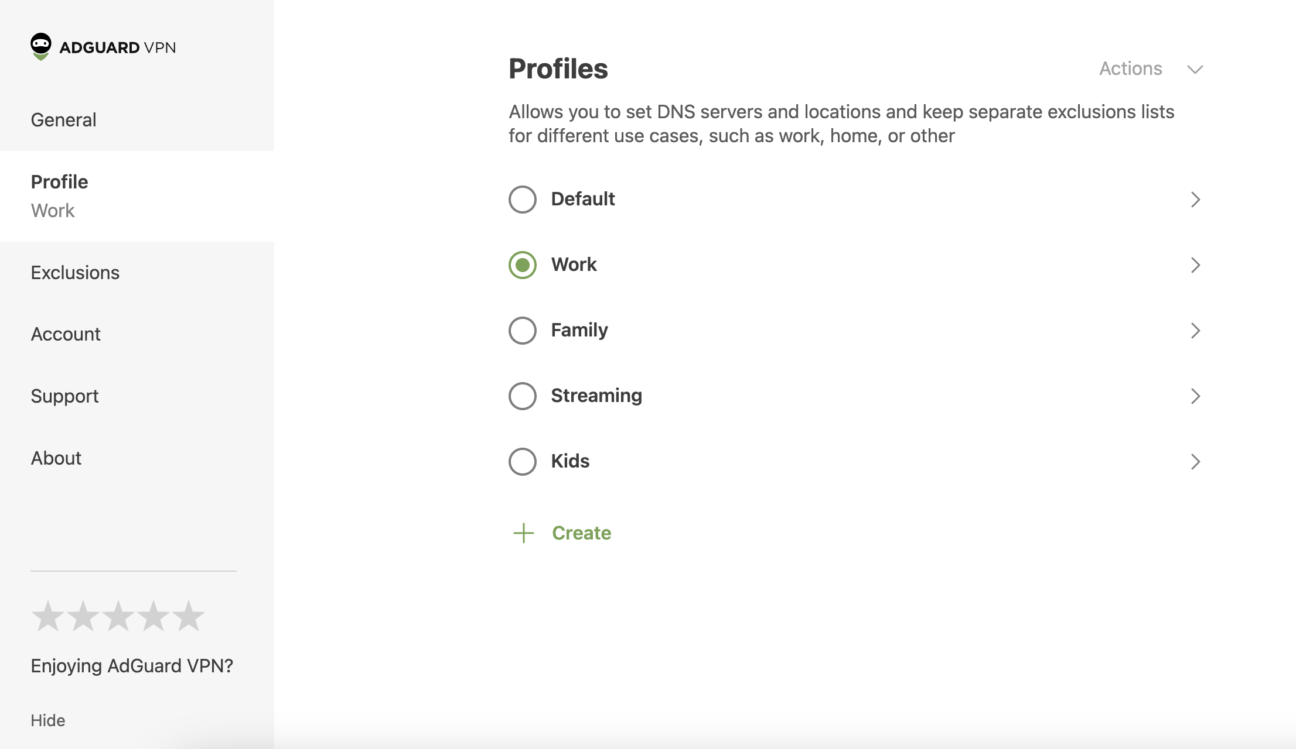
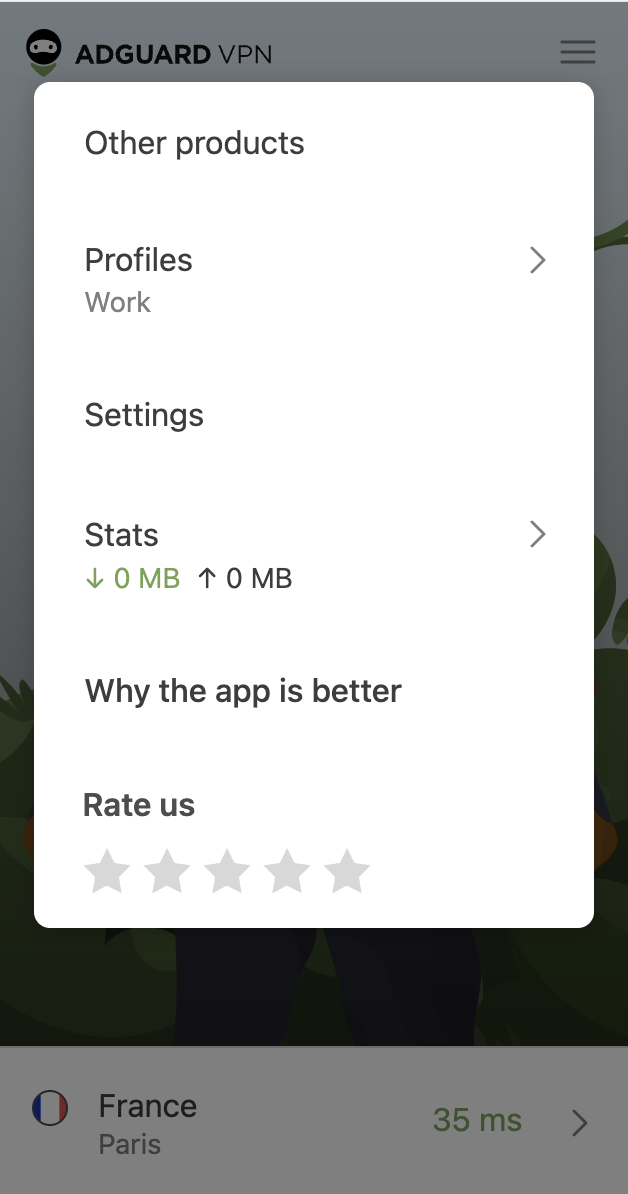
To try the new feature, click the AdGuard VPN icon in your browser → three-line menu in the upper-right corner (☰) → Profiles.
Profile settings
You can choose a name for each profile and configure the following settings:
- Server location
- WebRTC
- DNS server
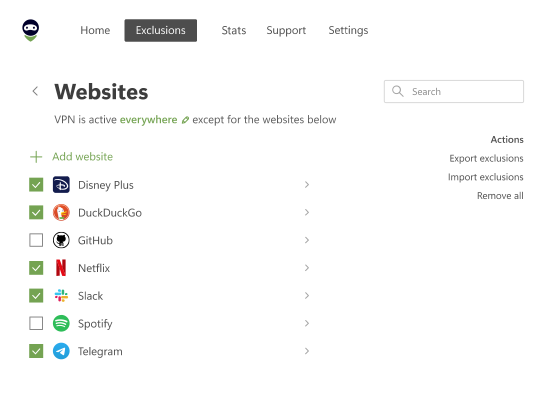
- Exclusions
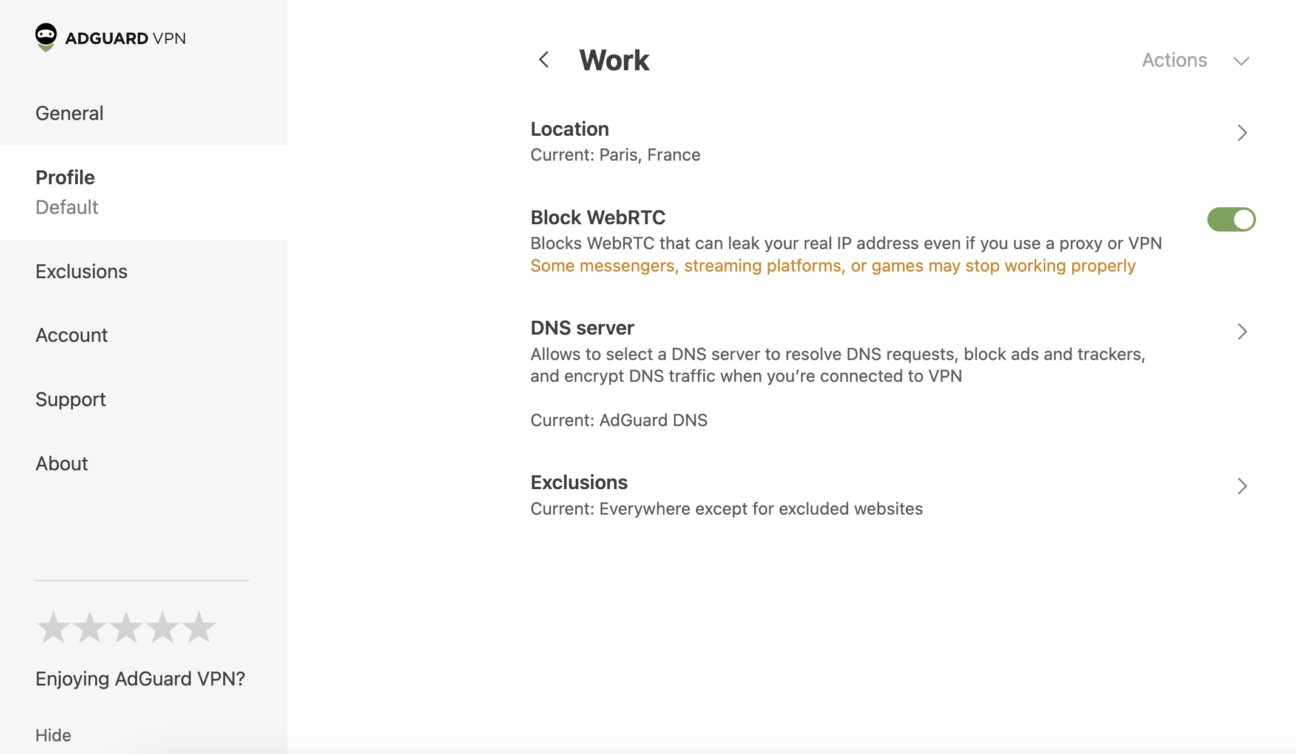
After creating profiles, you can switch between them directly from the extension popup.
How profile locations work
Here’s one detail worth knowing: the location set in a profile stays saved until you change it in that profile’s settings.
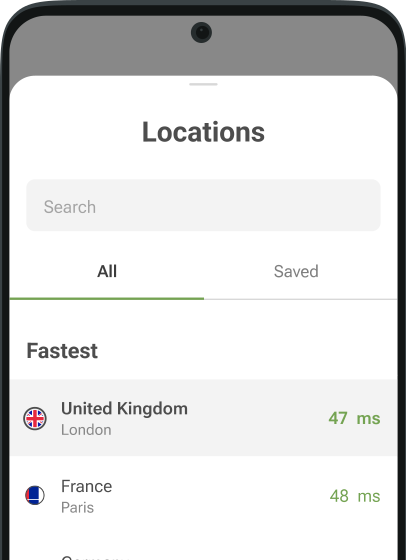
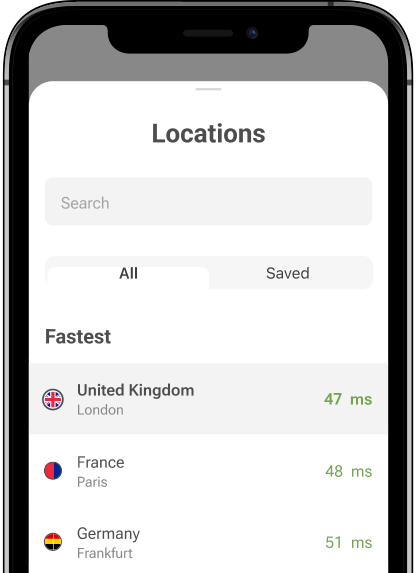
You can still switch locations from the extension popup. This change is temporary. When you switch profiles or reopen the browser, AdGuard VPN will use the location saved in the selected profile’s settings.
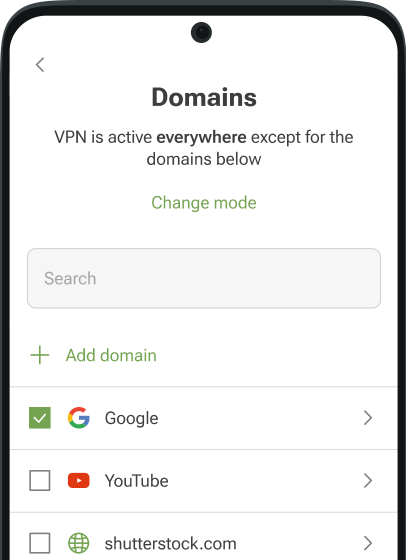
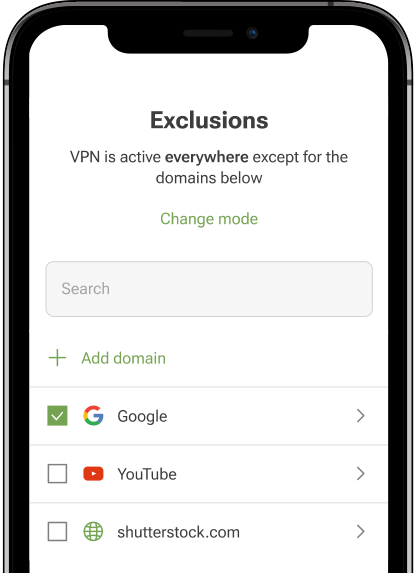
Other settings work differently. If you change WebRTC, DNS server, or Exclusions while a profile is active, AdGuard VPN saves these changes to that profile.
That’s all for AdGuard VPN Browser Extension v2.10. Update the extension, try profiles, and tell us what you think on GitHub or social media.