VPN for PUBG
PUBG is one of the most popular battle royale games in the world, attracting millions of players every day. Whether you’re dropping into Erangel or surviving in Miramar, a stable connection and low latency are crucial for a smooth gaming experience. In this article, we’ll explain how a VPN for PUBG may enhance your gameplay by improving connection stability, protecting your privacy, and keeping your data secure. You’ll also learn how to choose the best PUBG VPN, how to set it up on different devices, and how to optimize performance so you may focus on winning, not lag.
What is a VPN and how does it work?
A VPN, or Virtual Private Network, is a tool that creates a secure, encrypted tunnel between your device and the Internet. When you connect through a VPN, all of your online traffic is routed through one of the VPN’s remote servers before reaching its destination. This process hides your real IP address — the unique identifier linked to your location — and replaces it with the IP of the VPN server you’re using.
In simple terms, a VPN makes it look like you’re browsing or gaming from another region while keeping your connection private and protected. It encrypts your data, meaning no one — not your Internet Service Provider (ISP), hackers, or even the network admin — may see what you’re doing online.
For gamers, especially PUBG players, this technology offers several advantages. Encryption keeps your data safe from potential attacks such as DDoS (Distributed Denial of Service) — a common threat in competitive gaming. Masking your IP address also helps you access servers in different regions, allowing you to play with friends abroad or try new matchmaking environments using a VPN for PUBG.
Why use a VPN for PUBG?
Using a VPN for PUBG isn’t just about privacy — it may also protect your gameplay and improve stability. One major benefit is protection against IP bans and DDoS attacks. Competitive gaming may sometimes make players a target for malicious attacks that overwhelm your connection, causing lag or disconnections. A VPN masks your real IP address, making it much harder for attackers to target you directly.
Another advantage is preventing ISP throttling. Some Internet providers may slow down your connection when they detect gaming traffic, which may lead to frustrating lag spikes or sudden drops in speed. A VPN encrypts your traffic, preventing your ISP from seeing what you’re doing and helping maintain a smoother, more consistent connection.
A VPN also helps enhance your privacy by hiding your real IP and encrypting your data, keeping your personal information safe from hackers or anyone trying to monitor your online activity. Additionally, it allows you to play PUBG from virtually anywhere in the world — so if you’re traveling or on vacation, you may enjoy the game as if you were at home, without worrying about connection issues.
In short, PUBG VPN protects both your connection and your personal data, while giving you the freedom to play comfortably no matter where you are.
Does a VPN affect ping or gaming performance?
Many players worry that using a VPN will automatically increase their ping or cause lag, but the reality is more nuanced. Ping refers to the time it takes for data to travel from your device to the game server and back, measured in milliseconds (ms). A lower ping means faster, more responsive gameplay, while a higher ping may cause noticeable delays or lag.
A VPN adds an extra layer of security to your Internet connection by routing your traffic through a remote server, which may sometimes slightly increase latency. However, this doesn’t always mean slower gameplay — in some cases, a VPN can actually improve stability. For example, if your ISP throttles gaming traffic or the normal route to the PUBG servers is congested, a PUBG VPN can offer a more direct or less crowded path, resulting in smoother gameplay. The key factors that influence performance are server location, server quality, and the VPN protocol used. Choosing a VPN server close to the game’s server, or one optimized for gaming, may help minimize any additional ping.
When can a VPN reduce lag in case of throttling?
A VPN may help reduce lag in certain situations, especially when your ISP throttles gaming traffic. Throttling happens when an ISP intentionally slows down specific types of data, like online games or streaming, during peak hours. This may lead to higher ping, stuttering, or sudden drops in connection quality.
By encrypting your traffic, a VPN for PUBG mobile prevents your ISP from identifying that you’re playing PUBG, which may stop throttling in its tracks. As a result, your connection may become more stable and consistent, reducing lag and packet loss.
Keep in mind that the effect depends on the VPN server you choose. Picking a high-speed, low-latency server that’s geographically close to the PUBG game servers will maximize performance and ensure smoother gameplay, even if you’re experiencing throttling on your normal connection.
How to choose the best VPN for PUBG
Not all VPNs are created equal, and choosing the right one for PUBG may make a big difference in performance and reliability. Here are the key factors to consider:
Speed and low latency: A fast connection is essential for any online game. Look for VPNs that offer high-speed servers optimized for gaming, so you may minimize ping and avoid lag spikes.
Server locations: The closer a VPN server is to the PUBG game servers, the better your connection will be. A wide selection of server locations gives you flexibility and helps maintain low latency.
Secure and modern protocols: VPN protocols like WireGuard, OpenVPN, or specialized proprietary solutions (such as the TrustTunnel protocol by AdGuard VPN) provide both speed and security. WireGuard, in particular, is lightweight and designed for low-latency connections, making it ideal for gaming.
Strong privacy policies: Choose a VPN with a strict no-logs policy and robust encryption to keep your data safe. Features like DNS and IP leak protection are also important for maintaining privacy during gameplay.
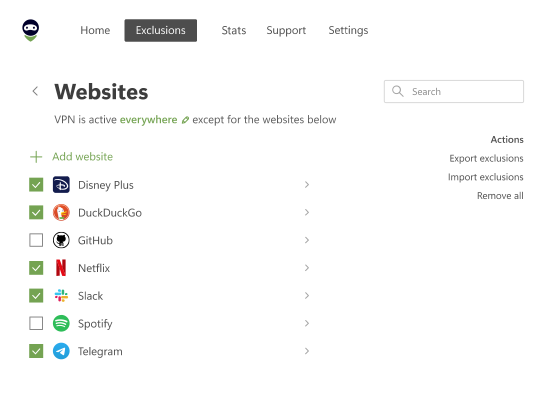
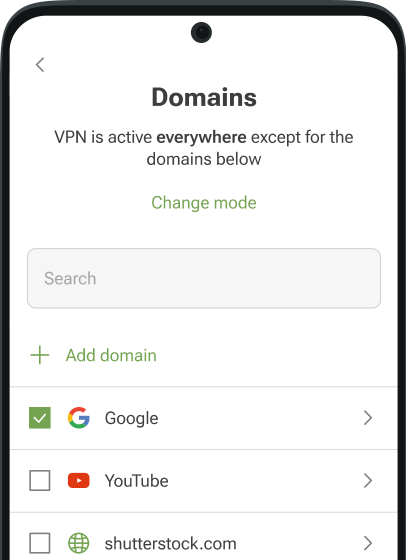
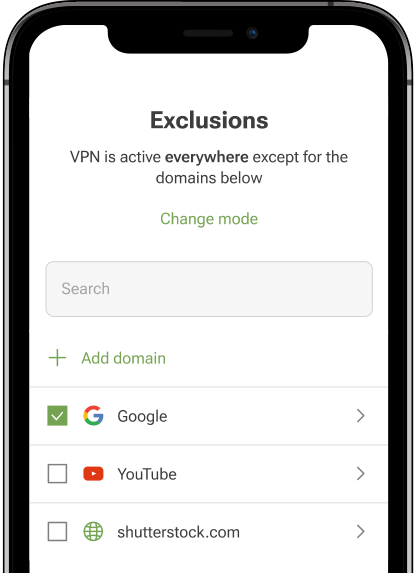
Gaming-friendly features: Look for VPNs with features such as Kill Switch, Split Tunneling, or Auto Connect. These tools may prevent interruptions if the VPN drops or let you route only the game traffic through the VPN.
Device compatibility: Make sure the VPN works on your preferred platform — whether that’s PC, Android, iOS, or consoles. Some consoles may require a VPN setup through a router.
Free tier or trial options: If you want to test latency before committing, look for providers that offer a reliable free virtual private network tier to check connection stability to PUBG servers.
Which VPN services are best for PUBG?
To optimize your PUBG gameplay, it's essential to choose a VPN for PUBG mobile that offers high-speed servers, low latency, and robust security features. Based on recent expert reviews and performance tests, here are some of the top VPNs for PUBG:
AdGuard VPN combines strong privacy protection with stable, low-latency connections. Its lightweight design and easy setup make it an excellent choice for gamers who want a reliable and secure VPN for PUBG without any complicated configurations.
NordVPN is known for its large server network and fast, stable connections. Ideal for competitive gaming with minimal lag.
Surfshark is a cost-effective option that doesn't compromise on speed or security. Surfshark's unlimited simultaneous connections are perfect for gamers with multiple devices.
ExpressVPN has a user-friendly interface and reliable performance. The service ensures smooth gameplay with its high-speed servers.
CyberGhost offers specialized servers optimized for gaming, providing a straightforward setup for beginners seeking lag-free experiences.
Proton VPN provides strong security with a free option. Its server selection is smaller, but it’s a solid choice for casual PUBG players.
How to set up a VPN for PUBG
Setting up a PUBG VPN is straightforward, whether you’re on PC, mobile, or console. Here’s a step-by-step guide for each platform:
On PC (Windows / macOS)
Choose and install a VPN: Download the VPN client from the provider’s official website.
Log in: Open the app and sign in with your account credentials.
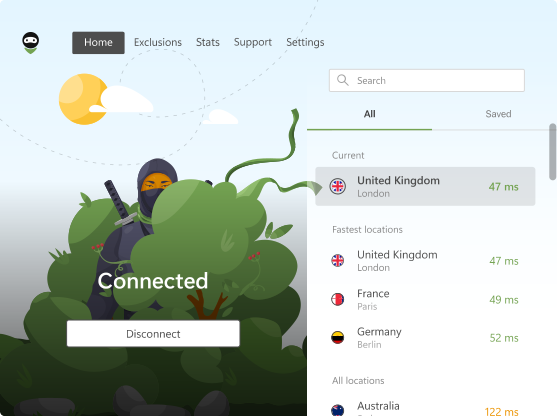
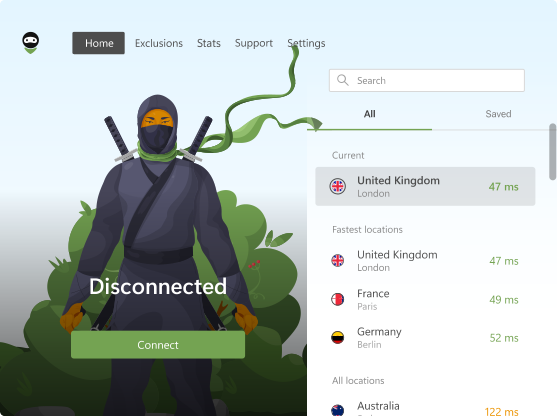
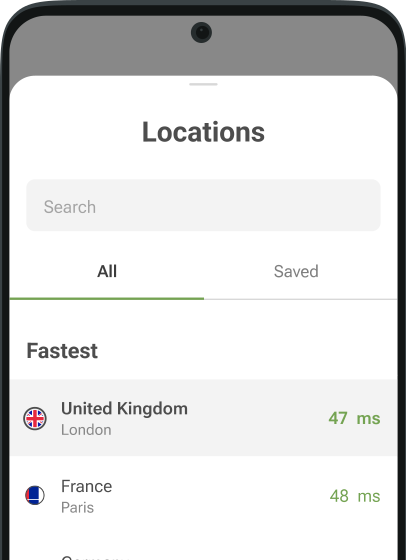
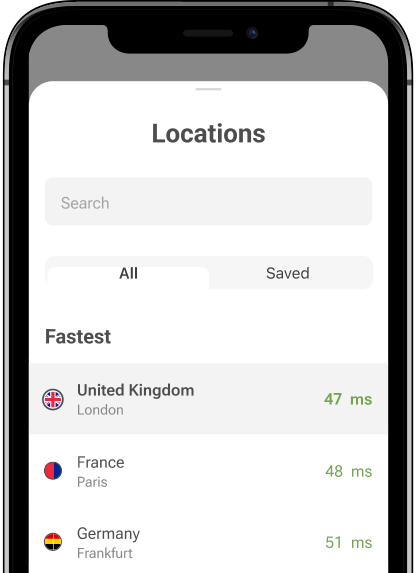
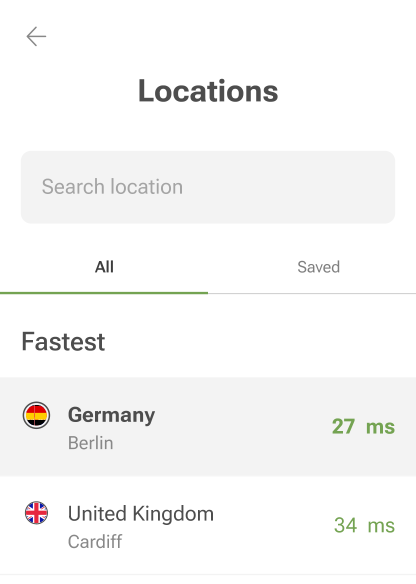
Select a server location: Choose a VPN server located close to the PUBG game servers. You can usually tell by the ping — the lower the ping, the closer the game server is likely to be.
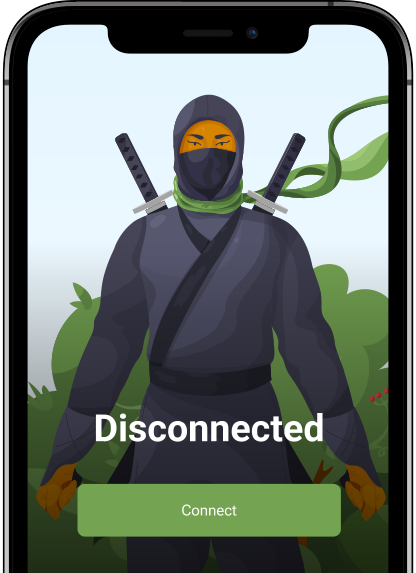
Connect: Click the Сonnect button and wait until the VPN establishes a secure connection.
Launch PUBG: Start the game as usual. The VPN will now route your traffic, keeping your connection private and stable.
On mobile (iOS / Android)
Install the VPN app: Download it from the App Store (iOS) or Google Play (Android).
Sign in: Open the app and log in with your credentials.
Choose a server: Select a server optimized for gaming or located near the PUBG servers.
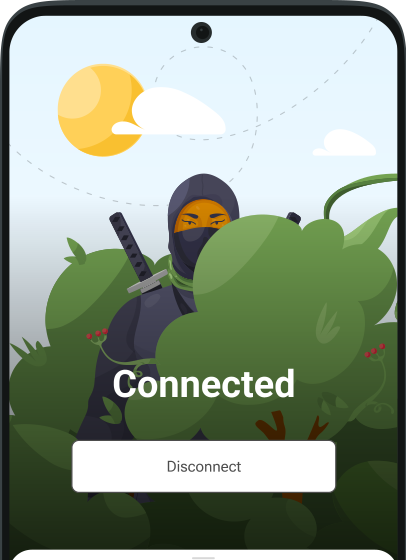
Connect: Tap the Сonnect button to secure your mobile connection.
Open PUBG mobile: The game will now run through the VPN, helping protect your privacy and maintain stability.
On consoles (PlayStation / Xbox / Nintendo Switch)
Most consoles don’t have native VPN support, but you may still use a VPN with these workarounds:
Router VPN: Install the VPN directly on a compatible router. All devices connected to the router, including your console, will use the VPN.
Virtual Router / Hotspot: Connect your PC to a VPN, then share the connection as a Wi-Fi hotspot for your console.
Smart DNS (if supported): Some VPN providers offer Smart DNS services that allow you to reroute traffic on consoles without full encryption.
Tips to optimize PUBG performance while using a VPN
Using a VPN for PUBG doesn’t have to slow down your PUBG gameplay. Here are practical tips that build on what we’ve already discussed about ping and connection stability, without repeating the same points.
Choose the nearest or fastest server to reduce latency and ensure lower ping, giving you smoother gameplay.
Use a modern VPN protocol like WireGuard or an updated version of OpenVPN for both speed and security.
Close unnecessary background applications that consume bandwidth, such as streaming services or downloads, to free up resources.
Keep your VPN app updated to benefit from the latest performance and security improvements.
Enable Kill Switch and leak protection to prevent accidental exposure of your real IP if the VPN connection drops.
Disable advanced VPN features you don’t need, such as obfuscation or double encryption, which may slightly reduce speed.
By following these tips, you enhance your PUBG performance using a VPN without repeating the basic concepts already covered in the ping and performance sections.