How to turn off Meta AI on Facebook
Meta AI on Facebook is an artificial intelligence assistant designed to enhance user experience through smart suggestions, conversational tools, and AI-powered search. It shows up in places like the search bar, Messenger, and comment sections, offering replies, content recommendations, and context-based help.
Rather than a single product, “Meta AI” refers to a range of AI-driven features integrated across Meta’s platforms — from visible tools like chat assistants to background systems handling moderation, spam detection, and security.
However, its expanding presence has raised concerns among users who prefer a more manual, less algorithm-driven experience. For many, Meta AI feels intrusive, surfacing in everyday interactions without clear consent or full control. Some worry about how their data is used to personalize suggestions, while others feel that automated prompts and content diminish their sense of agency on the platform.
Some users appreciate the convenience, while others find Meta AI unnecessary or disruptive. As of mid-2025, it’s active in over 40 countries and multiple languages, with the most advanced version in the U.S. Despite this wide rollout, user controls remain limited — you can mute or remove the AI chat in Messenger, but there’s still no universal way to turn it off entirely. This lack of clarity is what drives many people to search online for answers on how to turn off Meta AI on Facebook.
What is Meta AI on Facebook?
Meta AI is a built-in assistant that helps users interact with Facebook more efficiently. It offers tools like natural language search, automated replies, and content suggestions based on user behavior and interests. For example, in Messenger chats or post comments, users might see suggested responses generated by the AI. In the search bar, it can provide instant answers without redirecting to external sources.
Visually, Meta AI is often identified by a glowing blue ring, a chatbot icon, or a “Meta AI” tag next to messages or suggestions. It functions across various areas of Facebook, including Messenger, search, and news feed content, and is regularly updated to support new languages and regions.
Can you turn off Meta AI completely?
As of now, Meta does not offer a built-in option to completely turn off Meta AI on Facebook. However, users can mute Meta AI in Messenger or delete the chat entirely to reduce its visibility.
To mute Meta AI, press and hold the chat on mobile or click the three-dot menu on desktop and choose Mute or Delete Chat.
While this doesn’t disable the underlying AI system, it removes the chatbot interface from your conversations.
Note: Deleting the chat does not prevent Meta AI from reappearing in the future if you interact with it again. This also does not stop Meta from using your data to support AI features — to control that, you need to adjust your privacy settings separately.
You can also choose not to engage with smart reply suggestions, avoid using the AI-powered search prompts, or hide specific types of suggested content. In some cases, users may also be able to adjust notification settings or limit the visibility of certain features, though these options are limited and vary depending on the platform version and region.
For those wondering how to turn off Meta AI on Facebook, these partial measures can at least reduce its presence and make interactions feel more manual.
Given that Meta’s tools are still developing, it’s worth noting that the company regularly updates its platforms, and the availability or behavior of AI features may change over time. Users interested in minimizing their exposure to Meta AI should stay informed about new settings or changes through Facebook’s help center or official announcements.
Methods to minimize or disable Meta AI features
There are several ways to reduce the presence of Meta AI features on Facebook and Messenger.
NOTE: controls related to using your data for AI (e.g., Manage Data Used for AI) are currently available only to users in certain regions — primarily EU and UK — and may not appear in all accounts.
While Meta doesn’t currently offer a way to completely disable its AI assistant, you can take steps to limit its visibility and how your data is used to support these tools. The following sections outline practical methods to minimize AI-driven suggestions, adjust privacy settings, and reduce personalized content across different platforms.
Facebook regularly updates its interface and renames menu options, so users are encouraged to check the most current instructions in the Facebook Help Center.
Adjusting privacy settings
- On the Facebook app (iOS & Android):
Open the Facebook app and tap the menu icon (three horizontal lines in the bottom-right on iOS, top-right on Android).
Scroll down and tap Settings & Privacy, then Settings.
Under Privacy, tap Privacy Center.
Select Manage your information > Manage Data Used for AI (if available).
Review options for how your information is used for AI features. Disable or limit settings where possible.
To reduce off-platform data use:
Go back to Settings and tap Off-Facebook Activity.
Tap Manage Your Off-Facebook Activity, then tap Clear History to remove previously collected data.
To prevent future data collection, tap Manage Future Activity and switch it off.
- On Facebook desktop:
Log in to your Facebook account and click your profile picture in the top right corner.
Select Settings & Privacy, then Settings.
In the left-hand menu, click Privacy, then scroll to find Privacy Center.
Navigate to Manage your information > Manage Data Used for AI (if available).
Adjust settings to limit how your activity is used to personalize AI tools.
To manage Off-Facebook activity:
Click Your Facebook Information in the left menu.
Select Off-Facebook Activity.
Click Clear History and then Manage Future Activity to turn off data sharing from other apps and websites.
These settings help limit how much of your personal data Meta can use to support its AI tools and personalization features. Keep in mind that not all options may be available in every region or account type, and Meta may update or rename these settings over time. It’s a good idea to revisit these controls regularly to stay up to date.
Disabling smart features in messenger
While you can't completely disable Meta AI across Messenger, you can turn off certain smart features like suggestions and smart replies to reduce AI-driven interactions.
- On the messenger mobile app (iOS & Android):
Open the Messenger app.
Tap your profile picture in the top-left corner to open Settings.
Scroll down and select Suggestions (may appear as AI Suggestions or Smart Suggestions depending on your version).
Toggle off options such as: suggestions in chat, smart replies, GIF and sticker suggestions.
Exit the menu to save changes.
You can also mute the Meta AI chat if it appears, instead of deleting it entirely.
If available, you can also explore Privacy & Safety settings within Messenger to review any AI-related personalization options and adjust accordingly.
The names and locations of these settings may change with app updates and can vary by region — being aware of this can help avoid confusion. To make it easier to find specific options, consider using the search bar within the Messenger settings menu.
- On messenger via desktop (Messenger.com or Facebook):
Go to Messenger.com or open Messenger via Facebook.
Click your profile icon in the top-left corner.
Choose Preferences or Settings.
Look for a section like suggestions or smart features (may vary depending on the interface).
Disable options such as: automatic suggestions, smart reply/quick reply features, media or emoji suggestions.
Note: The wording and availability of these options may vary slightly depending on updates and regional rollouts. Turning off these features helps reduce AI-generated prompts in your chats. However, some AI functions (like message scanning for safety or personalization) may still operate in the background and can't be fully disabled. For the most current options, it's a good idea to check Meta’s Help Center or release notes, as new controls may be introduced.
Using third-party browsers or extensions
For users looking to reduce visibility of Meta AI elements on Facebook and Messenger, third-party browsers and browser extensions can offer partial solutions. Some tools allow you to block or hide specific user interface (UI) components — such as smart reply boxes, AI-generated search answers, or content suggestion panels.
Popular browser extensions like uBlock Origin, Privacy Badger, or Stylus can be configured to block or customize specific Facebook elements. For example, with uBlock Origin, users can right-click on an unwanted UI feature and use the "Block element" function. With Stylus, users can apply custom CSS to hide AI-related components.
If you use the AdGuard desktop app, you can enhance its functionality with AdGuard Assistant — a separate browser extension designed to work alongside the app. It allows you to manually block specific page elements using an element selector tool, adjust filtering on the fly, and report issues directly. Unlike the standalone AdGuard Browser Extension, the Assistant does not filter traffic by itself and only works when the main app is running. This makes it a convenient way to block or hide Meta AI interface elements like suggestion panels or smart replies on Facebook.
If you're not using the desktop app, the standalone AdGuard Browser Extension also offers manual blocking functionality for unwanted elements. It allows you to hide or remove intrusive components on web pages, including some AI-generated UI, and supports custom rules and filters.
Additionally, privacy-focused browsers like Brave or Firefox may offer built-in tracking protection and more advanced extension support, further limiting how AI features track or present content.
However, using third-party tools may lead to compatibility issues after Facebook updates, and blocked elements can reappear. Always use well-reviewed, open-source extensions and keep them updated.
How to protect yourself while using Meta AI
Even if Meta AI can’t be turned off completely, there are important steps you can take to protect your privacy and security while interacting with it. Since Meta AI can process and generate content based on your inputs, behavior, and profile data, staying cautious and aware is key.
Tips for safer interaction with Meta AI
Avoid sharing sensitive information. Never enter passwords, financial details, medical data, or other sensitive personal info into AI-generated chats or search prompts. These interactions may be stored or used for further training and personalization.
Fact-check AI-generated content. Meta AI may generate summaries or responses that appear accurate but could be outdated, misleading, or biased. Always double-check critical information, especially around topics like health, finance, or legal matters. Whenever possible, ask Meta AI to provide sources or links to its information — this can help you verify accuracy and assess the credibility of its responses.
Use incognito or private browsing mode. When accessing Facebook via a browser, private modes can reduce cookie tracking and prevent your activity from being stored locally.
Log out between sessions. Especially on shared or public devices, logging out helps prevent passive data collection and cross-device tracking.
Use strong privacy settings and two-factor authentication (2FA). Securing your Facebook account with 2FA and robust privacy controls helps reduce exposure to unauthorized access or misuse of your data.
Use a VPN to protect your online activity. A VPN (Virtual Private Network) adds an extra layer of privacy by encrypting your internet traffic and masking your IP address.
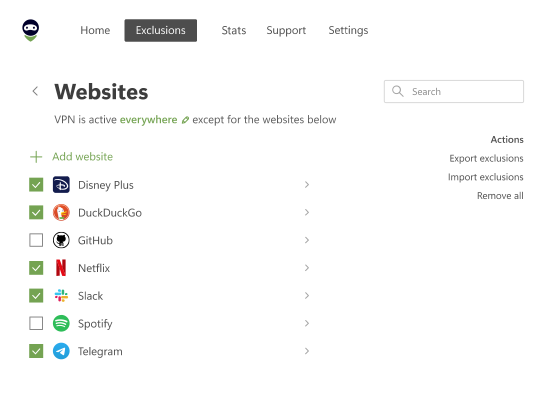
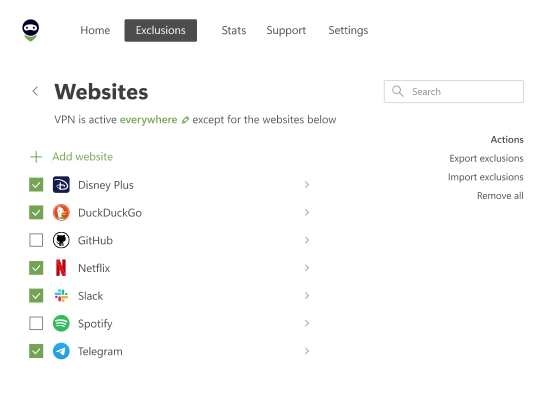
AdGuard VPN, for example, uses AES-256 encryption and features like automatic kill switch, built-in ad and tracker blocking, and customizable exclusions for specific apps or websites. It's especially useful on public Wi-Fi or when you want to reduce data profiling and tracking across Meta services.
- Stay updated on Meta AI changes. Meta regularly adjusts how its AI tools work and how user data is processed. Subscribe to updates or periodically check Facebook’s Help Center for new privacy controls or AI settings.
What to expect after turning off/minimizing Meta AI
After adjusting your settings to limit Meta AI, you’ll likely see fewer AI-generated suggestions, such as smart replies in Messenger, prompts in comment threads, and search summaries. Content recommendations may also become less frequent or less personalized.
However, some background AI features like spam detection, abuse filtering, and feed ranking will remain active. While these systems help with content moderation and personalize your experience, they cannot be turned off.
Minimizing Meta AI presence gives you more control over visible interactions, but the platform will still rely on AI to operate behind the scenes.
Alternative approaches
If you're looking to reduce exposure to Meta AI features, one option is to use Facebook Lite — a simplified version of the app designed for lower-end devices and slower networks. Facebook Lite may include fewer AI-driven elements, but this can vary depending on region and version.
Another approach is to use Facebook via a mobile or desktop browser instead of the official app. Some users also report that visiting Facebook through its basic mobile site (mbasic.facebook.com) offers an experience with fewer AI integrations, making it a lightweight alternative for those who prefer simplicity.
If you want to express concerns or request changes, Meta provides several channels for submitting feedback. On the Facebook app or website, you can go to Help & Support, then select Report a Problem, and choose Feature Request. From there, you can describe your experience and mention Meta AI directly in your message.
User reports help Meta track trends and feature sentiment. While not immediate, collective feedback can influence future platform changes.
FAQ
Can I remove Meta AI from Messenger entirely?
No, there is currently no official setting to completely remove Meta AI from Messenger. However, you can mute or delete the Meta AI chat, which hides it from your conversations, though the underlying AI functionality remains active in the background.
Does Meta AI collect my data?
Yes, Meta AI uses your activity and data to power features like smart suggestions, search answers, and personalized content. This includes interactions on Facebook and, in some cases, data from other apps and websites if “Off-Facebook Activity” is enabled. However, you can manage how your data is used by adjusting privacy settings such as Manage Data Used for AI and disabling off-platform tracking.
Will using browser versions reduce AI interference?
In many cases, yes. Accessing Facebook or Messenger through a web browser — especially on desktop — may limit exposure to some AI-powered features, such as smart replies or search summaries. Some users also prefer the lightweight mobile site (mbasic.facebook.com) for reduced interference. However, AI tools may still operate in the background for moderation and content delivery.
Final thoughts
While Meta AI brings convenience and personalization to Facebook and Messenger, user control over these features remains limited. There is currently no universal “off” switch to disable Meta AI entirely, and many of its functions — such as feed curation, moderation, and security — operate in the background by default.
However, users can take meaningful steps to reduce interaction with AI-driven tools by adjusting privacy settings, disabling smart suggestions, and using alternative tools and access methods, such as Facebook Lite app or by accessing Facebook via a web browser.
Until Meta offers more direct control, using available workarounds like chat removal, privacy settings, and browser-based access can help limit day-to-day exposure to AI-powered features. If you're still trying to figure out how to turn off Meta AI on Facebook, the best approach is to combine multiple privacy and visibility adjustments for maximum effect.
Beyond individual settings, to maintain a more private and tailored experience, stay informed about updates, revisit your settings regularly, and consider submitting feedback to Meta. Widespread user input is one of the most effective ways to influence future changes.