Çoğu yönlendiricide genel kurulum
AdGuard VPN'i doğrudan yönlendiricinize kurduğunuzda, ağınızdaki tüm cihazlar özel ve güvenli internet erişiminden yararlanmasını sağlar — ayrı bir uygulama gerekmez. Follow this guide to add your router to AdGuard VPN, generate credentials, and connect your devices in just a few simple steps.
If you use a MikroTik or Keenetic router, please check the dedicated setup guides below:
Installation options
There are two main ways to run AdGuard VPN on a router:
IPSec profile
- Easy to set up, supported by many routers
- Limitations: not available in Russia, China, and Iran, only a limited number of VPN locations (USA, Netherlands, Finland), and no support for exclusions
- Advanced setup that unlocks all AdGuard VPN features, including access to all locations and website exclusions (app exclusions are not available)
- Daha fazla teknik bilgi gerektirir
- Düşük performanslı işlemcilere sahip yönlendiricilerde bağlantı hızı 30-100 Mbps ile sınırlı olabilir
Obtain your AdGuard VPN credentials
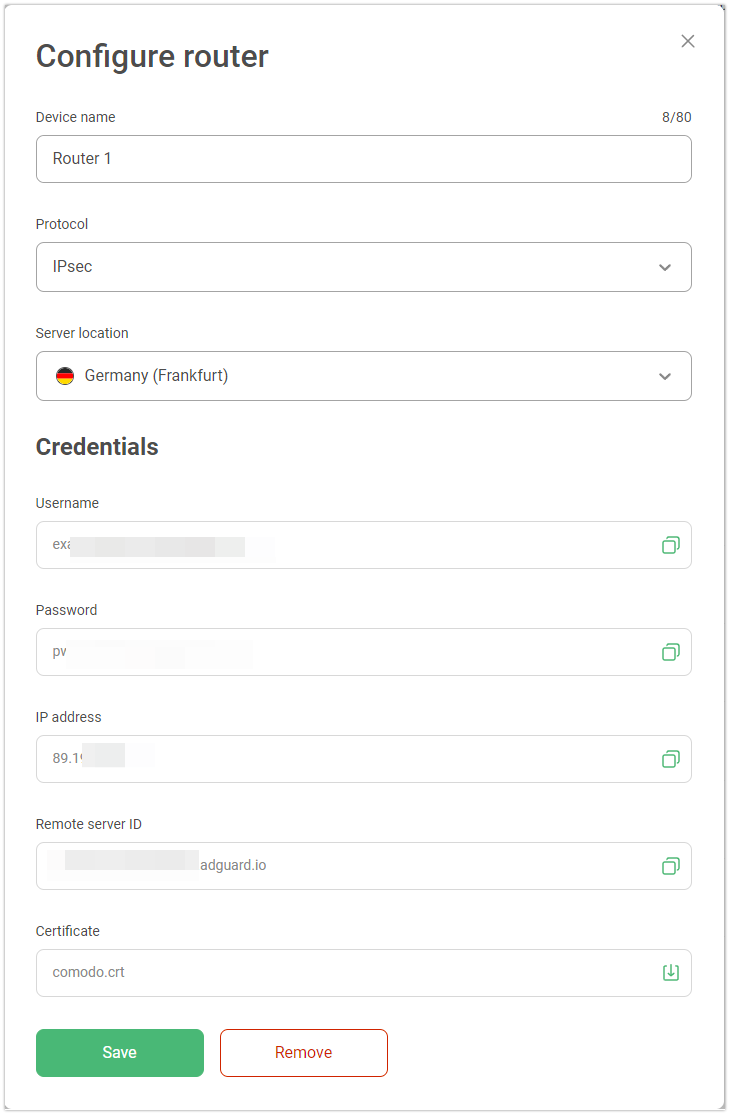
Yönlendiricinizi AdGuard VPN'e bağlamadan önce, AdGuard hesabınızda yönlendiriciniz için benzersiz kimlik bilgileri oluşturmanız gerekir. Bu kimlik bilgileri arasında sunucu adresi, kullanıcı adı ile şifre bulunur ve bunları daha sonra yönlendiricinizi yapılandırırken kullanacaksınız.
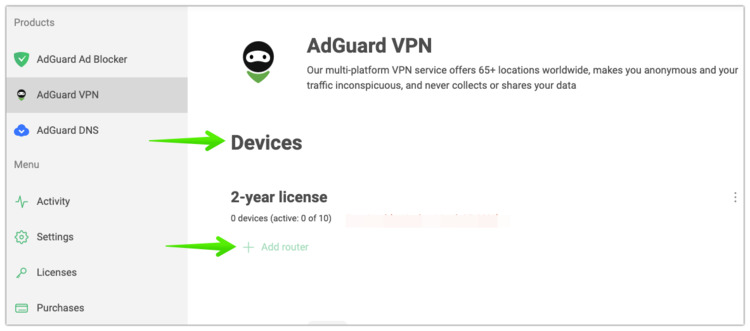
AdGuard hesabınızda, AdGuard VPN'i seçin.
Aygıtlar altında, Yönlendirici ekle öğesine tıklayın.
İstediğiniz VPN sunucusu konumunu seçin ve kimlik bilgileri oluşturun.
Çoğu yönlendiricide genel kurulum
Most modern routers that support IKEv2/IPSec can be configured with AdGuard VPN in just a few steps. Once you have your credentials ready, follow this general instruction to create a VPN connection on your router.
Sonraki adımlar yönlendiricinize bağlı olarak değişebilir. Örnek olarak Keenetic yönlendiriciyi kullandık.
Yönlendiricinizin yönetici sayfasını açın
Yönlendirici ayarlarına gidin
Enable VPN Client and click Add VPN server
Select IPsec-client (for some router brands, it may be called IKEv2; not L2TP/IPsec)
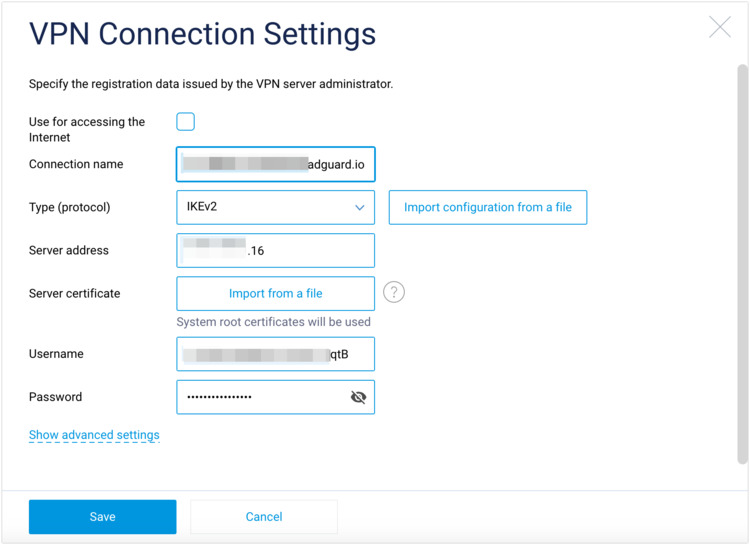
Oluşturduğunuz kimlik bilgilerini girin.
 not
notIn the server address field, enter the IP address from your AdGuard account.
Cihazları yönlendiricinize bağlayın.
VPN sunucu konumunu değiştirmek istiyorsanız yönlendirici ayarlarınızı güncellemeniz gerekir.
AdGuard VPN ile uyumsuz olduğu bilinen yönlendiriciler
Below are the routers that are currently known to have compatibility issues:
ASUS
ASUS routers do not support IKEv2/IPsec, so you cannot set them up using the general method mentioned above. However, routers running the Asuswrt-Merlin custom firmware can install AdGuard VPN CLI, which makes the CLI installation method fully supported.