Obecné nastavení většiny routerů
Instalace AdGuard VPN přímo na váš router umožňuje všem zařízením ve vaší síti využívat soukromý a bezpečný přístup k internetu — není potřeba žádná samostatná aplikace. Postupujte podle tohoto návodu a přidejte svůj router do AdGuard VPN, vygenerujte přihlašovací údaje a připojte svá zařízení v několika jednoduchých krocích.
Pokud používáte router MikroTik nebo Keenetic, podívejte se na speciální návody k nastavení níže:
Možnosti instalace
Existují dva hlavní způsoby, jak spustit AdGuard VPN na routeru:
Profil IPSec
- Snadné nastavení, podporováno mnoha routery
- Omezení: není k dispozici v Rusku, Číně a Íránu, pouze omezený počet umístění VPN (USA, Nizozemsko, Finsko) a žádná podpora pro výjimky
- Pokročilé nastavení, které odemkne všechny funkce AdGuard VPN, včetně přístupu ke všem umístěním a výjimkám webových stránek (výjimky aplikací nejsou k dispozici)
- Vyžaduje více technických znalostí
- U routerů s méně výkonnými procesory může být rychlost připojení omezena na 30-100 Mb/s
Získání přihlašovacích údajů AdGuard VPN
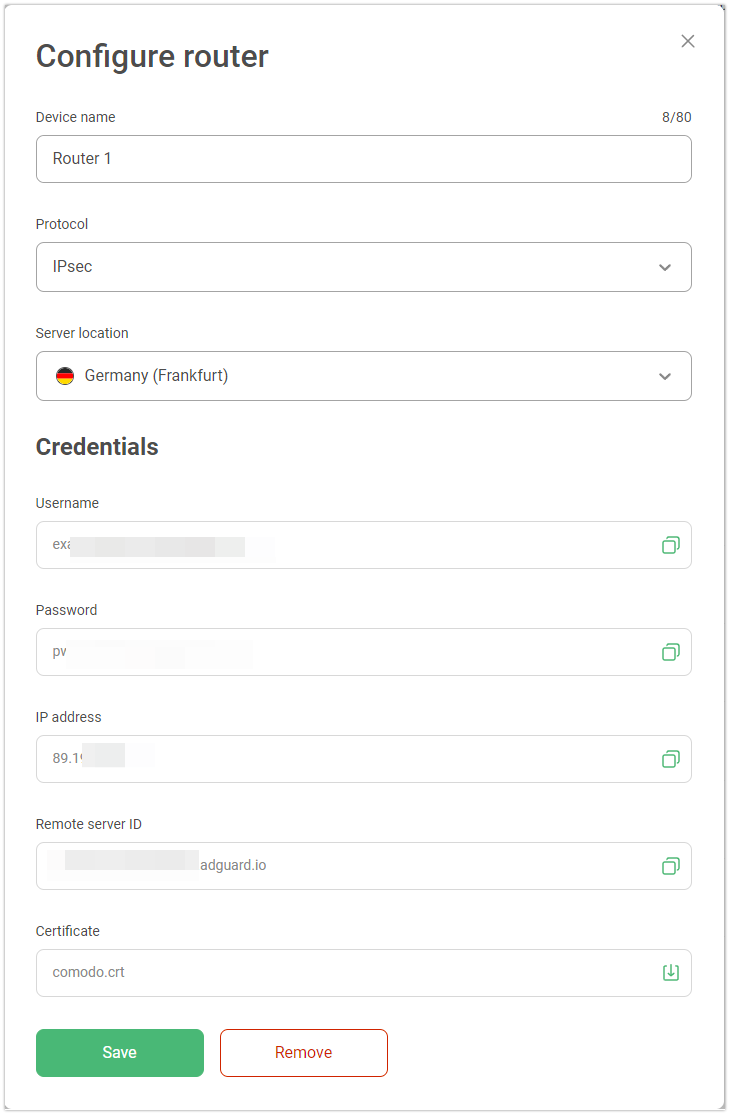
Než budete moci připojit svůj router k AdGuard VPN, musíte si v účtu AdGuard vygenerovat jedinečné přihlašovací údaje. Tyto přihlašovací údaje zahrnují adresu serveru, uživatelské jméno a heslo, které budete později používat při konfiguraci routeru.
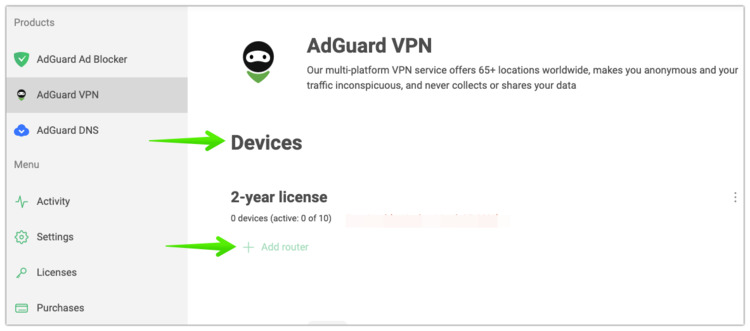
Ve svém AdGuard účtu vyberte AdGuard VPN.
V části Zařízení klikněte na Přidat router.
Vyberte požadované umístění serveru VPN a vygenerujte přihlašovací údaje.
Obecné nastavení většiny routerů
Většinu moderních routerů, které podporují IKEv2/IPSec, lze nakonfigurovat s AdGuard VPN v několika málo krocích. Jakmile budete mít připravené přihlašovací údaje, postupujte podle těchto obecných pokynů k vytvoření připojení VPN na vašem routeru.
Další kroky se mohou lišit v závislosti na vašem routeru. Jako příklad jsme použili router Keenetic.
Otevřete stránku pro správu routeru
Přejděte do nastavení routeru
Povolte klienta VPN a klikněte na Přidat server VPN
Vyberte možnost IPsec-client (u některých značek routerů se může nazývat IKEv2, nikoli L2TP/IPsec)
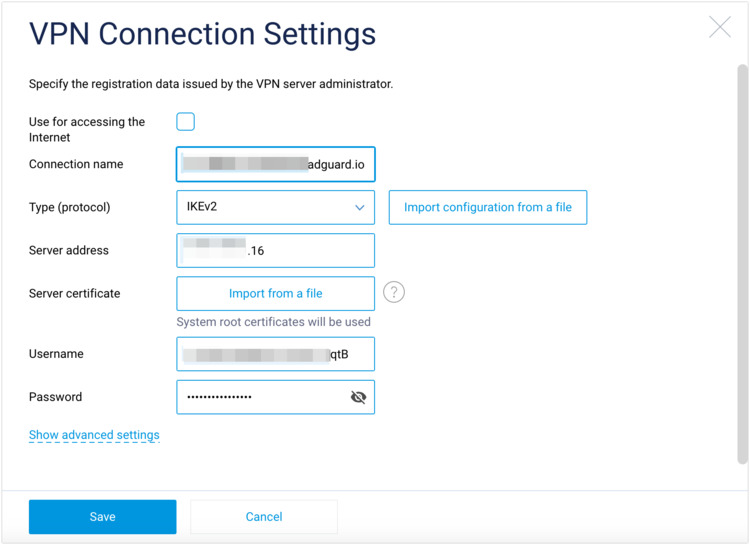
Zadejte přihlašovací údaje, které jste vytvořili.
 poznámka
Do pole adresa serveru zadejte IP adresu ze svého účtu AdGuard.
Připojte zařízení k routeru.
Pokud chcete změnit umístění serveru VPN, musíte aktualizovat nastavení routeru.
Routery, o kterých je známo, že nejsou kompatibilní s AdGuard VPN
Níže jsou uvedeny routery, u kterých jsou v současné době známy problémy s kompatibilitou:
ASUS
Routery ASUS nepodporují protokol IKEv2/IPsec, takže je nelze nastavit pomocí výše uvedené obecné metody. Routery s vlastním firmware Asuswrt-Merlin však mohou nainstalovat AdGuard VPN CLI, což plně podporuje metodu instalace s CLI.