How to unblock Netflix and watch any show from anywhere
Netflix doesn’t always work the same way for everyone. Depending on your location, network, and device setup, you may notice differences in available Netflix content or how the service behaves.
In this guide, we’ll look at why these differences occur, how Netflix libraries vary across regions, and what you can do to get a more consistent streaming experience.
Why is Netflix blocked for you?
Netflix is a global streaming service, but your experience can vary depending on where and how you connect. There are several common reasons why certain titles or even the service itself may not be fully accessible.
Regional availability and content difference
Netflix offers different content libraries depending on your location. The platform determines your region based on your IP address and then shows the catalog available in that area.
This is largely due to licensing agreements. In many cases, Netflix only has the rights to stream specific titles in certain countries rather than worldwide. As a result, a show available in one region may be missing or removed in another, sometimes without notice.
Restrictions on school, college, and work networks
Netflix streaming services may not always be available on shared networks such as those in schools or offices. Network administrators sometimes limit access to high-bandwidth or entertainment platforms to maintain performance and productivity.
If you’re connected to such a network, you might notice that Netflix is blocked, doesn’t load properly, or is unavailable altogether.
ISP-level blocks
In some regions, ISPs may block or restrict access to Netflix entirely due to local regulations that require them to limit access to certain platforms. In these cases, users might see messages indicating that the service isn’t accessible in their area.
Connection quality can also play a role. Some ISPs may manage network traffic during peak times, which can affect streaming performance and lead to slower speeds or buffering.
Understanding Netflix content libraries
Netflix operates multiple regional catalogs across the world. While there is often overlap, each region may feature unique titles, local productions, or different release schedules. For example, the US Netflix library is often considered one of the most extensive, while countries like Japan are known for strong anime selections. Other regions may focus more on local or regional content.
When accessing Netflix from different network setups or locations, you may notice variations in what’s available. Most setups grant full access, allowing you to browse and watch the content typically available for your current region. Sometimes, the available catalog may be reduced, focusing on globally available titles such as Netflix Originals. And in rare cases, the service may not work at all due to network or regional limitations.
3 ways to improve your Netflix experience
Depending on your needs and technical comfort level, there are several ways to make your Netflix experience more consistent and reliable across different networks and regions. Below are three common approaches, ranging from full-device solutions to simple browser-based options.
Use a VPN
A VPN is one of the most versatile tools for improving how streaming services work across different environments. It routes your Internet connection through a remote server and encrypts your traffic, which can enhance both privacy and connection stability. A reliable VPN for Netflix can also help you enjoy your favorite shows while traveling, just as if you never left home.
By connecting through different server locations, users may also notice changes in how content is presented, depending on the region associated with the connection.
AdGuard VPN is a freemium service designed to provide secure and flexible Internet access across a range of platforms, including streaming services like Netflix, Disney+, and HBO Max. There is, however, one important detail to keep in mind. Streaming access is only supported through servers in regions such as the US, Japan, France, Spain, Germany, Korea, Turkey, the UK, and Canada.
Pros:
Works across apps: Unlike browser-only solutions, AdGuard VPN supports native apps on Windows, iOS, MacOS, and Android, allowing you to use streaming services beyond just the browser.
Custom DNS options: Users can select different DNS servers, including options with ad-blocking features, which can improve overall browsing comfort.
TV support: A dedicated app for Android/Google TV makes it easier to stream content on larger screens.
Free plan and 7-day free trial: A limited free plan is available. A separate 7-day trial with full access is provided with annual subscriptions via the App Store or Google Play (billing starts after the trial; cancel anytime).
Up to 10 devices: One subscription covers up to 10 devices at the same time.
Cons:
- Free plan limits: The free tier includes a monthly data cap and reduced speeds, which may only be sufficient for occasional streaming.
Smart DNS
Smart DNS is a specialized solution often used to improve Netflix streaming on different devices. Unlike a VPN, it does not encrypt your traffic or reroute your entire connection. Instead, it focuses on specific requests related to location data that streaming platforms use to determine available content.
Pros:
High speeds: Since there is no encryption overhead, Smart DNS typically delivers fast streaming performance with minimal latency.
Wide device support: It works on devices that don’t support VPN apps, such as Apple TV, Roku, PlayStation, Xbox, and many Smart TVs.
Cons:
No added privacy: Smart DNS does not encrypt traffic or hide your IP address, so it does not provide additional security or anonymity.
Manual setup: Configuration usually requires changing DNS settings on your device or router and linking your IP address with the service provider.
Inconsistent results: Because the connection itself isn’t fully modified, streaming platforms may not always respond the same way across different sessions or servers.
Proxies and browser extensions
A proxy server acts as an intermediary between your browser and the Internet. It can change how your web traffic is routed, but, unlike a VPN, it does not encrypt the connection and only protects traffic within that specific browser — other apps on your device remain unaffected. Browser extensions are the most common and convenient way to use proxies.
Pros:
Easy to use: Most extensions can be enabled with a single click directly in your browser.
Lightweight: They require fewer system resources compared to full VPN applications.
Cons:
Limited coverage: Proxy extensions typically only affect traffic within the browser, while other browsers and apps on your device use your regular connection.
Variable compatibility: Streaming platforms may recognize and treat proxy-based connections differently, which can affect how content is displayed or accessed.
Potential security concerns: Some free proxy services may lack encryption or have unclear data-handling practices.
| VPN (AdGuard VPN) | Smart DNS | Proxy / Browser extension | |
|---|---|---|---|
| Ease of use | Easy (apps for all major platforms) | Medium (manual setup required) | Very easy (one-click in browser) |
| Device compatibility | Works on apps (Windows, iOS, macOS, Android, TV) | Works even on devices without VPN support (TVs, consoles) | Browser only |
| Speed | Fast, but may vary due to encryption | Very fast (no encryption overhead) | Good, but depends on proxy quality |
| Privacy & security | High (encrypts traffic) | None (no encryption or IP masking) | Low (often no encryption) |
| Streaming consistency | Generally stable, depends on server | Can vary depending on setup | Inconsistent |
| Extra features | Custom DNS, multi-device support (up to 10 devices) | None | None |
| Free option | Limited free plan available | Usually no free tier | Often free (with limitations/risks) |
| Trial | 7-day full-access trial (App Store / Google Play) | Typically no | Not typical |
| Main drawback | Free plan limits (data cap, reduced speeds) | No privacy, manual setup | Limited protection, potential security concerns |
How to use AdGuard VPN with Netflix: Step-by-step
Step 1. Install AdGuard VPN on your device
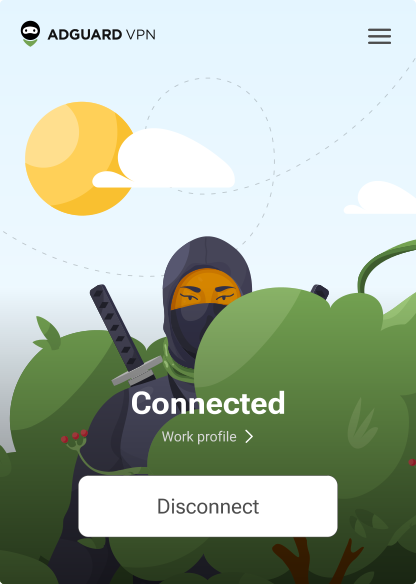
AdGuard VPN is available on multiple platforms, including Windows, macOS, Android, iOS, browser extensions (Chrome, Edge, Firefox, Opera), and Android TV.
For devices that don’t support VPN apps directly (such as some Smart TVs, Apple TV, PlayStation, or Xbox), you can set up the VPN at the router level.
Step 2. Connect to a server in the desired country
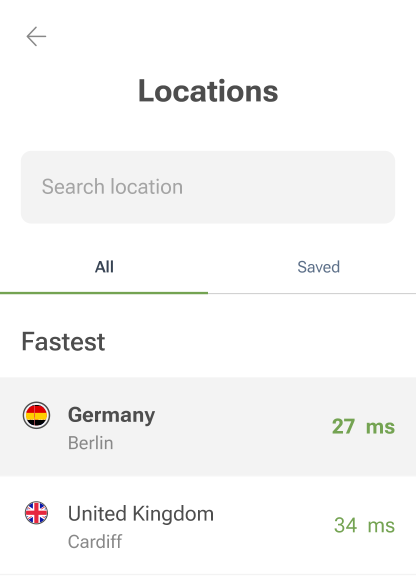
After launching the app, open the list of available server locations and select a region. Different locations may offer different Netflix libraries and performance characteristics.
For example, some users prefer US servers for a broader catalog, while others may choose regions like Japan or the UK for specific types of content. Once selected, connect and allow a few seconds for the connection to establish.
If the experience isn’t optimal right away, switching to another server in the same region can sometimes improve stability or content availability.
Step 3. Log in to Netflix and start watching
With the VPN active, open Netflix in your browser, mobile app, or TV app and sign in as usual. The Netflix content you see may reflect the region associated with your current connection.
If the catalog doesn’t update immediately or playback behaves unexpectedly, try reconnecting to a different server or refreshing your app or browser (clearing cache and cookies can also help in some cases).
How to watch Netflix on school or college networks
School and college networks often limit access to streaming platforms like Netflix, Twitch, YouTube, or social media. This is usually done to reduce bandwidth usage and keep the network focused on academic activities. As a result, some services may not load or may work inconsistently when you’re connected to campus WiFi.
One way to improve your experience is by using a secure connection that helps maintain privacy and stability across restricted networks.
Here’s how to get started:
Step 1: Open your device’s app store and search for a VPN app like AdGuard VPN
Step 2: Download and install the app on your mobile or desktop device
Step 3: Launch the app and connect to a server
Step 4: Once connected, open Netflix and sign in as usual
Step 5: If needed, switch servers or refresh the app to improve playback
A secure connection can help ensure that your traffic is handled more consistently on managed networks, which may improve how streaming services load and perform.
Netflix connection behavior: why access may vary and how to improve stability
When using a VPN with Netflix, the experience can sometimes vary depending on the server and connection type. Streaming platforms continuously adjust how they handle different network patterns and shared IP environments, which can occasionally affect how content is delivered. Understanding these dynamics can help you maintain a more stable streaming experience.
How Netflix identifies connection patterns
Netflix determines available content based on your IP address, which provides general information about your network location. When a VPN is used, your traffic is routed through servers that are shared by many users, which can make the connection appear different from a typical residential one.
Streaming platforms may analyze overall connection patterns, such as repeated usage from shared server environments or high traffic coming from the same IP range. Additionally, services may maintain internal lists of network ranges associated with shared or commercial infrastructure.
In some cases, this can result in a reduced or simplified content catalog, often focusing on globally available titles.
What to try if playback is inconsistent
If Netflix does not load as expected or the catalog appears different, there are several ways to improve consistency:
Try a different server. Switching to another server in the same region can sometimes improve performance or restore a more typical browsing experience.
Use streaming-optimized servers. Some VPN providers offer servers designed for media streaming, which may provide more stable connections during peak hours.
Refresh local browser data. On desktop browsers, clearing cache and cookies can help remove stored session data that may affect how the service loads.
Use the full application. A dedicated VPN app can provide more consistent behavior across different devices compared to lightweight browser-based options.
Consider a dedicated IP option. Some providers offer a dedicated IP address that is not shared with other users. This can result in a more stable and consistent connection experience, although it may come at an additional cost and with different privacy trade-offs.
Check provider recommendations. VPN services often maintain updated guidance on which servers perform best for streaming platforms, which can help improve reliability.
FAQ
Is it legal to unblock Netflix with a VPN?
Using a VPN is not illegal. There are no laws that prohibit using VPNs in most countries. However, Netflix may technically restrict or limit access when VPN or proxy connections are detected, since it uses measures to enforce regional licensing agreements.
Can Netflix ban my account for using a VPN?
Netflix does not state that it bans or terminates accounts for using a VPN. Instead, when a VPN or proxy is detected, Netflix may restrict or alter what you can watch. In most cases, this means you may only see titles that are available globally, or you may be unable to stream certain content while the VPN is active.
Why does Netflix have different libraries in different countries?
Netflix offers different content libraries depending on location due to licensing agreements. In many cases, Netflix only has rights to stream certain titles in specific countries, which is why available content can vary between regions.
What is the best free way to unblock Netflix?
Use AdGuard VPN’s free plan. A 7-day trial with full access is available when subscribing via the App Store or Google Play (annual plan, billing starts after the trial, and can be canceled anytime).
How do I unblock Netflix on a Smart TV?
AdGuard VPN has a dedicated app for Android/Google TV. For devices that do not support VPN apps directly (such as some Smart TVs, Apple TV, PlayStation, or Xbox), the VPN can be set up at the router level.
Can I unblock Netflix at school or college without a VPN?
School and college networks often restrict access to streaming platforms like Netflix, YouTube, and social media. These restrictions are typically applied to manage bandwidth and maintain productivity, so Netflix may not load properly or may be unavailable on campus WiFi without a VPN.
Does AdGuard VPN work with Netflix?
Yes. AdGuard VPN supports streaming services including Netflix, Disney+, and HBO Max.