TechTok #4. Learning the basics about DNS filtering and DNS privacy
We’re continuing our TechTok series, where we answer your questions about ad blocking, VPNs, and technology in general. We’ve already covered several VPN- and ad blocking-related topics, so today let’s tackle some of your questions about DNS filtering and DNS privacy. It seems logical to kick things off with this question from Lenny:
How does AdGuard DNS work? What are some of the pros and cons of DNS filtering compared to the regular ad blocking and when is it best to use each of them?
DNS filtering is a very important tool in privacy protection and ad blocking, and to better understand it we should first brush up on what DNS is and how it works.
Let’s say you type something into your browser’s address bar or click on a link. How does the browser know where to take you? It only understands the language of IP addresses, and not human words like google.com. So in order to learn the website’s IP address the browser reaches a DNS server. DNS stands for “Domain Name System,” and this system exists to translate domain names (e. g. google.com) into IP addresses (e. g. 74.125.139.139). There are many DNS servers that can serve as translators, and you can use any one of them. Your Internet Service Provider (ISP) will provide you with a default DNS server, but you can go ahead and switch to any one that you prefer.
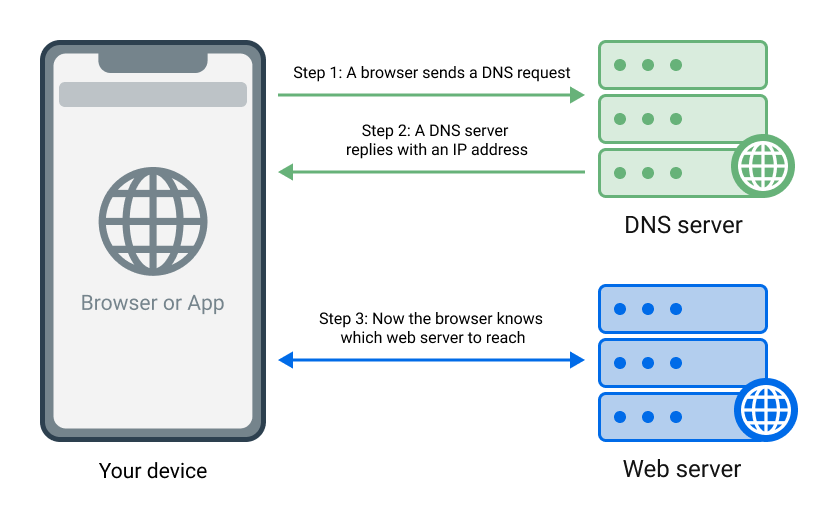
How DNS works
A ‘normal’ DNS server will simply return the IP address of the website you want to visit, without any ifs and buts. There are, however, DNS servers that under certain circumstances instead of giving the browser the correct IP address return 0.0.0.0, effectively pointing it to a ‘black hole.’ This is precisely how ad-blocking DNS servers, including AdGuard DNS, work.
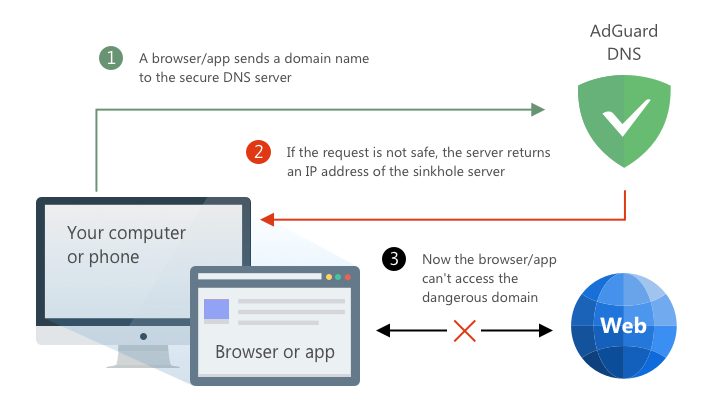
The basic principle behind DNS filtering
Different servers may have different lists of domains they block — in case of AdGuard DNS it’s a long list of ad, tracking, and malicious domains.
Now let’s compare DNS filtering with regular filtering. Its main drawback is apparent — with DNS filtering, you can only block entire domains. It lacks the finesse of the more nuanced web filtering, where you would be able to block specific requests, apply ‘cosmetic’ rules to make the page look better after blocking the ad, and do many more things. Nearly all other drawbacks of DNS blocking stem from this inability one way or another and can be described altogether as “much less flexible filtering.” But what about the advantages?
First and foremost, it’s the ability to easily set it up on virtually any device connected to the Internet — phones and tablets, smart TVs, even smart home appliances. While in order to do web filtering you’d need a browser extension or a standalone ad-blocking app, with DNS filtering you can literally change one line of text in your router’s settings, and all devices connected to your home Wi-Fi will be protected from ads and trackers.
Another distinct advantage of DNS filtering is that it is being applied at the earliest possible stage, so in a sense it’s the most efficient way to block ads and prevent tracking, especially on mobile devices where battery and traffic consumption may be of concern.
To sum it up and to answer the last part of Lenny’s question, ideally you would want to supplement network filtering with DNS filtering on all devices that support both. They complement each other, especially in terms of protecting you against tracking. If you have to choose, and if your device allows it, opt for regular web filtering — it is more flexible and will give you a better overall experience. And on devices like routers and smart TVs go for DNS protection, as it might be the only option available there.
Now that we know how DNS and DNS filtering work, it’s time to talk about how to keep your DNS connection safe and private. This simple question from xiulou will help us kickstart the conversation:
What do you think of the DNScrypt protocol?
Just like your regular web traffic needs to be secured to prevent bad actors from spoofing and tampering with it, your DNS traffic needs that too. DNSCrypt was one of the earliest attempts at encrypting DNS queries to protect them from surveillance. At the time, it was a serious breakthrough in DNS privacy, but mostly because the alternatives were virtually non-existent. DNSCrypt is still around today (and AdGuard DNS supports it to this day), but it’s been long surpassed and overshadowed by more modern protocols like DNS-over-HTTPS and DNS-over-TLS.
Speaking of those, Dmitry inquires:
Please explain “for dummies” how DNS-over-TLS and DNS-over-HTTPS work.
DNSCrypt, despite being the pioneer of DNS encryption protocols, is only responsible for less than 10% of all encrypted DNS requests today. Much more popular protocols are DNS-over-TLS (DoT) and especially DNS-over-HTTPS (DoH), which together take up close to 90% of all encrypted DNS traffic. Let’s try to dip a little into how they work.
With unencrypted DNS, when your browser requests the IP address of the website you’re connecting to, it sends the request with the domain name of that website to the DNS server in plain text. This means that anyone who ‘listens’ to your DNS traffic faces no hurdles and can easily see every single website that you’re trying to visit — this is not private at all.
With DoH, your DNS communication is encrypted with HTTPS — the known, go-to secure protocol that you see everywhere on the web (think green lock icons next to the address bar in your browser). Every DNS query your browser sends over DoH is encrypted by being ‘wrapped’ inside an HTTPS request. This not only provides protection in and of itself, but also makes your DNS traffic look like regular HTTPS traffic to outside observers. This way they might not even realize what they see is a DNS query, let alone look inside it.
DoT operates in a slightly different way to DoH. It uses TLS security protocol to create a direct, secure tunnel between your browser and the DNS server, over which the DNS queries can travel both ways. This makes your DNS traffic safe, but also much more trivial to detect for anyone watching, as it’s easily distinguished from regular HTTPS traffic. All in all, both protocols provide security but do it differently and each has its own uses.
There are more DNS-related questions left, but it’s impossible to pack all the answers in just one article. We will definitely get back to DNS filtering and DNS privacy later — send us more of your questions about DNS and on other topics over through this form, and you might see the answers already in the next TechTok edition!