How to install VPN on smart TV

In our modern world, technology is developing rapidly, providing us with more and more opportunities for convenient and varied pastimes. One of the striking examples of such progress is the emergence of smart TV, which transformed an ordinary TV into a multimedia center with Internet access. Now, users can watch traditional TV channels and use online services such as YouTube, Netflix, or Hulu directly on their TV. However, with new opportunities come new risks, especially concerning privacy and data security.
VPN (Virtual Private Network) technology helps protect your data and ensure secure access to Internet resources. A VPN creates an encrypted tunnel between your device and the VPN server, thereby keeping your data private and your online presence anonymous.
What is smart TV?
Smart TV is equipped with an Internet connection and can support various apps. This device combines traditional TV and computer functions, providing access to a wide range of online services such as streaming platforms (Netflix, YouTube, Amazon Prime, etc.), social networks, web browsers, games, and more.
Main characteristics and capabilities of smart TV:
- Internet access
- Apps for watching videos, listening to music, playing games, and more
- Streaming services
- Built-in web browsers
- Social networks
- Games
- Convenient user interface
- Voice search and control
- Smart home integration
Smart TVs open up new possibilities for users, allowing them to enjoy a richer multimedia experience right from the comfort of their home.
Why install and how to use VPN on smart TV?
Access to geo-blocked content
Installing a VPN allows you to bypass geographic restrictions and access content that is not usually available in your region, such as certain streaming services or TV channels.
Security and privacy
VPN provides an encrypted connection, which guarantees the protection of your personal data and anonymity while viewing content on your smart TV.
Bypass censorship and blocking
Internet censorship may restrict access to certain sites and services in some countries or regions. A VPN allows you to bypass these blocks and enjoy free access to information.
Anonymity of online activity
A VPN hides your IP address, making your online activity anonymous and difficult for anyone to track your online behavior.
Best prices for subscriptions and purchases
Prices for some subscriptions or online purchases may vary by region. A VPN allows you to change your virtual location and access better deals.
More options for content selection
VPN provides access to content libraries from streaming platforms in different countries.
Criteria for choosing a reliable VPN provider for smart TV
Connection speed
You need a high-speed VPN service to view video content comfortably on smart TV. Check if your VPN provider offers unlimited speed and broadband to avoid buffering while browsing.
Number of servers and their geographical location
A large number of servers in different countries guarantees a higher probability of a stable and fast connection and the ability to bypass geographical restrictions.
Privacy Policy (no-logs policy)
Choose a VPN provider with a strict no-logging policy to ensure the privacy of your online activities.
Encryption level
A high level of encryption (e.g., AES 256-bit) will protect your data from unauthorized access.
Supports various devices and platforms
Check if the VPN supports your smart TV and other devices you plan to use.
Easy to install and use
The user interface should be simple and clear, and the installation process should not be complicated.
Technical support
The availability of round-the-clock technical support will help you quickly solve problems that arise.
Price
Compare prices and ensure the package you choose fits your budget and offers good value.
Free trial or money-back guarantee
This will allow you to evaluate the service before subscribing for a long period.
Reviews and recommendations
Review other user and professional reviews to learn the pros and cons of each VPN provider.
Additional functions
Some VPN providers offer additional features such as ad blocking, anti-scam measures, or malware protection.
How to install VPN on smart TV
Via router with VPN
Installing a VPN on your router is an effective way to provide a secure connection for all devices in your home, including your smart TV. First, make sure you have a VPN router. Some routers offer built-in VPN support, while others may require you to install specialized firmware such as DD-WRT or Tomato. Then, select a VPN service that supports installation on routers, such as Adguard. Follow the link to learn more about setting up a VPN via a router.
Using the VPN app on your smart TV
To install a VPN using an app on your smart TV you need to ensure that your TV supports installing apps directly. First, choose a VPN provider that offers an app for smart TV. Create an account on the website of your chosen VPN provider and select a suitable plan. Next, on your smart TV, open an application store, for example, Google Play Store for Android TV, and in the search bar, enter the name of your VPN provider and click on the search button. Once the app is found, click the Install button to download and install the VPN app on your smart TV.
Once installed, launch the VPN app and log into your account using the credentials you created when you signed up. In the application, select the server you want to connect to. Usually, you can choose a server in a specific country or city. After selecting the server, click on the connect button to start the VPN connection and wait a few seconds until the connection is established. Once connected to the VPN, check your IP address in your smart TV's web browser, if you have one, or on a dedicated IP checking website to see if your IP address has changed. Now, with an active VPN connection, you can enjoy access to blocked content and a higher level of privacy when watching your smart TV. Remember that the installation process and app interface may vary slightly depending on your VPN provider and smart TV model.
Via PC with connected VPN
To connect a VPN to your smart TV via PC, you will need to choose a reliable VPN provider and install the appropriate software on your computer. After installing the VPN on your computer, launch it and connect to the selected VPN server.
The next step is to create a virtual router on your computer. If you are using Windows, open a Command Prompt (CMD) as an administrator and enter the netsh wlan show drivers command to verify that the virtual access point can be created. Look for the line that says "Hosted Network Support: Yes." This confirms that your network card can create a virtual access point. Now enter the command netsh wlan set hostednetwork mode=allow ssid=Your_Network_Name key=Your_Password, replacing "Your_Network_Name" and "Your_Password" with your desired network name and password respectively. Then activate the created access point by entering the command netsh wlan start hostednetwork.
Now go to the "Network and Sharing Center" through the control panel of your PC, find your new connection, right-click on it and select "Properties". Go to the "Sharing" tab, and check the box next to "Allow other network users to connect to the Internet through this computer" and select the virtual router you created from the drop-down menu.
Finally, go to your smart TV's network settings and find and connect to the virtual network you created. Your smart TV is now connected to a VPN through your computer, which will provide access to blocked content and increase your privacy while using it. This method may seem complicated at first, but it will provide a reliable VPN connection for your smart TV through your PC.
Via streaming media devices (such as Amazon Fire Stick or Apple TV)
If you have a media streaming device, you can install a VPN on that device and connect it to your smart TV. First, you need to choose a VPN provider that is compatible with your Streaming Media device and create an account on the provider's website. After that, for Amazon Fire Stick, go to the Search section on the home screen and enter the name of your VPN provider. Find the VPN app in the search results and select it to install. Once the installation is complete, launch the application and enter your account information to log in.
For Apple TV users, the process will be similar: open the App Store, enter the name of your VPN provider in the search field, and find and install the VPN app. Once the installation is complete, launch the app and enter your VPN account login information. After logging in, you will most likely be asked to select the server you want to connect to. Select a server in your desired country to bypass geo-restrictions and start watching content on your smart TV. Some VPN apps offer additional features, such as selecting a VPN protocol or automatically connecting to the VPN when the device starts. These features can be helpful to provide better performance and usability.
Smart DNS
Installing a VPN on your smart TV using smart DNS is a great way to bypass geographic restrictions without losing your Internet connection speed. First, you need to choose a VPN provider that offers Smart DNS service. After registering and getting a VPN account, go to your VPN provider's website and find the Smart DNS section. There, you will find the DNS server addresses that you will need to use. Then, go to your Smart TV settings and find the network or internet connection settings section.
In the DNS settings section, change the option from Automatic to Manual and enter the DNS server addresses provided by your VPN provider. After entering the DNS addresses, save the changes and reboot your smart TV. You should now be able to access geo-blocked content through your smart TV. It's important to remember that while smart DNS helps you bypass geo-restrictions, it does not encrypt your internet traffic the same way a traditional VPN connection does, so if security and anonymity are also important to you, you may need to consider other VPN options to your Smart TV.
Can I use a free VPN for smart TV?
Yes, you can use free VPN services for your smart TV, but there are a few things to consider:
Limited server options
Free VPN services often offer a limited selection of servers, which may make some geo-blocked content unavailable.
Speed cap
Free VPN services usually have slower connection speeds compared to paid alternatives. This may result in buffering, poor streaming speed and video playback quality.
Traffic limits
Many free VPN providers limit the data you can transfer over your VPN connection. This can be a problem, especially if you plan to watch high-definition videos.
Ads
Free VPN services may include ads, which can be annoying and reduce the user experience.
Privacy and security
Free VPN services may have less strict privacy and security policies, which may put your personal data at risk. Some free VPN services may even sell your data to third parties.
Compatibility
Not all free VPN services will be compatible with smart TVs or offer apps for easy installation.
Technical support
Free VPN services usually have limited technical support, which may make it difficult to get help if you have problems.
For these reasons, if you are looking for a reliable and convenient solution, you may want to consider a paid VPN service. They usually offer better connection quality, a larger selection of servers, better support, and stricter privacy and security policies.
Why is AdGuard the best VPN for smart TV?
Unique protocol
AdGuard VPN has developed a protocol that effectively masks VPN traffic while balancing speed and security perfectly.
Exclusion lists
Users can configure the websites where the VPN will be activated or deactivated. Regular and Selective modes give you flexible control over your VPN use.
Selecting a DNS server
Users can choose a DNS server for different purposes: improved security and traffic control, ad-blocking and malware protection.
Quick locations
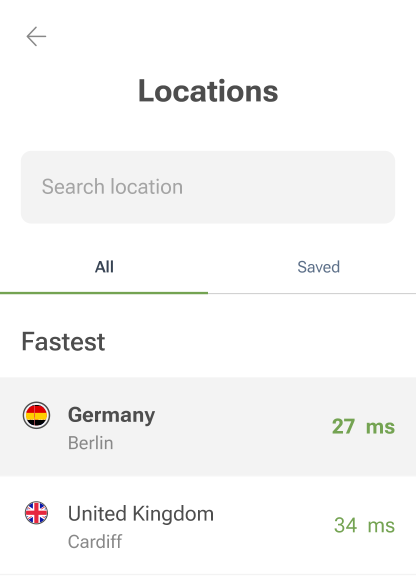
Users can select servers based on ping, which helps optimize connection speed. AdGuard VPN regularly expands the list of available locations.
Compatibility with AdGuard Ad Blocker
On desktops, compatibility is easily achieved; in mobile versions, a solution has been found to combine AdGuard VPN and an ad blocker, ensuring smooth interaction without user intervention.
QUIC support
This protocol improves connection quality in difficult conditions, such as mobile Internet or public Wi-Fi networks.
Kill Switch
Automatically turns off the Internet when the VPN connection is lost, ensuring the safety of personal data on unreliable networks.
Excluding apps
The functionality allows you to select which apps will work through the VPN, similar to website exclusion lists, improving traffic management and security.