Discord is blocked in your country? This is how to restore access to the platform
Discord, a voice, video, and text chat app, has long been a go-to platform for gamers and has surged in popularity among casual users, particularly during the Covid pandemic. With nearly 200 million users worldwide, it’s accessible on nearly every platform, including Windows, macOS, Android, iOS, iPadOS, and Linux, and through web browsers.
The app has become a vibrant hub for AI enthusiasts as well; its most popular server, Midjourney — an AI-based text-to-image generator — boasts around 20 million members.
In essence, Discord serves as a versatile tool in various contexts, making it especially frustrating when access is suddenly restricted. There are several reasons this might occur, ranging from server-side issues to ISP-level blocks imposed by local authorities. Recently, Turkey and Russia have both blocked Discord. Turkey accused the platform of hosting content related to “child sexual abuse and obscenity,” while Russia claimed Discord failed to remove nearly 1,000 posts deemed “illegal.” Additionally, Discord faces restrictions in the UAE due to the country's ban on voice and video calling services, and it is fully banned in mainland China, along with most other Western social media and messaging platforms.
Below are the instructions for restoring access to Discord if you find that the platform has stopped working for you.
Check global availability
First, determine whether Discord is experiencing issues globally. You can use websites like DownDetector or Is It Down Right Now? to see if other users are reporting problems. If the issue is widespread, it may be on Discord's end, and all you can do is wait for them to resolve it.
Restart the app and device
Sometimes, the problem may be temporary and can be easily fixed by restarting the app. Close Discord completely and then reopen it. If that doesn’t work, try rebooting your device. This often clears minor system glitches that could be affecting the app’s performance.
Use a VPN
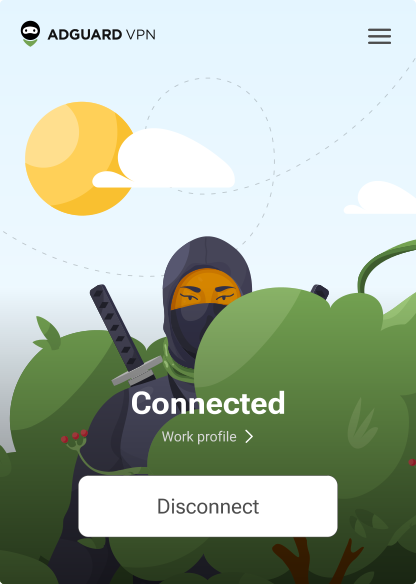
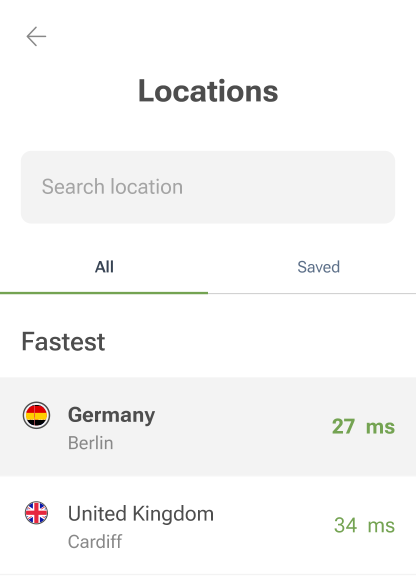
One of the easiest and safest ways to unblock websites like Discord is to use a VPN. A VPN connects you to a remote server, hiding your traffic and real IP address, which allows you to bypass restrictions and access blocked content. Download and install the VPN app on your device, create an account, and log in. Then, select a server in a location where Discord is accessible. Keep in mind that a VPN may slow down your connection, so opt for a server with a low ping for a better speed.
Using a VPN also keeps your online activity anonymous, preventing your ISP from tracking your visits to any websites. To enjoy the full benefits of a VPN, it's important to choose a provider carefully. We would be especially wary of completely free VPNs that promise premium services at no cost. In most cases, the catch is either ads or compromised privacy, such as the VPN sharing your data with its partners. Below are some cardinal rules on how to choose the right service for you.
When selecting a VPN to unblock Discord, consider the following factors:
- Server locations: Ensure the VPN has servers in countries where Discord is accessible. A larger number of server locations can offer more flexibility.
- Speed and performance: Look for VPNs that advertise high-speed connections and have minimal impact on your browsing speed. Reading user reviews and conducting speed tests can help you find a reliable service.
- Privacy policies: Choose a VPN with a strict no-logs policy, meaning they don’t store any data about your online activities. This is crucial for maintaining your privacy.
- Ease of use: Opt for a VPN that offers a user-friendly interface, making it easy to connect and switch between servers. Most reputable VPNs provide apps for various devices, including Windows, macOS, Android, and iOS.
Change your device’s DNS settings
Modifying your DNS server can help you unblock websites. This works similarly to a VPN by changing your virtual location when you switch DNS servers. You can update your DNS settings on various devices, including Windows, Mac, Android, and iOS, as well as in your browser or through your router.
To bypass website blocks, consider using public DNS servers like Google DNS (8.8.8.8 and 8.8.4.4) or OpenDNS (208.67.222.222 and 208.67.220.220), or AdGuard DNS (94.140.14.14 and 94.140.15.15).
You can usually find these settings in the network configuration section of your device. After you change your DNS settings, make sure to check if the previously blocked websites are now accessible to confirm that everything is functioning correctly.
- Windows 10: Go to Network & Internet settings → Change adapter options. Right-click your active connection, select Properties, then Internet Protocol Version 4 (TCP/IPv4). Choose Use the following DNS server addresses and input public DNS servers.
- Windows 11: Go to SettingsNetwork & Internet. Select Wi-Fi or Ethernet depending on your connection. Under DNS server assignment, select Edit. From the drop-down menu, select Manual. Turn on the IPv4 toggle switch. Under Preferred DNS, enter your desired address.
- macOS: Go to System Settings → Network. Select your connection, click Details, then the DNS tab. Remove any existing DNS servers and add new ones.
- Router: Access your router settings through its IP address, find the DNS settings section, and enter your preferred DNS servers there.
Clear the Discord cache
The app’s cache can sometimes become corrupted, which may lead to performance issues. Clearing the cache can help resolve glitches and improve overall functionality. When you restart Discord after clearing the cache, the app will create a new, fresh cache, often leading to a smoother experience. This simple step can make a significant difference if you're encountering problems with the app.
Clearing cache on different devices
- Windows: Press
Win + R, type%appdata%, and hit Enter. Find the Discord folder, delete it, and restart the app. - Mac: Open Finder, press
Cmd + Shift + G, type~/Library/Application Support/Discord, and delete the Cache folder. Restart Discord afterward. - iOS: Go to Settings → General → iPhone Storage, select the app, and choose either Offload App to clear cache while keeping data or Delete App to remove the app and all its data.
- Android: Navigate to your device’s settings, find the Apps section, select Discord, choose Storage, and clear the cache.
Conclusion
These are some common methods for unblocking Discord and restoring access to the platform. While using a VPN is an effective solution in many cases, it’s important to note that its legality varies by country. Be sure to familiarize yourself with local laws and regulations regarding VPN usage. By following these steps, you can enhance your experience on Discord and overcome any restrictions you may encounter.