Exclusions
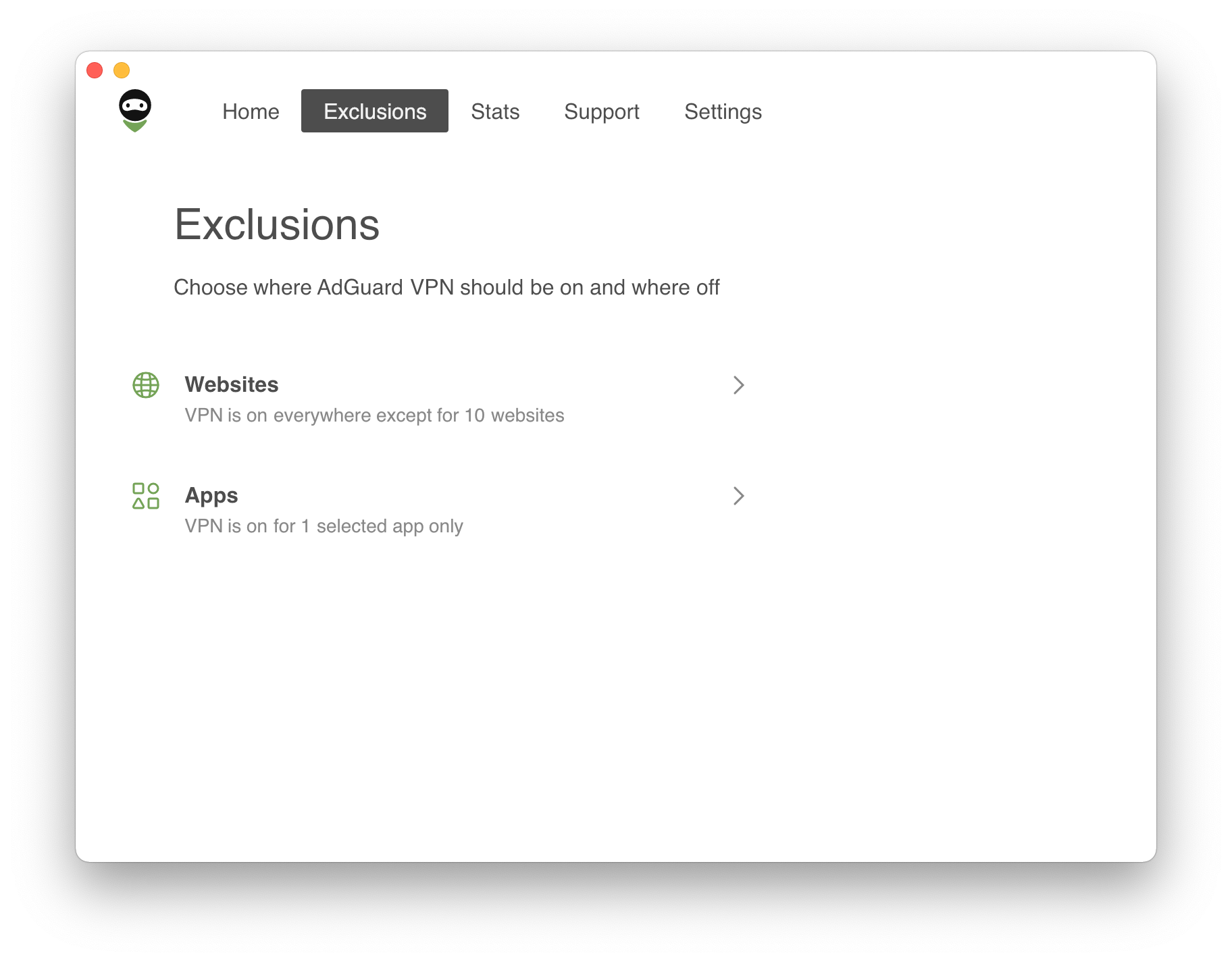
AdGuard VPN has several features that make it unique, and one of them is definitely Exclusions. By default, AdGuard VPN will run on all websites and in all apps but the ones from the exclusions list. But you can switch to the other mode, so AdGuard VPN will run only on websites and in apps from the exclusions list.
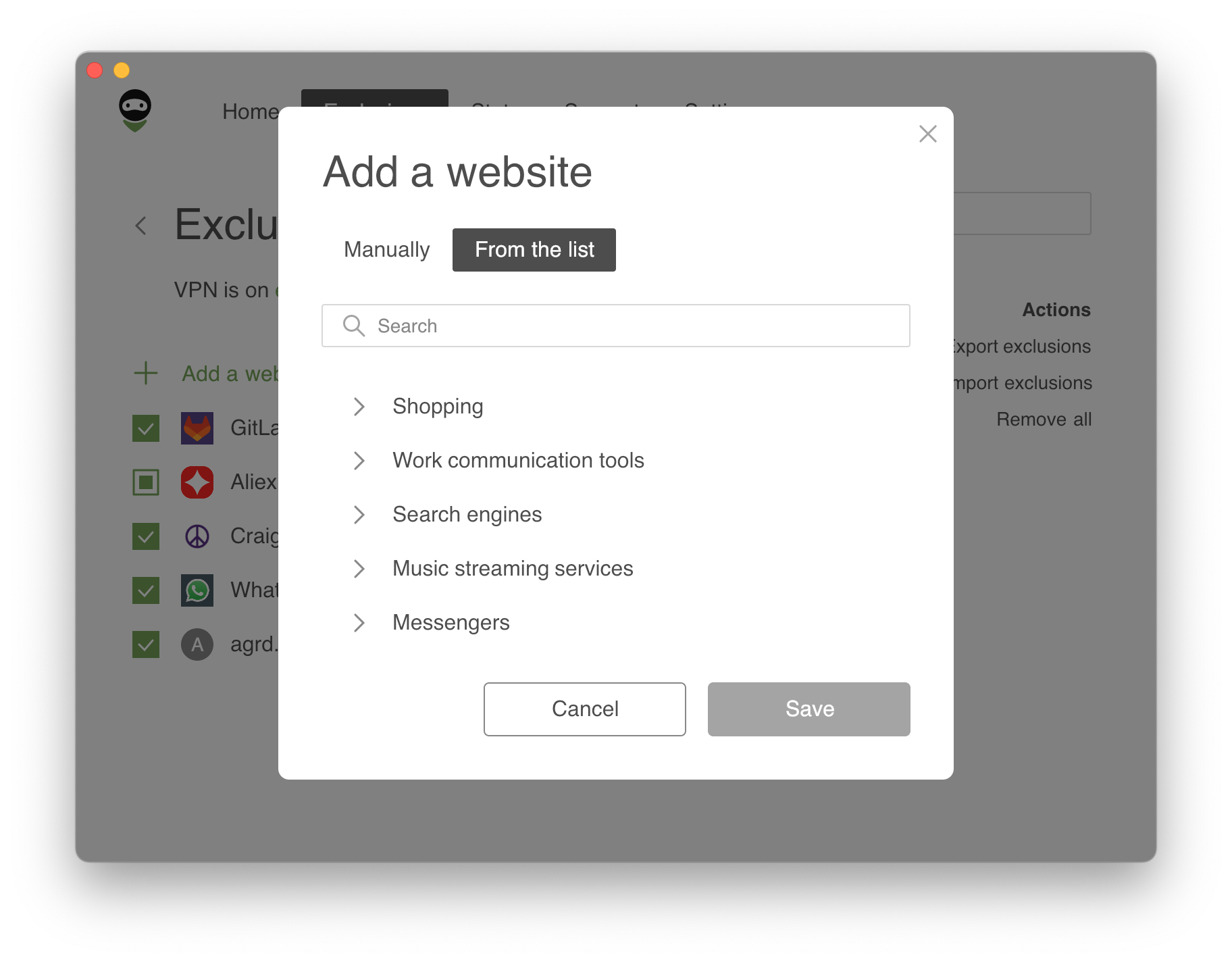
Also you can not only add websites to Exclusions but also choose among the lists of popular services. The lists are divided into eight categories: Social networks, Messengers, Video and Music streaming services, Games, Shopping, Search engines, and Work communication tools. Any of these services can be added to Exclusions in one click! It’s especially convenient if you use Selective mode.
Exclusion list can be easily configured. If you’ve added a domain and some of its subdomains, they’ll be grouped inside the root one. When adding a root domain (example.com) its mask is added too (*.example.com).
Starting with the version 2.4, all browsers are automatically added to the list of exclusions when the VPN is active only for selected apps and websites. This change brings more convenience for users who were often confused and didn’t know whether to consider their browsers as apps or not. It applies under the following conditions:
- The user has installed AdGuard VPN for the first time
- The user did not modify the Exclusions settings prior to v2.4
If you’ve added a service, changed or removed something and now want to recover initial settings, just press Reset to default next to the domain — this action will restore any missing domains and tick all checkboxes.
What’s more, ready-made exclusions lists can be transferred to other devices with installed AdGuard VPN. To export exclusions, follow the four-step instruction below:
- Open AdGuard VPN on the device from where you want to export your lists of exclusions. Find the appropriate section and click the Export button. The
exclusions.ziparchive will be downloaded. - There are two
.txtfiles inside the archive, each for General and Selective lists. Add more exclusions to them, delete the existing ones, rename files (but more on this later), or just leave the archive with files as it is. - When transferring between different devices, don’t forget to send the
.zipfile to the device for import. For example, if you import exclusion lists from your Mac to your iPhone, make sure to send the.zipfile to your phone beforehand. - Open AdGuard VPN on the device/in the browser where you want to import the archive with the ready lists of exclusions. Find the appropriate section, click the Import button and select the archive. Done!
Archive files from other devices can be similarly imported to your AdGuard VPN for Mac.