Advanced settings
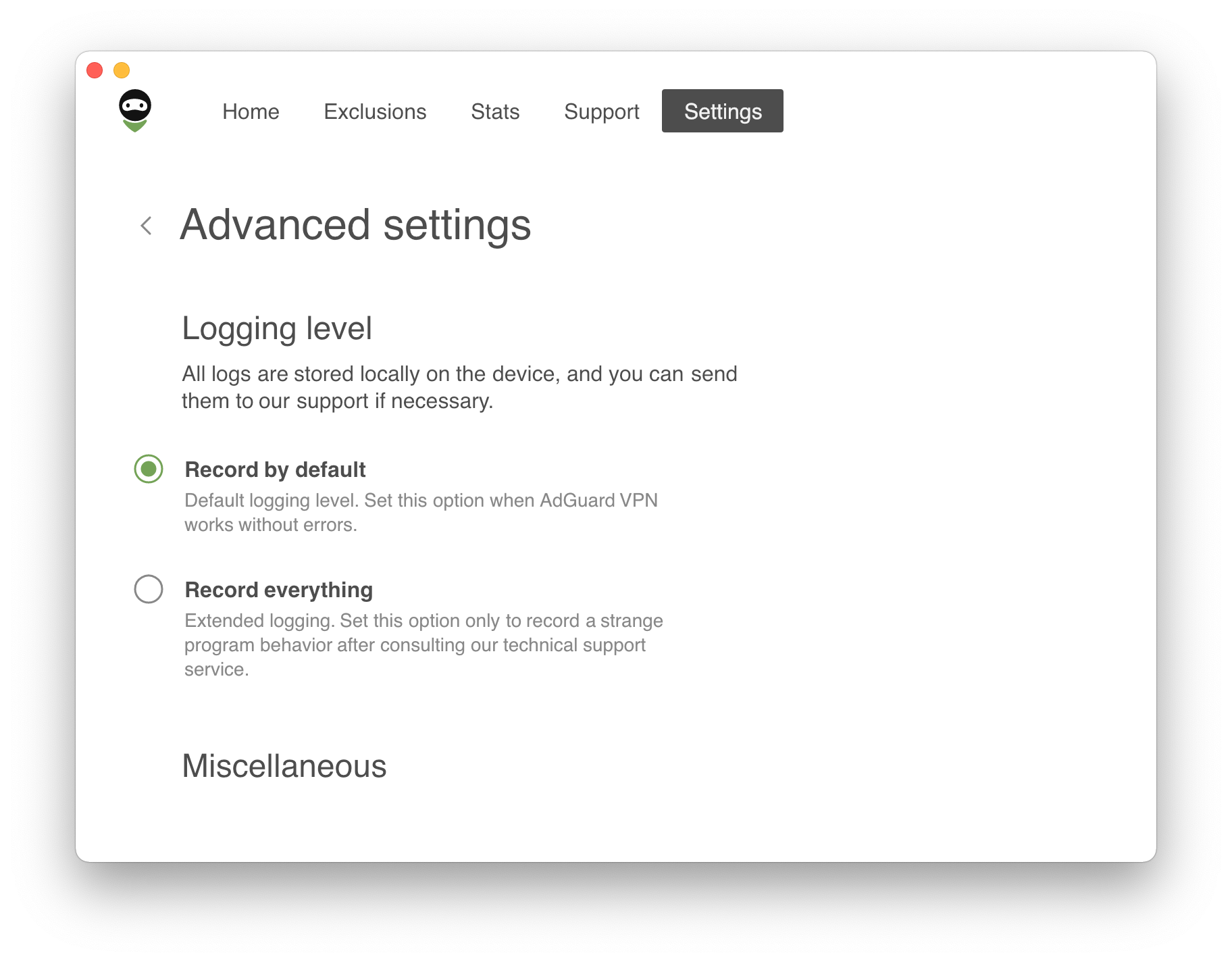
In Advanced settings, you can configure logging, hide the menu bar icon, select the VPN protocol, and manage the IPv6 interface.
Logging level
There are only two logging levels but we strongly recommend that you use the first, default one. The second option (extended logging) should be set only to record a strange program behavior after consulting our technical support. If you have enabled the extended logging level, make sure to switch to the default one after recording logs.
Hide menu bar icon
Although this option is located in Advanced settings, it can be enabled without hesitation. You can hide the AdGuard VPN icon from the menu bar, it won’t prevent our app from running in the background.
AdGuard VPN protocol
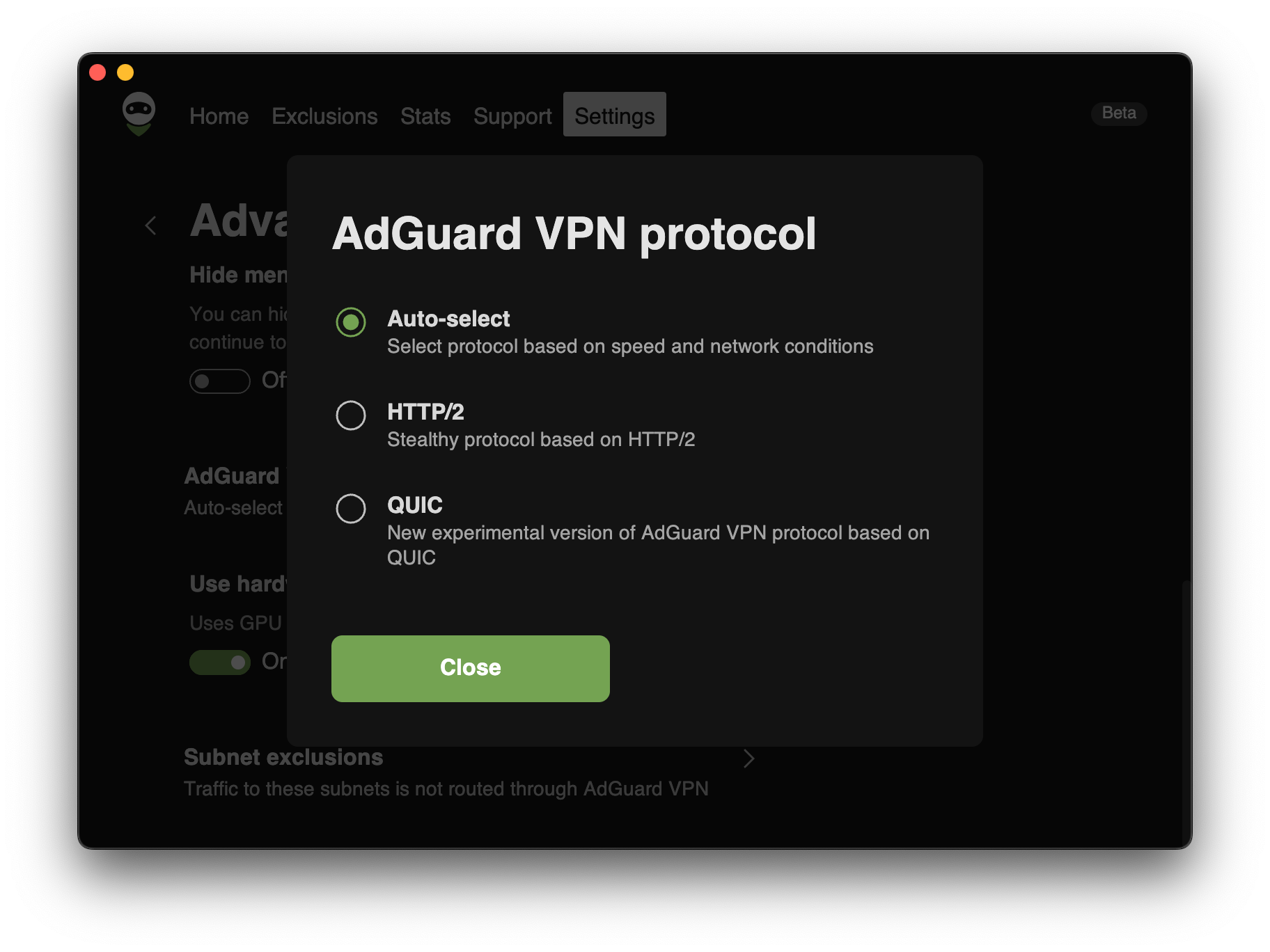
By default, AdGuard VPN protocol uses dynamic VPN protocol selection (Auto-select option). That means that AdGuard VPN automatically figures out which protocol — HTTP2/TLS or HTTP3/QUIC — will give you the best performance and switches to it instantly. This improves VPN speed and stability, which is particularly helpful in regions where VPN usage is restricted or unreliable.
If you wish, you can switch AdGuard VPN to use only HTTP2/TLS or HTTP3/QUIC protocol instead of Auto-select. Each protocol has its strengths, but the best choice can vary depending on your location, network conditions, and even the server you connect to.
IPv6 interface
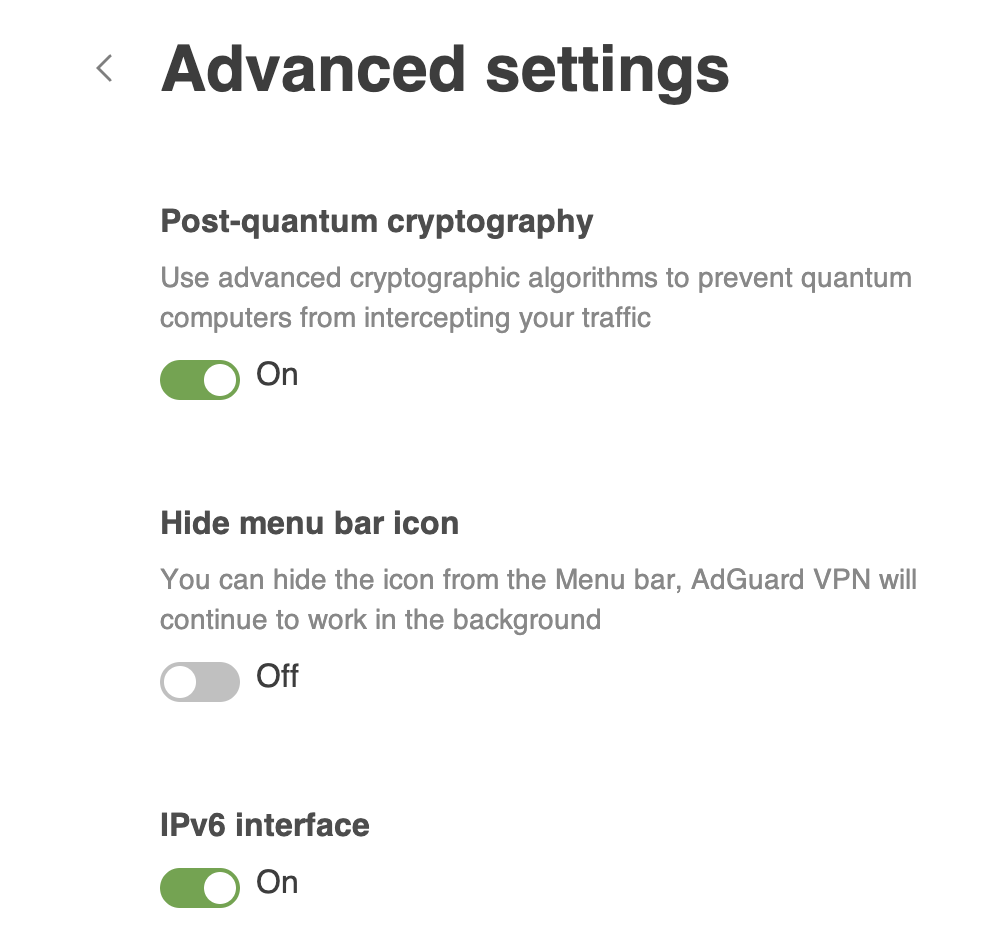
The IPv6 interface setting controls whether IPv6 traffic is available while you’re connected to AdGuard VPN. It’s enabled by default, so you can use IPv6 if your network supports it. If YouTube, Gemini, or other Google services don’t work with the VPN on, try turning this setting off. This blocks IPv6 traffic and lets you check whether the services work over IPv4.