AdGuard VPN for Windows
This article covers the AdGuard VPN desktop app for Windows.
AdGuard VPN for Windows creates an encrypted tunnel between your device and a remote server, so your traffic is protected from interception and spoofing, and websites see the IP address of the server instead of yours. Use it to stay safe on public Wi-Fi, open websites and services that are not available in your country, or hide your real location from advertisers. The app uses TrustTunnel, our own protocol, which provides a fast and secure connection. For the full list of AdGuard VPN advantages, see Why AdGuard VPN is the better option.
Starting with the app
To start using AdGuard VPN for Windows, download the app from our website, install it, and sign in. The installer will ask you to accept the User Agreement and the Privacy policy, and to decide whether AdGuard can collect anonymized app usage data.
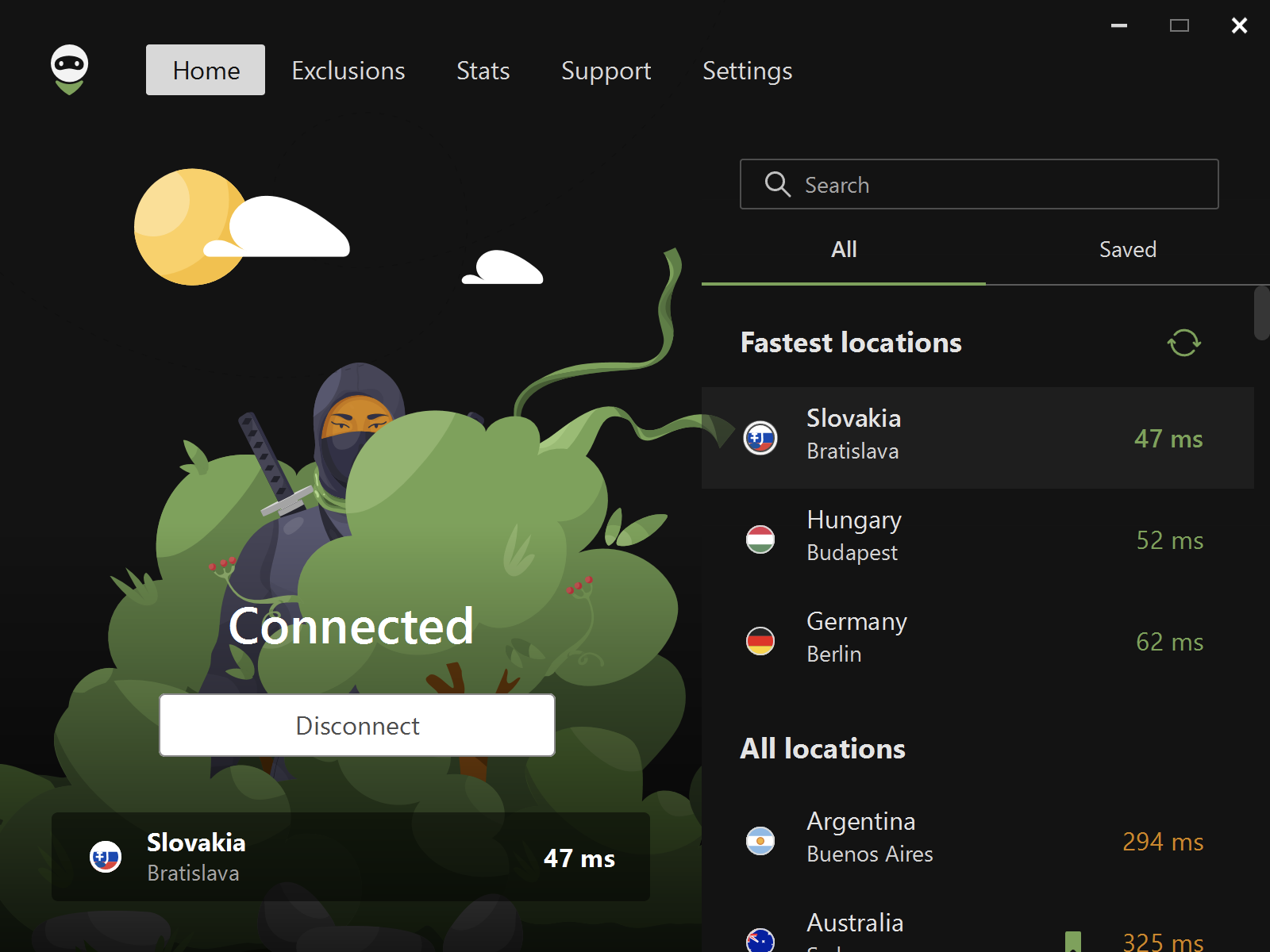
On the Home screen, you can see the AdGuard VPN Connect/Disconnect button and the selected server. On the right side of the screen there is a list of available locations. The fastest location, i.e. the one with the lowest ping, is shown at the top of the list. Locations you use often can be saved to the Saved tab.
At the top of the screen there is a navigation panel with five tabs: Home, Exclusions, Stats, Support, and Settings.
Using VPN for selected websites and apps
By default, AdGuard VPN for Windows works everywhere. You can add websites and apps you want to exclude from the VPN tunnel to the list of exclusions, or make AdGuard VPN work only on the websites and apps specified in the list of exclusions.
App settings
In App settings, you can set the app language, enable Kill Switch, auto-update, launch at Windows startup, auto-connect, anonymous app usage data collection, and change the theme. There you can also configure DNS servers and advanced settings.
Statistics
The Statistics screen shows detailed information about your data usage, categorized by both location and app, for different time periods: daily, monthly, or for the entire time you have been using AdGuard VPN for Windows. The information is stored only on your device and is available to AdGuard VPN subscribers.
Solving problems
Known issues and possible solutions for connection problems and installer errors.
Other tabs
The About tab provides information about the current version of AdGuard VPN for Windows, an update button, and links to the AdGuard VPN website, EULA, and Privacy policy.
The Account tab shows information about your license status and a link to your personal AdGuard account, where you can manage your current subscriptions and purchase new ones.
Support
The Support tab is aimed to solve users’ questions: there you can find a link to the FAQ page, report a bug or leave feedback, and export logs if the support team asks you to.