Shortcuts
Shortcuts, a tool built into iOS, makes it easy to manage your connections without opening AdGuard VPN. You can place a Connect, Disconnect, or Toggle VPN shortcut on your Home Screen, in Control Center, or in a widget, or set up a Siri phrase to connect with your voice.
Shortcuts can also include more complex automations. For example, your banking app might not work with a VPN on, but you always want it on for Instagram, or you want your VPN to turn off automatically on home Wi-Fi. Shortcuts lets you automate these scenarios.
Before you start
Make sure that:
- You have the Shortcuts app installed on your iPhone or iPad;
- AdGuard VPN is installed;
- You’re signed in to AdGuard VPN and have a VPN profile installed.
Connect or disconnect in one tap
AdGuard VPN provides three ready-made shortcuts: Connect, Disconnect, Toggle VPN. Connect turns on the VPN and connects to your last used location. Disconnect turns off the VPN. Toggle VPN switches between the two: it connects when the VPN is off and disconnects when it’s on.
You’ll find these shortcuts in the Shortcuts app: on iOS 16, look under App Shortcuts. Add any of them to the three places listed below.
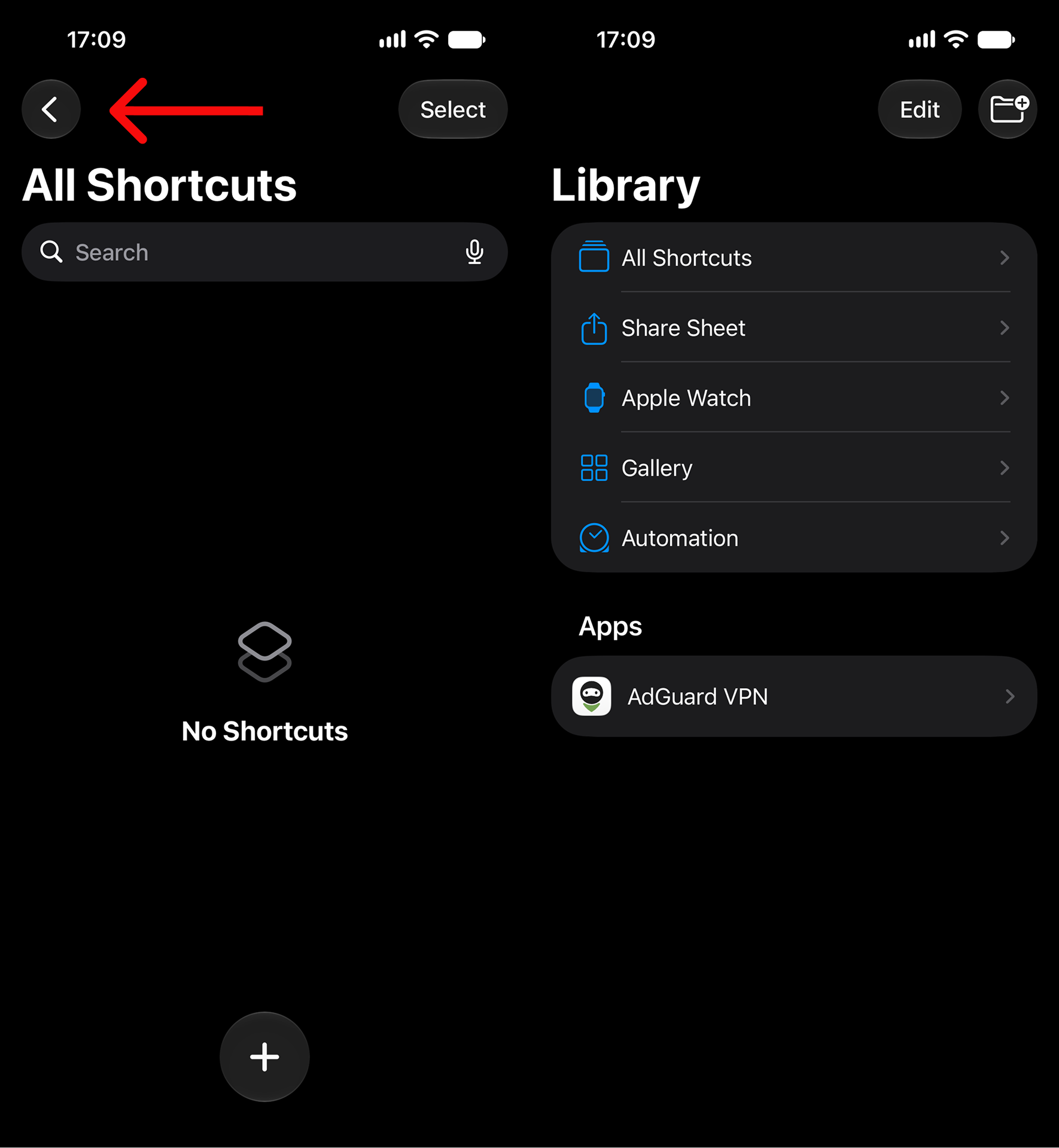
On iOS 27, find AdGuard VPN shortcuts in the Shortcuts app’s Library under Apps → AdGuard VPN. If Shortcuts opens to All Shortcuts, tap the back arrow in the top-left corner to return to Library.
Home Screen
To set up a shortcut on your Home Screen, follow the quick instructions in the AdGuard VPN app. (Settings → Shortcuts → Add shortcuts to the Home Screen).
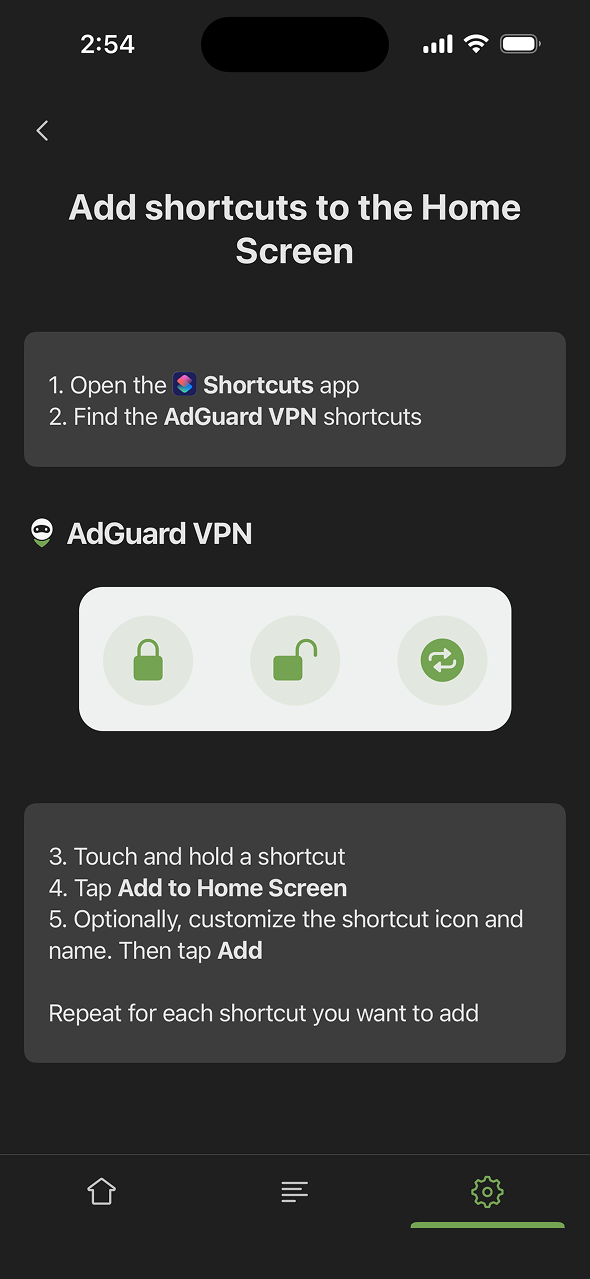
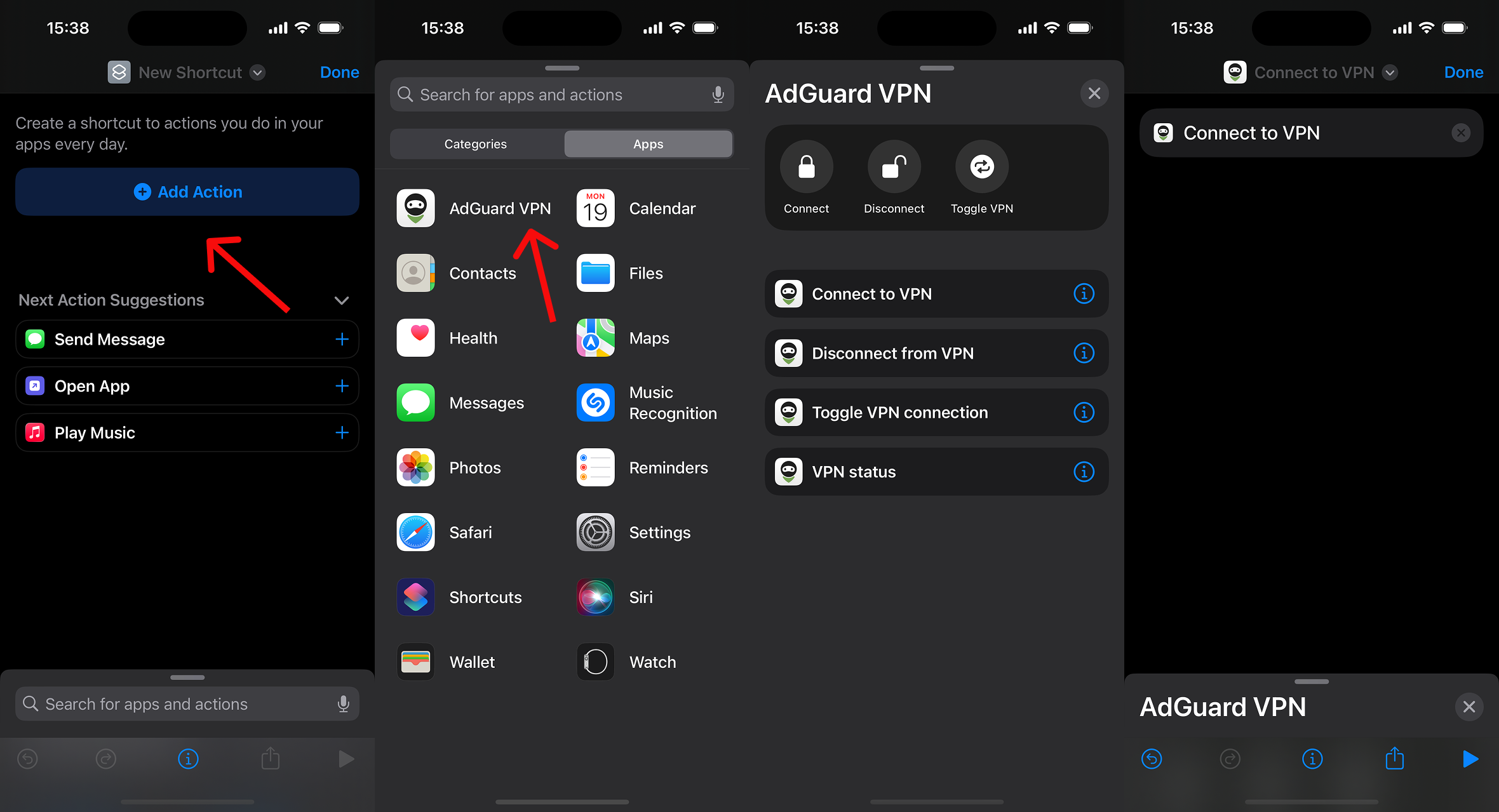
Instructions vary across iOS versions. Here are the instructions for iOS 16:
- Go to the Shortcuts app and tap the plus (+) button.
- Tap Add Action and select AdGuard VPN.
- Choose the shortcut you need: Connect to VPN, Disconnect from VPN, Toggle VPN connection, or VPN status.
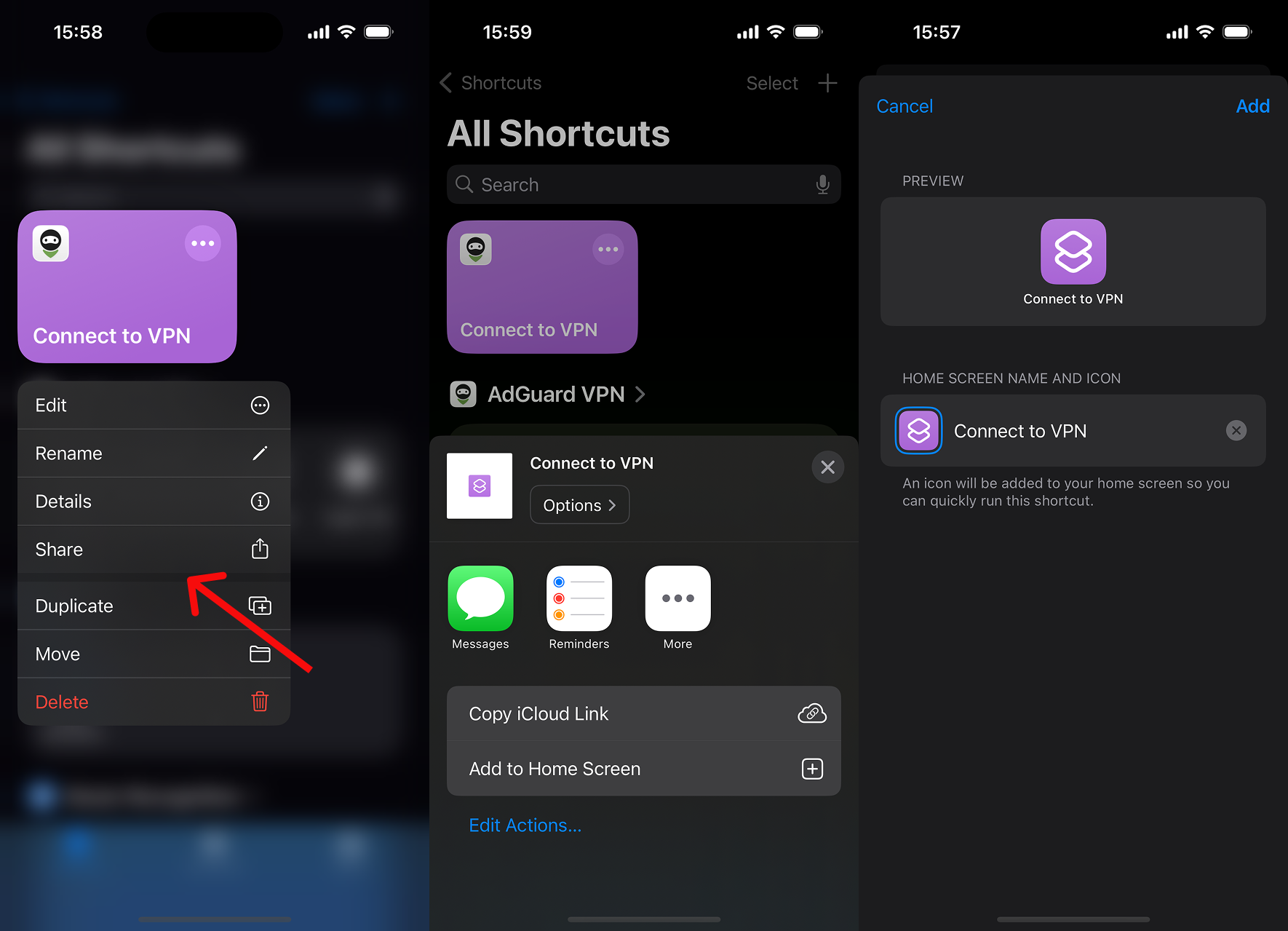
Here’s how to add the shortcut to your Home Screen.
- Long press the shortcut and tap Share → Add to Home Screen.
- Customize the shortcut name and icon if you need to, then tap Add. The shortcut will appear on your Home Screen as a 1x1 icon.
Control Center
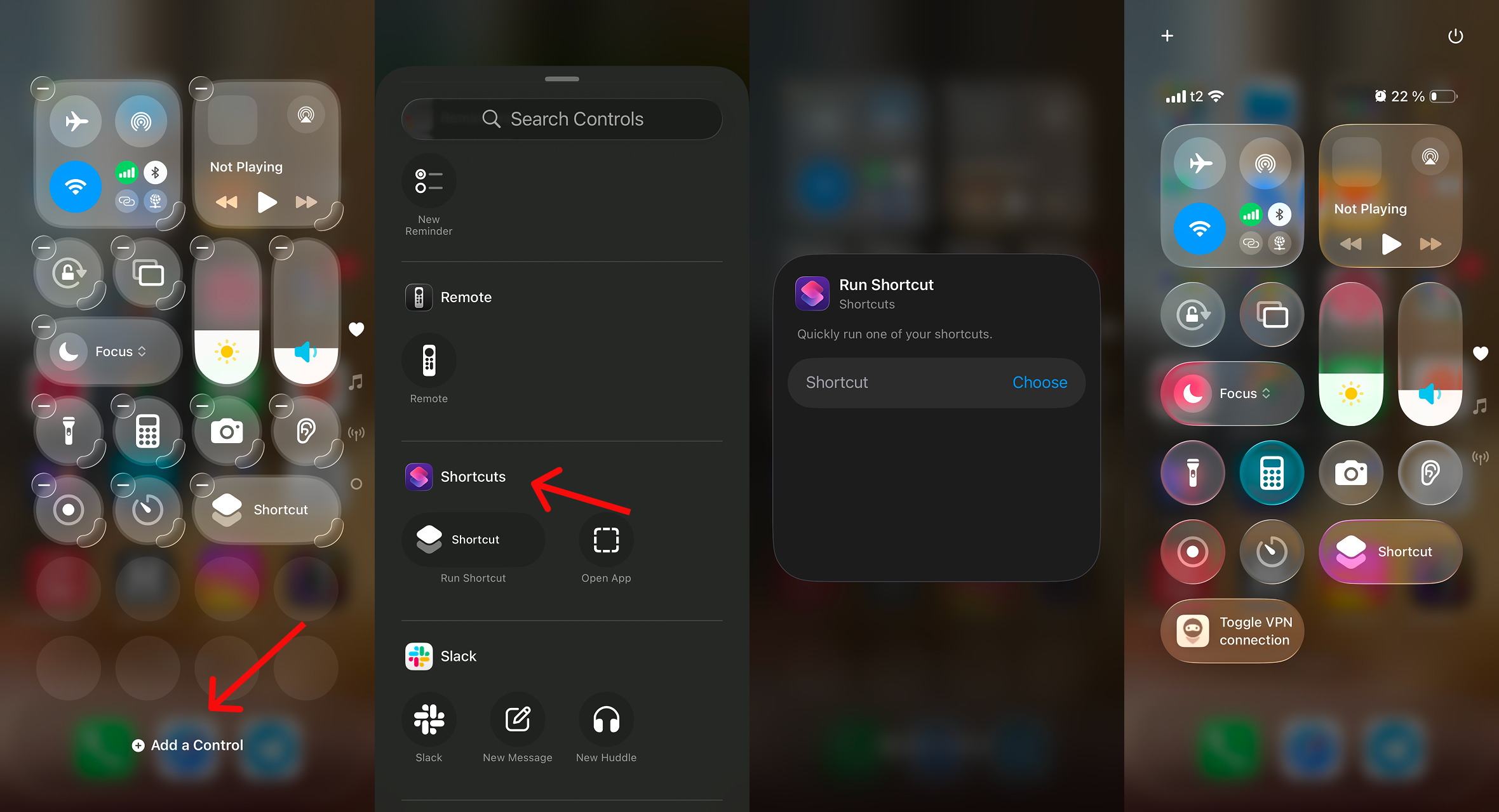
You can add an AdGuard VPN shortcut to the Control Center for quick access from anywhere on the device.
- Open Control Center. On an iPhone with Face ID, swipe down from the top right. On an iPhone with a Home button, swipe up from the bottom.
- Long-press an empty area and tap Add a Control.
- Find Shortcuts in the list and tap Run Shortcut, then tap Choose and select your AdGuard VPN shortcut. The shortcut will now appear in your Control Center.
Note: The exact steps may vary depending on your iOS version.
Widget
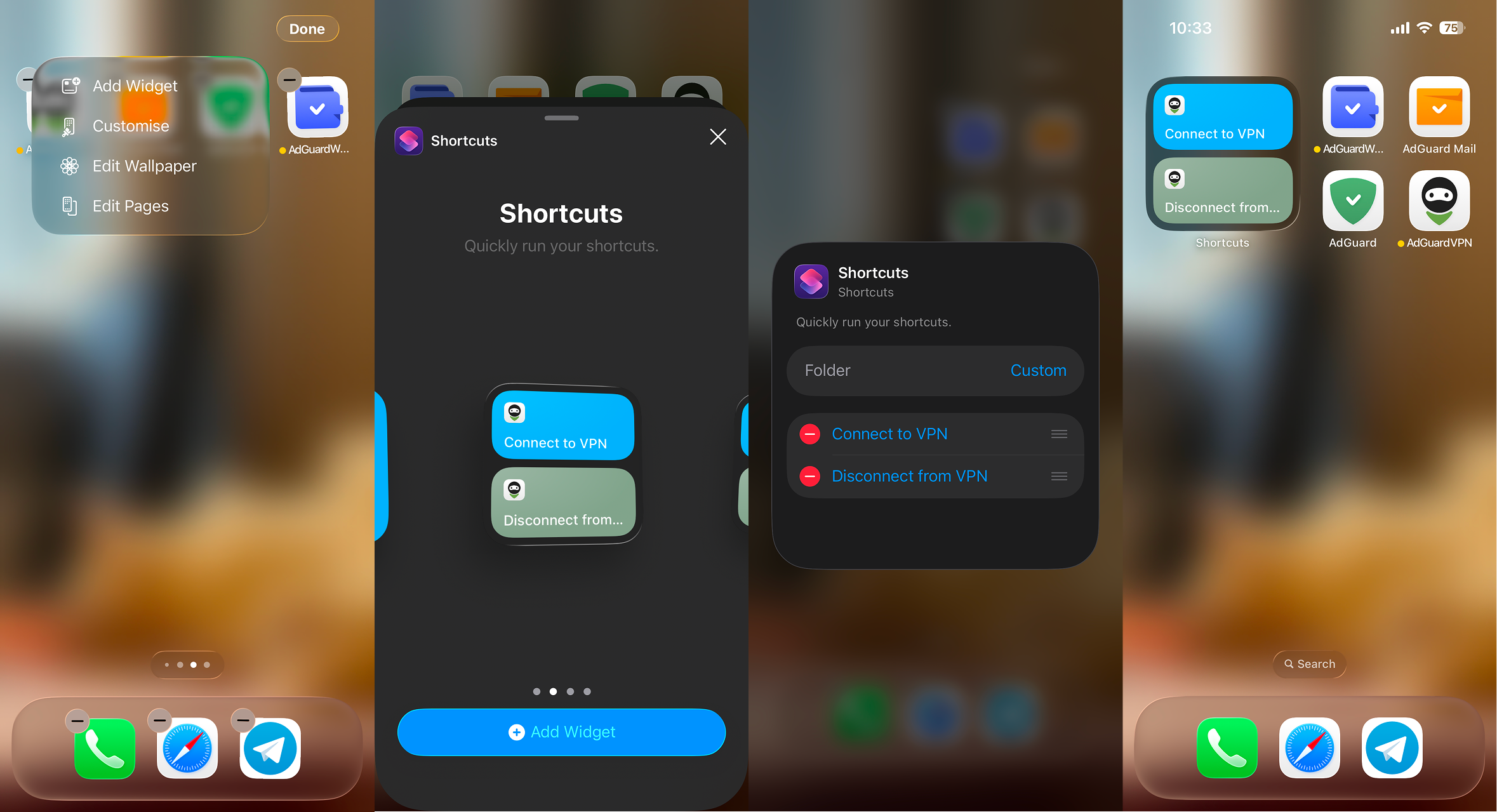
- Long-press an empty area on your Home Screen until the apps jiggle, then tap Edit in the top-left corner → Add Widget.
- Find Shortcuts in the list and choose a widget size. We recommend that you pick one that can display at least two shortcuts.
- Tap Add Widget.
- While in edit mode, tap the widget to open the configuration menu, set Folder to Custom, and assign Connect to VPN to one slot and Disconnect from VPN to the other.
One tap to open any app with VPN on
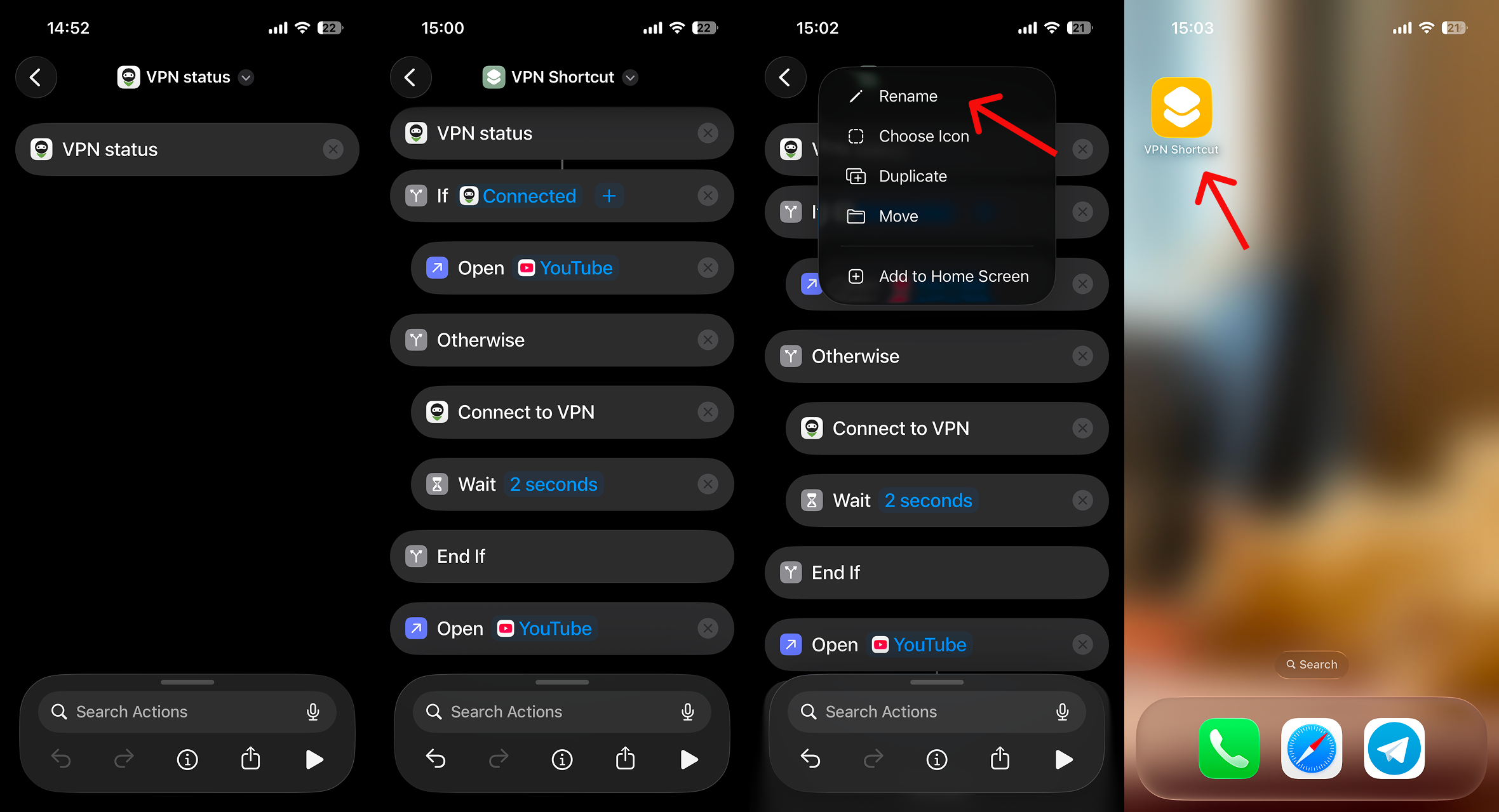
If you need the VPN on for a certain app and nothing else, you can create a custom shortcut that will turn on AdGuard VPN and open the app you want to open — all in one tap. Here’s how to set it up.
- Open the Shortcuts app, tap the plus (+) button, and search for AdGuard VPN. Add the VPN status action.
- Add an If action. Shortcuts fills the condition in for you: it takes the VPN status from the previous step and compares it with Connected. Inside it, add Open App and set it to the app you want — for example, YouTube.
- Under Otherwise, add three actions in order: AdGuard VPN → Connect to VPN, Wait (set to 2 seconds), and Open App (same app as above).
- Tap the name at the top to set a custom icon and name, then test the shortcut with the play button.
- Add the shortcut to the Home Screen by tapping the name and selecting Add to Home Screen.
Connect or disconnect with Siri
In the AdGuard VPN app, go to Settings → Shortcuts → Set up Siri phrases. You will then have two options: Record a phrase to connect or Record a phrase to disconnect.
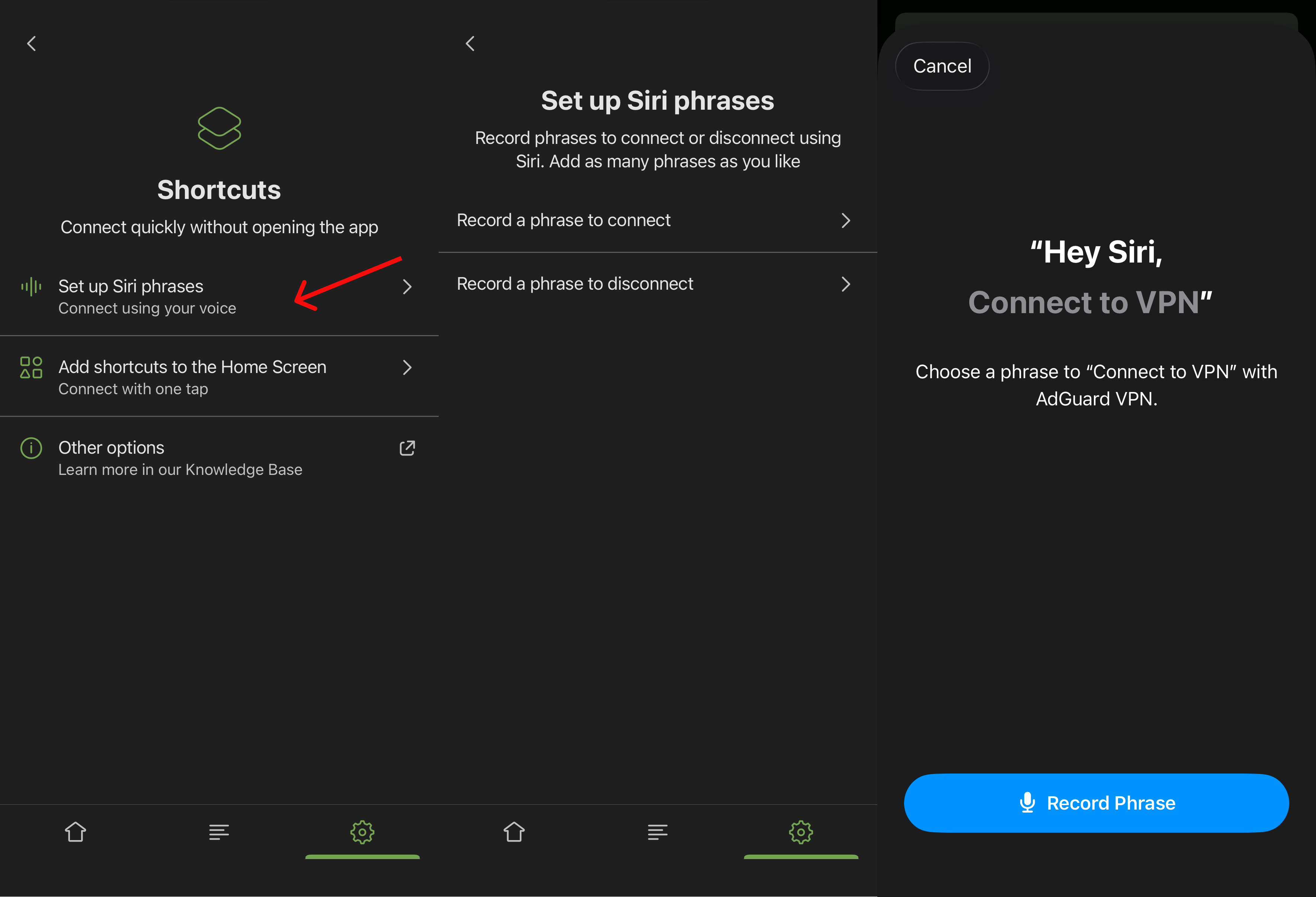
Choose Record a phrase to connect or Record a phrase to disconnect, then say the phrase you want, for example “Hey Siri, connect to AdGuard VPN.” Once recorded, say the same phrase to Siri any time to run it.
Automating AdGuard VPN for specific apps
Some apps, like banking apps, don’t work with a VPN on. Set up two automations so the VPN turns off while you use the app and turns back on once you’re done. When set up correctly, automation can be more convenient than manually launching a shortcut — you don’t have to tap on a Home Screen icon to open the shortcut, simply opening the app is enough. Besides, you can include several apps in one automation. You can use automations to turn AdGuard VPN on or off when you open an app, when you close an app, and when you join or disconnect from your home Wi-Fi.