Automation
Automation is a feature in the Shortcuts app that performs an action for you automatically based on the conditions you choose. For example, it can turn off AdGuard VPN the moment you open an app, and turn it back on when you close that app.
This is useful if you want AdGuard VPN off for some apps but not for others. AdGuard VPN for iOS doesn’t have app exclusions, so automation is the closest way to get the same result without switching the VPN on and off yourself every time.
Here’s how to set up an automation that disconnects from AdGuard VPN when you open an app, and turns it back on when you close it.
Turn off AdGuard VPN when you open an app
- In the Shortcuts app, go to Automation and tap New Automation or the plus (+) button in the top right corner.
- Choose App, select one or several apps, and check Is Opened.
- Turn on Run Immediately and turn off Notify When Run.
- Tap Next, select AdGuard VPN, and pick Disconnect.
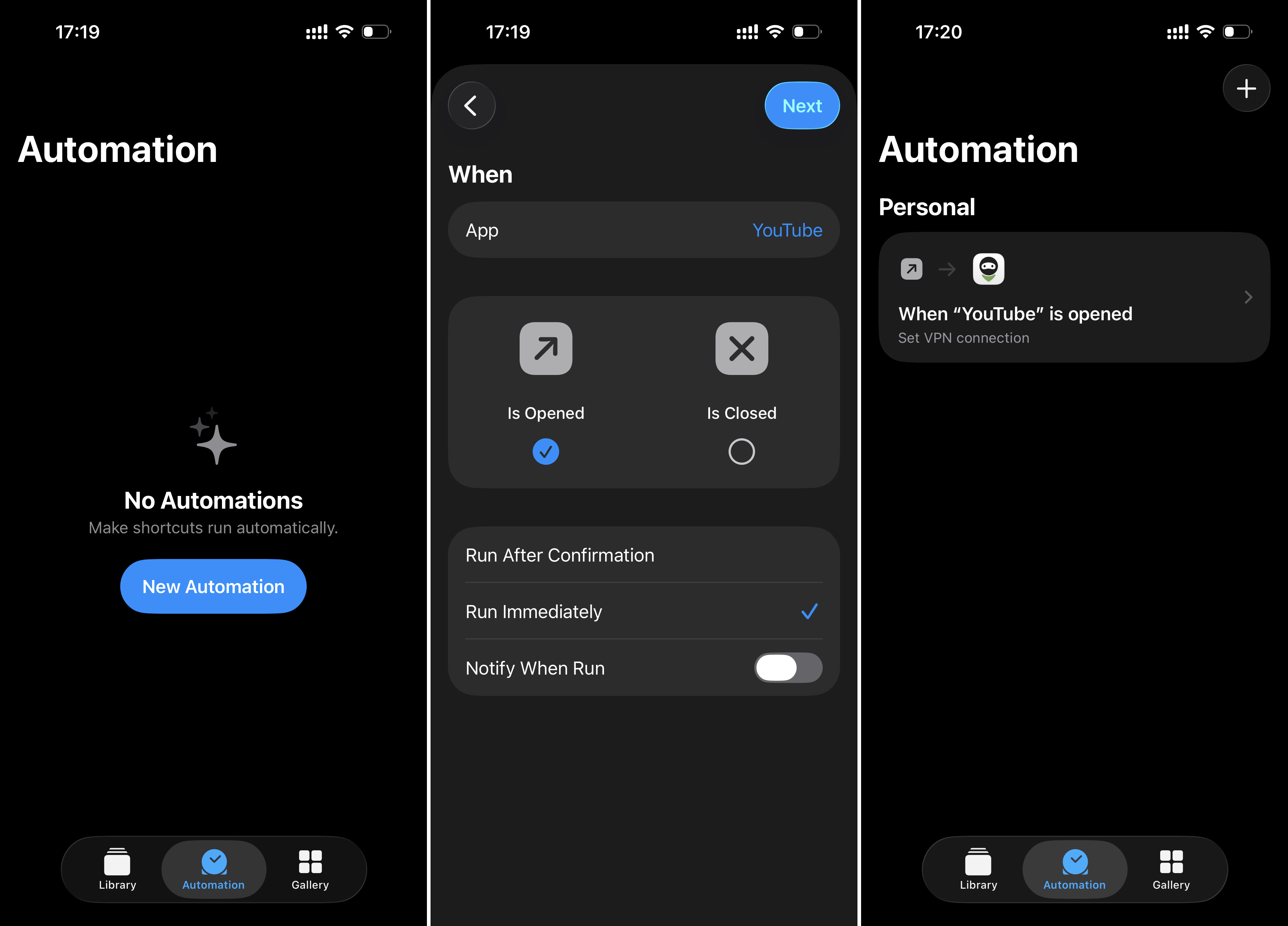
To turn AdGuard VPN back on when you close the same app, repeat the steps above, but select Is Closed in step 2 and set the action in step 4 to Connect.
Turn AdGuard VPN off when you join home Wi-Fi
If you don’t need to use VPN at home, set it to turn off when you join your home Wi-Fi network and back on when you leave.
- In the Shortcuts app, go to Automation and tap New Automation or ‘+’ in the top right corner.
- Choose Wi-Fi, select Is Joined, and choose your home network.
- Turn on Run Immediately and Run After Connection Interruption.
- Tap Next, select AdGuard VPN, and pick Disconnect.
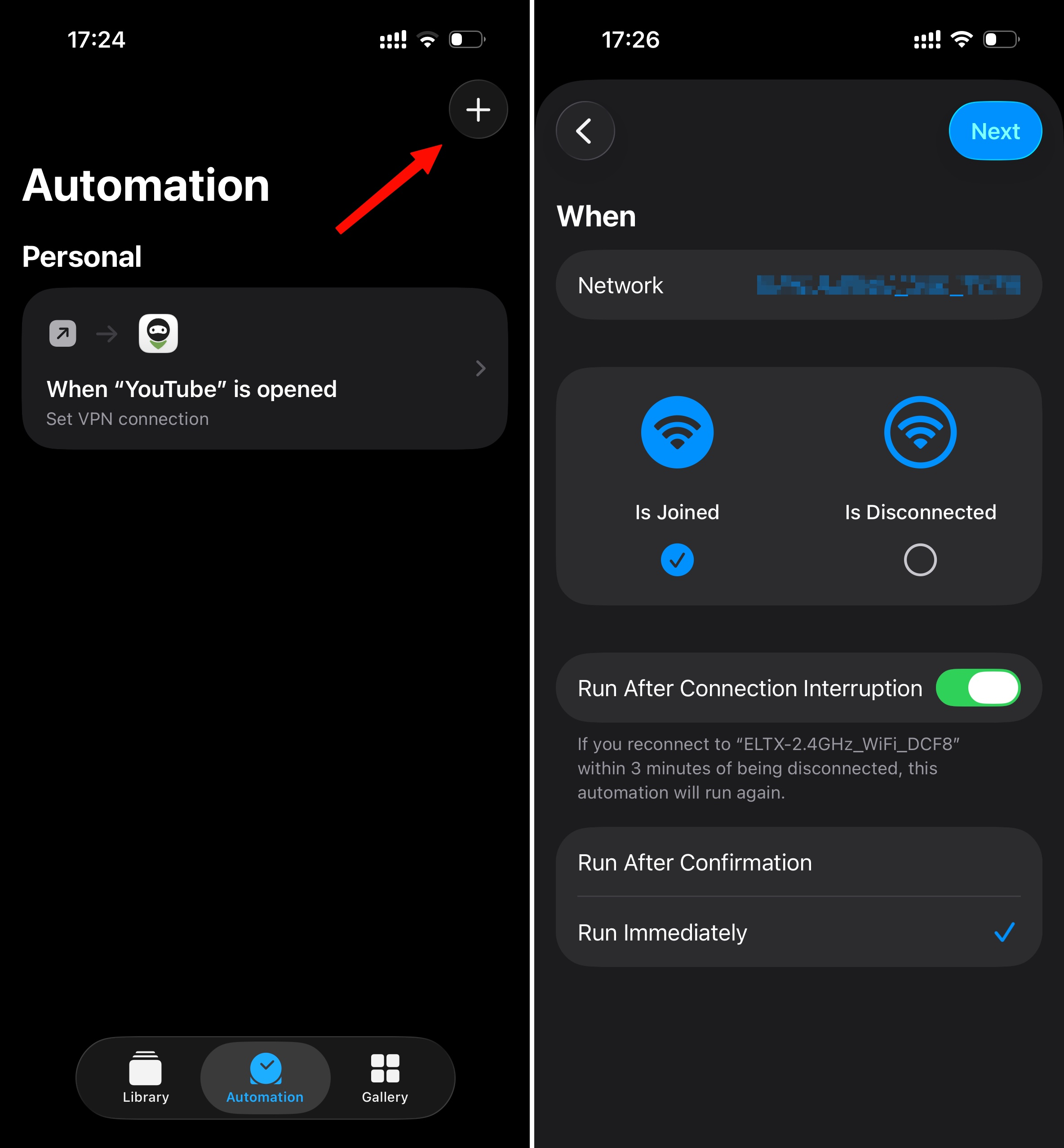
Turn AdGuard VPN back on when you leave
Repeat the steps above, but choose Is Disconnected instead of Is Joined, turn on Run Immediately, and set the action to Connect.