AdGuard VPN for iOS
This article covers the AdGuard VPN mobile app for iOS.
AdGuard VPN for iOS encrypts your internet traffic and routes it through a remote server, so your real IP address and location stay hidden. Use it to stay safe on public Wi-Fi, open websites and apps that are not available in your region, or keep advertisers and trackers from following you around the web. The app runs on TrustTunnel, our own protocol, which is extremely difficult to detect and remains stable even with a poor Internet connection. To learn the basics, see How a VPN works; for what makes our service different, see Why AdGuard VPN is the better option.
Starting with the app
To use AdGuard VPN for iOS, first you need to log into your AdGuard account. You can sign in directly with your AdGuard account credentials, or via Google, Apple ID, or Facebook (if your AdGuard account was registered using the same email address).
If you don’t have an AdGuard account yet, you will have to create it first.
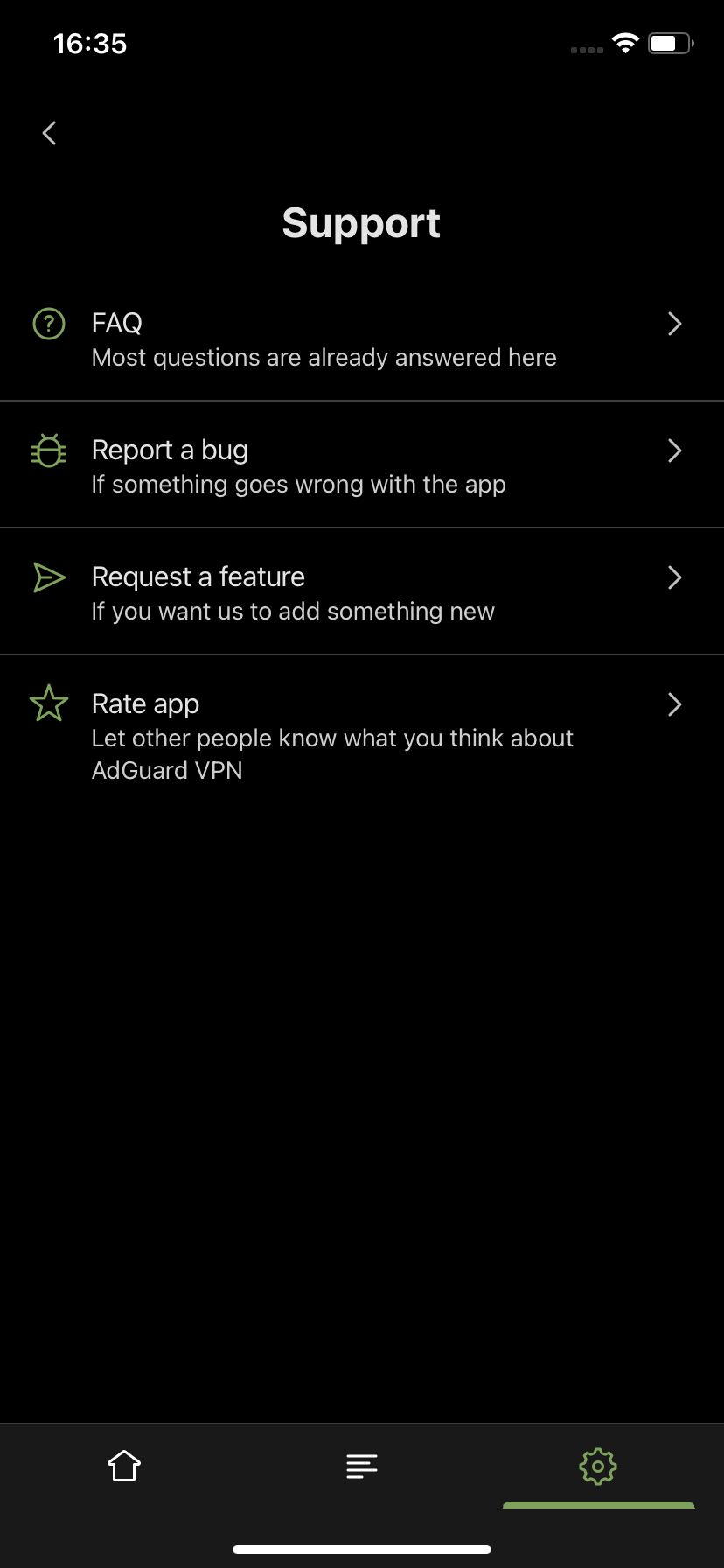
On the main screen, you can see the Connect (Disconnect) button and the list of available servers (we call them locations). Each server has its own location (a certain country and a city) and ping indicator.
The ping shows the server’s response time in milliseconds. This indicates how fast the VPN connection will be when you connect to that location. Selecting a server with a ping of 22 ms means that a data packet sent to this server will be returned in 22 ms.
With AdGuard VPN, you can choose from over 85 locations in dozens of countries.
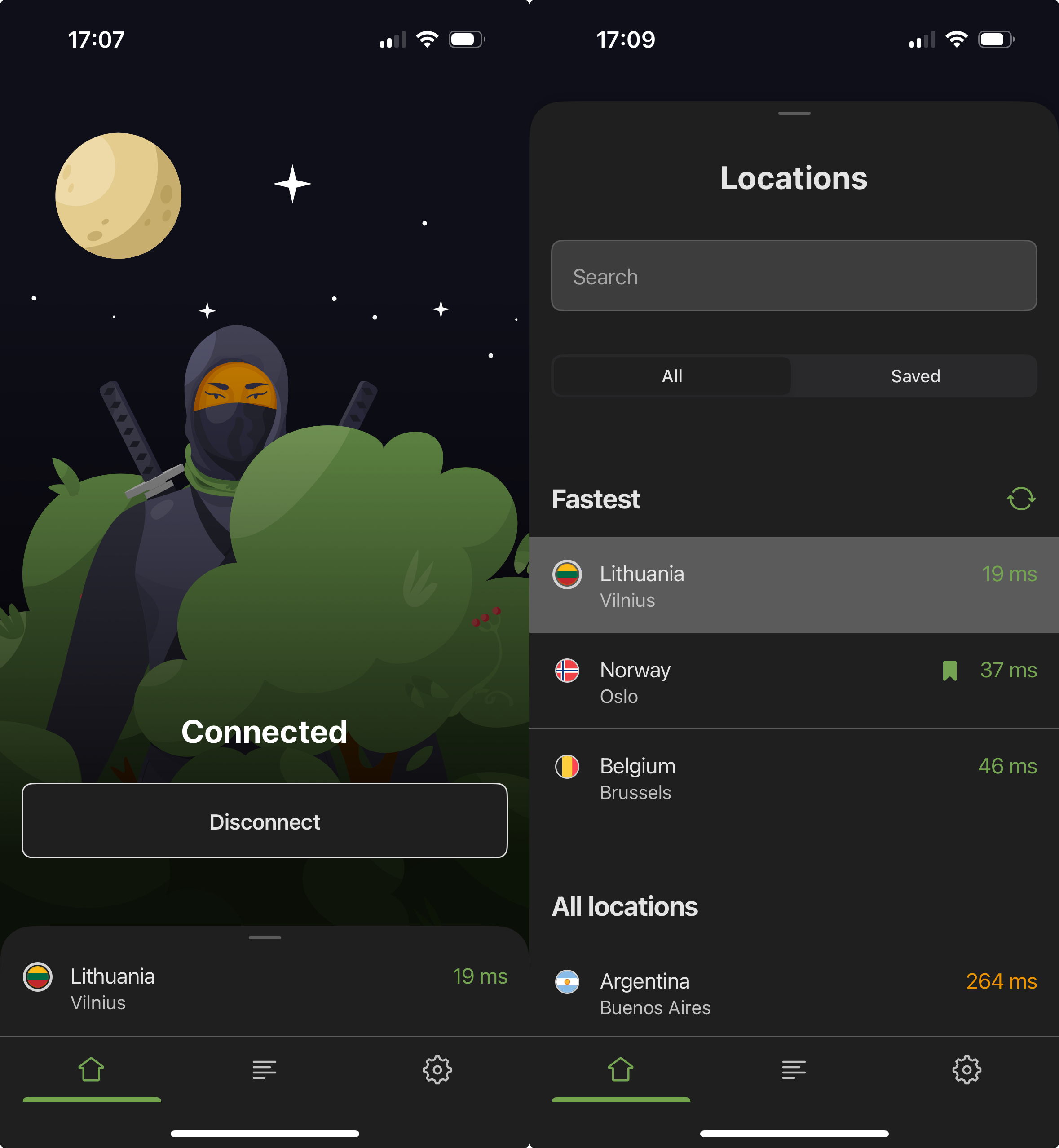
To quickly connect or disconnect and select a location without opening the app, long-press the AdGuard VPN icon on the Home screen. The menu also lets you remove, move, or share the app.
Using VPN for selected websites and apps
By default, AdGuard VPN is active for all websites except those added to Exclusions. You can also turn it on selectively — VPN will be active only for specified websites. To switch to this mode, tap Change mode.
App settings
In General settings, you can choose a DNS server, change the app theme, enable Kill Switch, and allow sending technical and interaction data. Advanced settings contain the operating mode, logging level, log export, and diagnostic data. Low-level settings include the VPN protocol, strict VPN routing, and IP range exclusions.
Shortcuts and automation
Connect and disconnect with Shortcuts, Siri, a Home Screen widget, or Control Center. Automation lets AdGuard VPN turn on or off automatically depending on the apps you open or the Wi-Fi network you join.
Compatibility with AdGuard Ad Blocker
AdGuard VPN can work simultaneously with AdGuard Ad Blocker for iOS in Integrated mode. If you already have AdGuard Ad Blocker installed, the mode turns on automatically; otherwise, you can switch to it in Advanced settings.
Solving problems
Known issues and possible solutions for connection problems, App Store availability, subscriptions purchased via the App Store, and Hide My Email.
Subscription screen
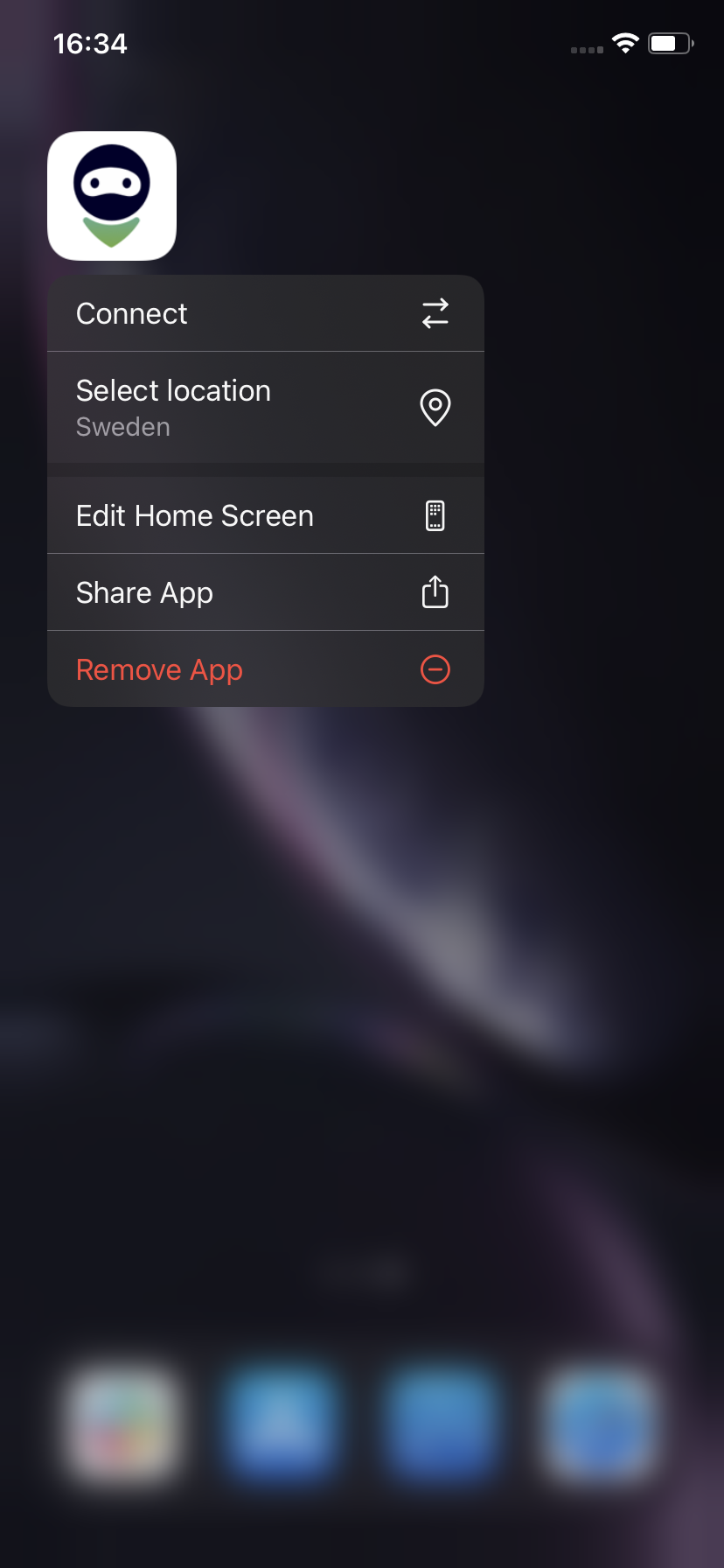
If you are using the free version of AdGuard VPN, there will be another tab with an arrow icon on the bottom tab bar. This section briefly describes the main benefits of the paid version of the app. You can choose a yearly or monthly subscription.
Support
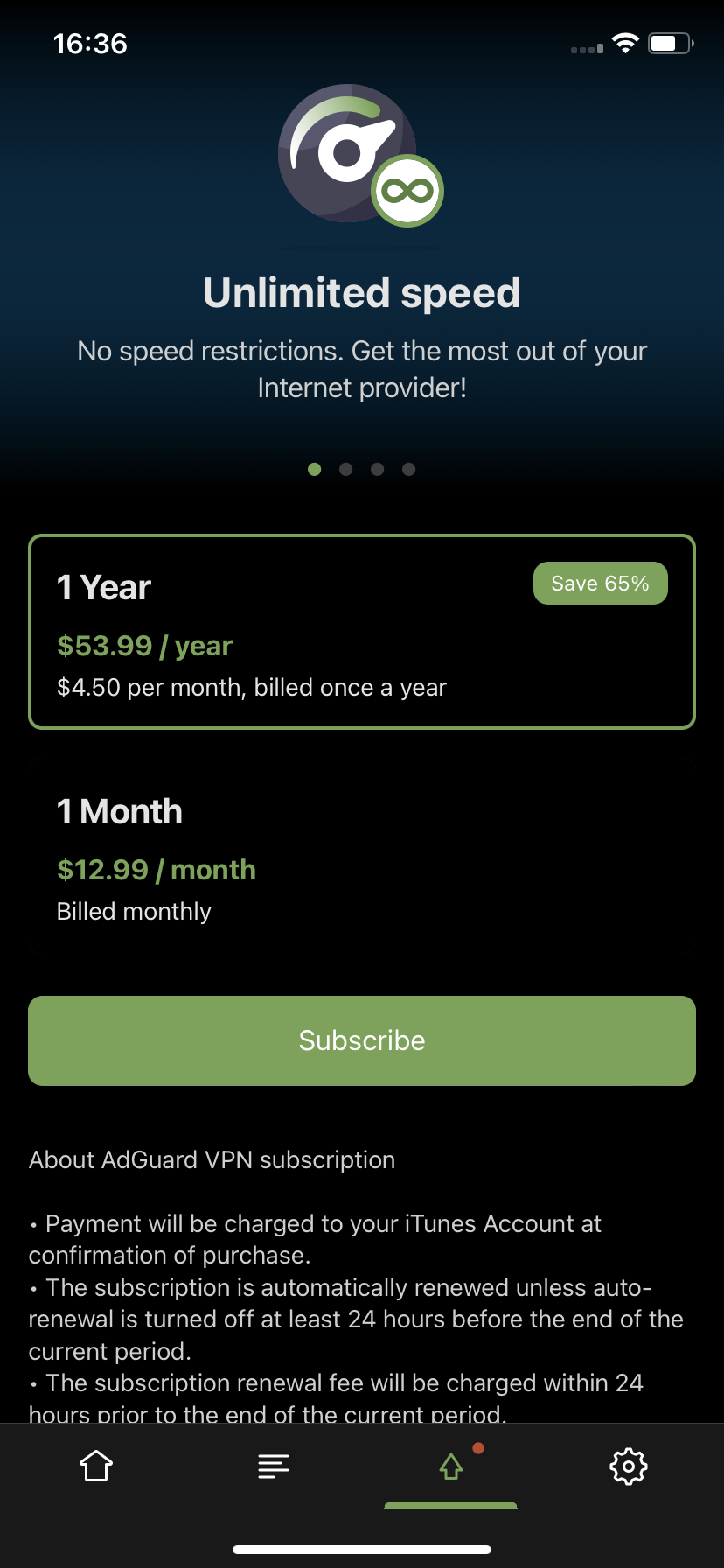
The Support screen (Settings → Support) has a number of helpful features: FAQ, Report a bug, Request a feature, and Rate app. The latter allows you to rate AdGuard VPN for iOS on the App Store.