Profiles
To create, edit, or delete profiles, open the profile switcher in the bottom-left corner of the sidebar and select Manage profiles.
You can have up to 10 profiles, including the Default profile.
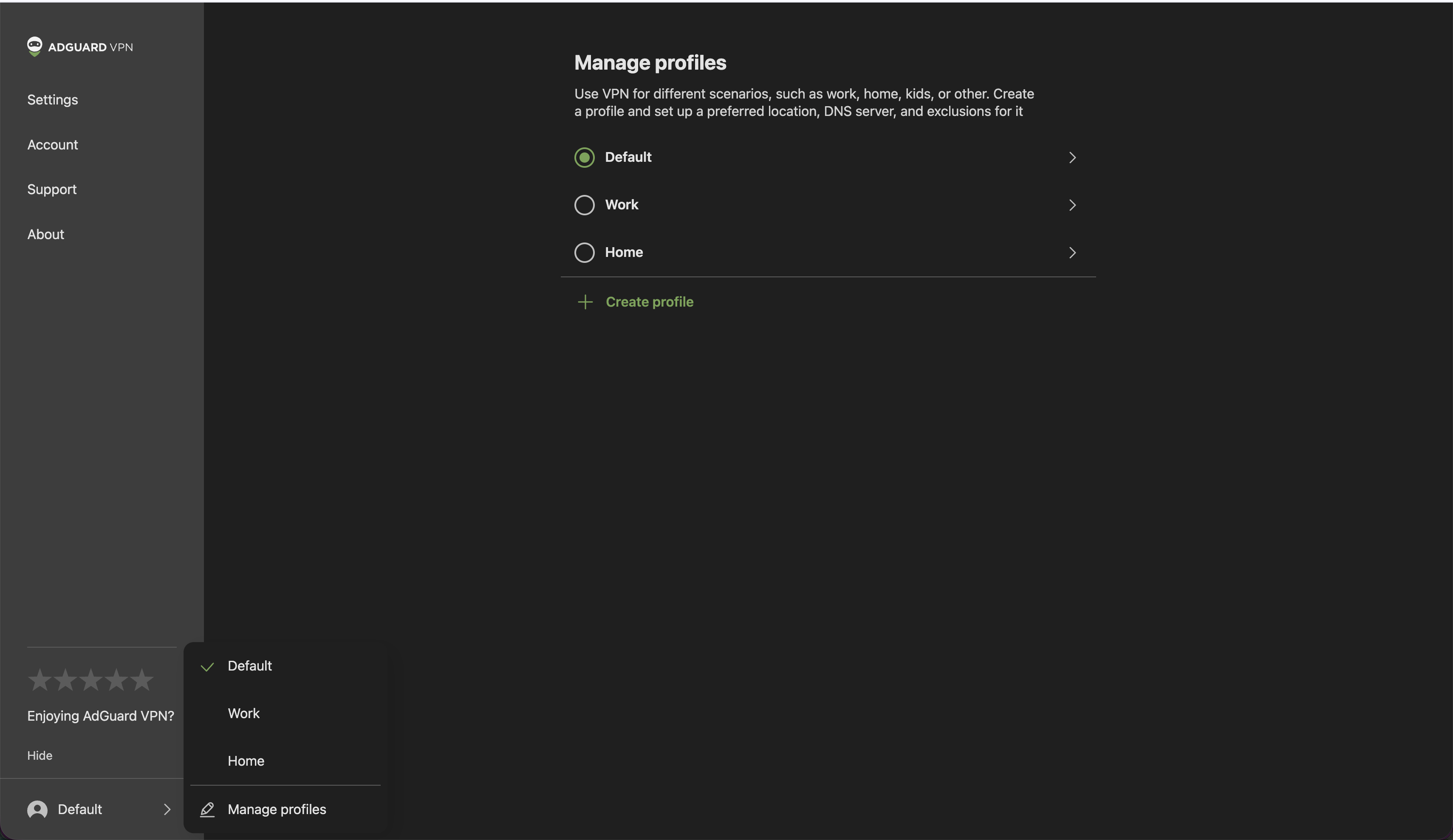
In this view, you can rename profiles, delete setups you no longer need, and configure the following parameters for each profile individually: Quick connect, DNS server, Block WebRTC, and Exclusions. The sections below describe them in detail. The same options are available in the Settings tab for the active profile.
The Default profile is protected and cannot be renamed or deleted.
Quick connect
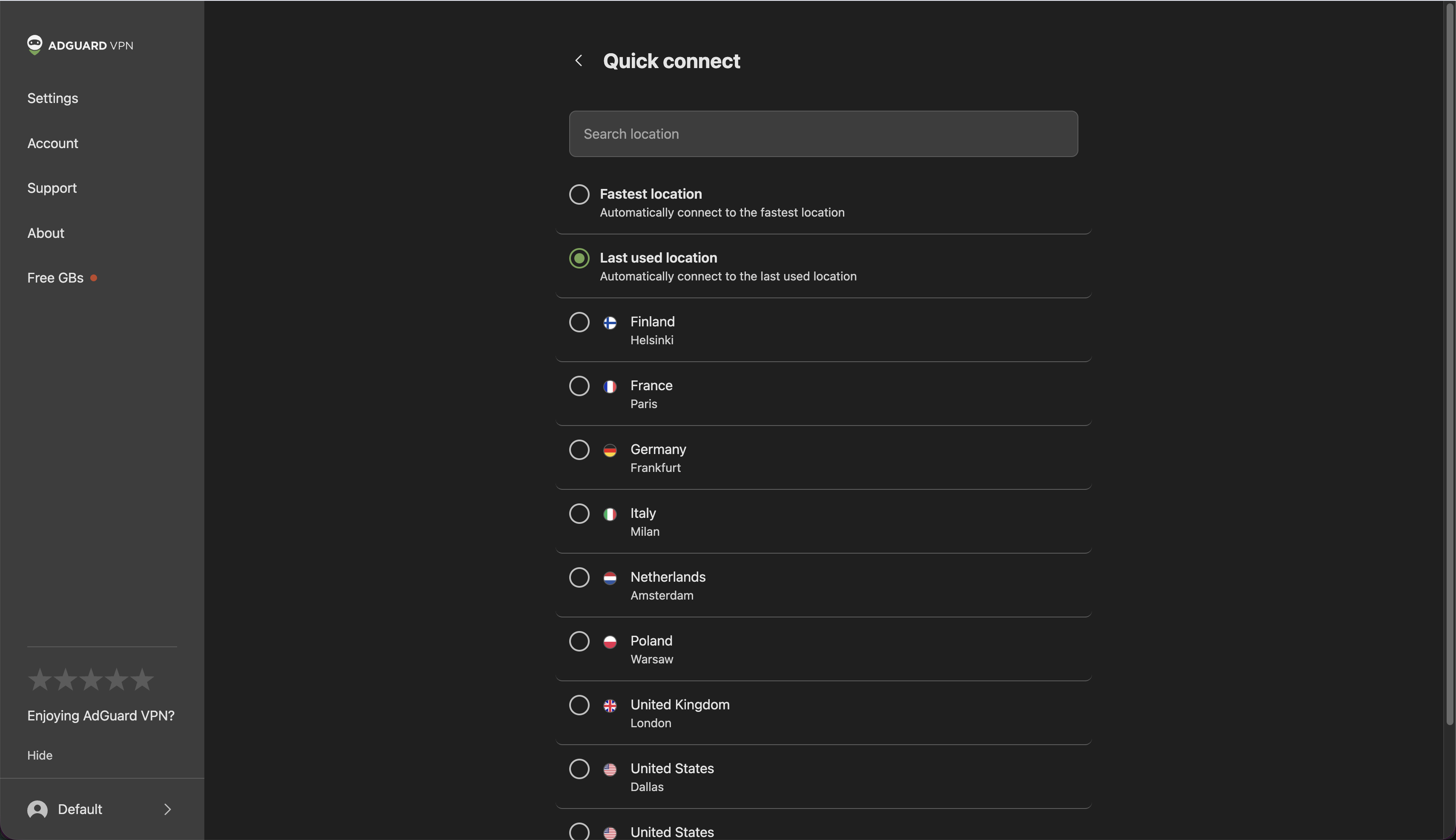
The Quick connect setting defines which location the extension connects to when clicking the main Connect button:
- Fastest location
- Last used location
- Specific countries and servers
DNS server
By default, the AdGuard DNS Non-filtering server is selected to ensure privacy without interfering with website content. If you want additional protection, you can choose a DNS server that blocks ads, trackers, or malicious domains, or enables parental control. Brief descriptions under the names of DNS servers will help you navigate and make your decision.
Learn more about DNS servers from various providers.
Block WebRTC
This feature blocks WebRTC, which can leak your real IP address even when using a proxy or VPN. Some messengers, streaming platforms, or games may stop working properly with this option enabled.
Exclusions
Set up a custom exclusions list and select a routing mode for the profile. To learn how Exclusions work, see Exclusions.