Wi-Fi VPN
A Wi-Fi VPN (Virtual Private Network) is a security tool that encrypts your Internet connection when you are connected to a wireless network. It establishes a safe, private tunnel between your device and the Internet, so that your data is safe even when you are using public or unsecured Wi-Fi.
Public Wi-Fi networks, such as those in airports, cafes, or hotels, are usually not encrypted and available for everyone. This makes public networks an ideal setting for hackers, who use them to target unsuspecting users — intercepting data, monitoring activity, and stealing sensitive information like passwords or credit card details. Connecting to these networks without any protection exposes your privacy and security to a great risk.
A VPN protects you by encrypting all the data that you send and receive through the Internet. This means that even if someone is able to intercept your connection, they will not be able to read or misuse the information. A VPN encrypts your online activity, which means you remain anonymous and safe, even when using open or compromised Wi-Fi networks.
The risks of using public Wi-Fi without a VPN
Public Wi-Fi networks are all over the place – in coffee shops, airports, hotels, shopping malls, and even in public transport. They provide a convenient way of staying connected on the move, but the convenience is usually at the expense of security. Such networks are usually open or loosely secured, and therefore, a prime target for cybercriminals.
When you are using public Wi-Fi without any extra protection, your data can be vulnerable to various threats. A man-in-the-middle attack is one of the most common risks, where a hacker intercepts the data that flows between your device and a server via the Internet without your knowledge. This enables them to view everything you send or receive, including such sensitive information as passwords, emails, or banking details.
Another danger is data snooping. On unsecured networks, attackers can easily spy on your activity and steal personal information – without you even knowing. Very much connected to this is session hijacking, where a hacker can hijack your active browser session and gain unauthorized access to your online accounts.
The most alarming is the danger of fake Wi-Fi hotspots. These are rogue networks created by attackers to appear as public Wi-Fi. Once a user connects, the hacker can monitor all of their online activity or even install malware on their device.
These risks are not only theoretical. There have been many real-life events in which the public Wi-Fi has been used to conduct cyberattacks. In some European airports, attackers create fake hotspots to spy on business travelers and steal corporate data. At a cybersecurity conference, a researcher showed how simple it was to set up a fake network and collect data from dozens of devices in minutes. Even luxury hotels have not been spared, with hackers using their networks to spy on guests using spyware.
Without a VPN, users are essentially unprotected on public Wi-Fi. Your data is left exposed to anyone with the tools and the intent to intercept it.
When should you use a Wi-Fi VPN?
A Wi-Fi VPN is not only for cybersecurity experts or tech-savvy users – it is a useful tool to protect anyone who uses the Internet outside of a trusted network. There are a number of everyday situations when the use of a VPN is particularly important.
Traveling, and especially internationally, is one of the most important times to use a VPN. Whether you are connecting from a hotel room, an airport lounge, or a public hotspot, you are usually using networks that you don’t know and that are not secure. A VPN on Wi-Fi will ensure that your personal information is safe from hackers and eavesdroppers in such environments.
If you are working remotely or hanging out in coworking spaces, a VPN is necessary to protect sensitive work files, login credentials, and client communications. These common networks can be attacked by cyber-attacks, especially if many people are connected at the same time.
You should also use a VPN whenever you are using Wi-Fi in public places such as cafés, libraries, hotels or airports. These networks are not usually secured and attackers usually monitor them for easy access to unprotected devices.
Apart from security, a VPN can also assist you to access your preferred content when you are out of your country. If you are traveling and would like to stream from your home country’s services or access websites that are not available in your current location, a VPN can route your traffic through a server in your home country to restore access.
Lastly, do not forget that the digital life of today is mobile. If you are using a smartphone, tablet, or laptop, connecting to Wi-Fi on the go is a common practice, and that’s where your data is most vulnerable. A VPN will make sure that all your devices are secure regardless of location.
Key features to look for in a VPN Wi-Fi
Not all VPNs are the same, and if you are a frequent user of public Wi-Fi, you need to select one that provides strong protection and stable performance. Here are the most important features to look for:
Strong encryption (AES-256). This military-grade encryption will make sure that your data is totally unreadable for anyone who attempts to intercept it, thus keeping your information safe even on open networks.
No-logs policy. A reliable VPN should never track or store your browsing history. A no-logs policy with a strict approach ensures that your online activity is kept private, even from the VPN provider.
Kill switch. In case of an unexpected loss of the VPN connection, a kill switch will automatically disconnect your Internet to avoid leaking unprotected data.
Auto-connect on untrusted networks. This feature will automatically turn on the VPN once you connect to a public or an unknown Wi-Fi network, meaning you’re always protected without having to remember to turn it on.
Cross-device compatibility. Find a VPN that is compatible with all your devices – smartphones, tablets, laptops, and even routers – so that you are always protected regardless of how and where you connect.
Speed and stability. A good VPN will not slow you down. Select a provider that is known for fast and stable connections that allow for smooth streaming, video calls, and web browsing.
How to set up and use a VPN on public Wi-Fi
Using a VPN on Wi-Fi is a simple and effective way to protect your data. Here’s a step-by-step guide to help you set it up on both desktop and mobile devices, as well as ensure it’s working properly.
Step-by-step guide for desktop (Windows/macOS)
- Choose and install a VPN
First, choose a reliable VPN provider and download the VPN application for your desktop. You can find desktop apps for Windows or macOS on the provider’s website or your app store.
- Create an account
After installing the app, open it and create an account (or log in if you already have one). You may need to choose a subscription plan if required.
- Enable auto-connect
To make sure your VPN connects automatically whenever you're on an untrusted network, go to the settings or preferences section of the app. Look for an option like "Auto-Connect" and enable it. This ensures that your VPN will protect you as soon as you join any public Wi-Fi network.
- Select the right server
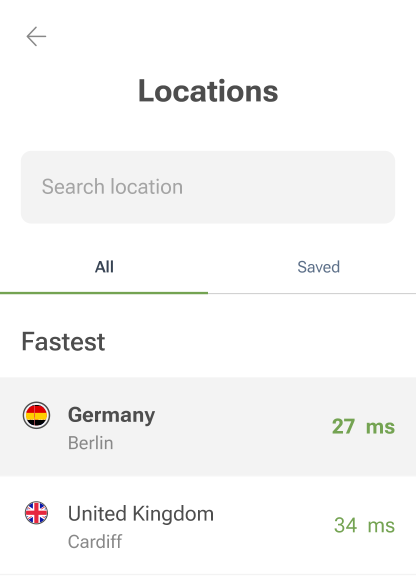
Most VPNs will allow you to choose the server or location you want to connect to. If you're using the VPN for privacy, choose a server that’s geographically distant from your current location. If you're trying to access content restricted to a specific country, select a server in that country.
- Connect to the VPN
Once you’ve chosen your server, click "Connect" or "Turn On" to initiate the VPN connection. You should now be protected by the VPN.
- Verify it’s working
To confirm your VPN is active, open your web browser and check your IP address. You can do this by searching "What is my IP address?" in Google. If your VPN is working correctly, your IP address should show the location of the server you’ve connected to, not your actual location.
Step-by-step guide for mobile (Android/iOS)
- Download the VPN app
Go to the Google Play Store (Android) or App Store (iOS) and download your chosen VPN app.
- Install and set up
Open the app, sign in, or create an account. Once logged in, follow the setup instructions to configure the VPN on your phone.
- Enable auto-
Similar to the desktop version, enable auto-connect to ensure the VPN activates automatically when connecting to any untrusted Wi-Fi network. This option is typically available in the app’s settings under "Connection Preferences."
- Choose the server
Choose your preferred server location. For privacy, select a distant server, and for accessing region-restricted content, select the server corresponding to the desired location.
- Activate the VPN
Tap on the "Connect" button to establish the VPN connection. The app will show a notification or icon confirming that the VPN is active.
- Verify it’s working
Open your mobile browser or any app that uses the Internet. You can check your IP address by searching for "What is my IP address?" or use a website like "https://www.whatismyip.com/" to ensure the VPN is working and that your IP shows the server’s location.
Best VPNs for public Wi-Fi: brief reviews
It is essential to have a good VPN when connecting to public Wi-Fi networks to protect your privacy and security. With the many VPN options, it is hard to select the best. To make it easier for you to choose, here are some of the best VPNs that are specifically created to secure your data on public networks. All of these services provide strong encryption, no-logs policies, and such features as auto-connect and kill switches to protect your connection.
Here is a brief overview of some of the best VPNs for public Wi-Fi:
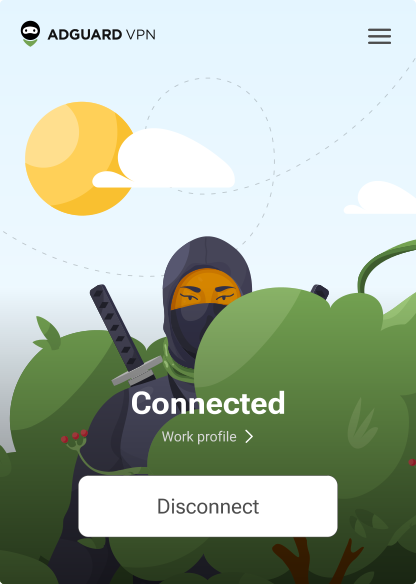
AdGuard VPN is an affordable VPN that provides good security with AES-256 encryption and no-logs policy, so your data is safe. It’s perfect for those who are looking for a simple and efficient VPN for public Wi-Fi, especially considering its low price of $2.99/month. It also has a kill switch and auto-connect feature, which makes it easy to use when on the move.
- ExpressVPN
ExpressVPN is one of the best VPNs in terms of security and speed. With AES-256 encryption, no-logs policy, and automatic kill switch, it offers full protection on public networks. ExpressVPN is especially commended for its speed, which makes it ideal for streaming or video calls. Although it is on the expensive side ($4.99/month), its reliability and ease of use make it a good option for anyone who needs a secure connection when traveling or using public Wi-Fi.
- NordVPN
NordVPN is a strong contender with AES-256 encryption, no-logs, and a strong set of features such as a kill switch and CyberSec, which blocks ads and malware. NordVPN is famous for its large server network, and it is excellent in terms of security and privacy. At $3.09/month, it is a good compromise between affordability and high-end security, which makes it a top choice for users who want peace of mind when browsing on public Wi-Fi.
- Surfshark
Surfshark is one of the best value VPNs that provide AES-256 encryption, no-logs policy, and unlimited devices on one account. At such a low price of $1.99/month, it is a very budget-friendly option with decent security and auto-connect features that will automatically secure you on public networks. Surfshark is perfect for those who require a secure and affordable VPN with decent speed and reliability.
- CyberGhost
CyberGhost is a VPN that is easy to use and offers AES-256 encryption and a no-logs policy, which means your activities are kept private. It’s good for beginners and has a simple interface with strong security features such as an automatic kill switch. CyberGhost is also cheap at $2.14/month and is good for browsing or streaming safely on public Wi-Fi.
- Mullvad VPN
Mullvad VPN is a privacy-focused service offering robust security features, including AES-256 encryption and a strict no-logs policy. It provides a flat-rate pricing model at €5 per month (approximately $5.50 USD), with no hidden fees or promotional pricing. This straightforward approach ensures transparency and affordability for users seeking secure connections on public Wi-Fi networks.
- Proton VPN
Proton VPN is a Swiss-based VPN service known for its strong security and privacy features. It offers AES-256 encryption, a no-logs policy, and supports multiple VPN protocols, including WireGuard. Proton VPN provides a free tier with limited features, allowing users to try the service before committing. Its paid plans start at €2.99 per month.
- Private Internet Access (PIA)
Private Internet Access (PIA) is a versatile VPN that offers strong security features, including AES-256 encryption and a strict no-logs policy. It allows unlimited device connections, making it ideal for users with multiple devices. Priced at $3.33 per month for the annual plan, it's a cost-effective choice for those seeking robust privacy and security on public Wi-Fi networks.
- Hide.me VPN
Hide.me VPN is a secure service that offers AES-256 encryption and a no-logs policy, ensuring your online activities remain private. It provides a free tier with limited data usage, allowing users to test the service. Hide.me's premium plans start at $9.95 per month for the monthly subscription, and the 12-month plan is priced at $4.57 per month.
- Norton VPN
Norton VPN, part of the NortonLifeLock suite, offers AES-256 encryption and a no-logs policy to protect your online activities. It provides a Wi-Fi security feature for mobile users, automatically connecting to the VPN when an insecure network is detected. Norton's VPN plans start at $3.33 per month for the Standard plan, which covers up to 5 devices.
All of these VPNs provide good protection for users of public Wi-Fi. No matter whether you prefer affordability (AdGuard VPN), speed (ExpressVPN), advanced security features (NordVPN) or something else, there is a great option for every need.
Conclusion
The use of public Wi-Fi without a VPN puts your data at risk of severe security threats. A VPN Wi-Fi secures your personal information by encrypting your traffic, hiding your IP address, and blocking hackers from accessing your data. It is a straightforward but efficient method of maintaining privacy and security while browsing, working, or streaming on public networks.
With such features as auto-connect, kill switches, and cross-device support, a good VPN will make it easy to stay protected on the go. If you are a frequent user of public Wi-Fi, then using a VPN is a necessity to protect your sensitive information.