Is airport Wi-Fi safe?
Today, it is hard to imagine a situation where there is no possibility to connect to free Wi-Fi. It seems that wireless networks are on track to cover the entire planet. However, as Wi-Fi becomes more ubiquitous, reports of vulnerabilities and security risks for users are increasing. Not only passengers, but also intruders like to use wireless Internet. By connecting to Wi-Fi, a person gives access to all their data stored on a smartphone and cloud services. There have been numerous instances where money has disappeared after making payments for hotel reservations or other services over Wi-Fi. Is it worth risking your personal data? We will explore in this article.
What data is at risk when connecting to public Wi-Fi?
When you connect to a public Wi-Fi network, the following information may be at risk:
Sensitive information: Details such as your name, address, date of birth, and phone number, can be intercepted by intruders.
Financial information: When you enter credit card information, passwords, or make transactions, this data can be stolen, leading to unauthorized transactions and theft of funds.
Logins and passwords: Your accounts, including social media, email, and other services, may be compromised.
Confidential documents: Files stored on your device or in the cloud may be available to intruders.
Correspondence and messages: Messages and emails sent over unsecured networks can be read by others.
Browsing history: Information about the websites you visit can be used to track your online activities.
Types of attacks
Connecting to Wi-Fi at an airport can expose you to a number of threats. Hackers often target these networks because of their lack of security, making it easier to intercept data.
MitM Attack. One of the most common threats to these networks is called a MitM attack. A MitM attack is essentially a form of eavesdropping. When you connect your computer to the Internet, data is transmitted from point A (your computer) to point B (a service or a website), and vulnerabilities allow an attacker to intercept these transmissions and "read" the data. And your information is no longer private.
Unencrypted networks. Encryption means that messages between your computer and your wireless router are sent as a "secret code" so that they cannot be read without the decryption key. Most routers come with encryption turned off by default. You need to turn it on when you set up your network. If an IT professional set up your network, there is a good chance that encryption was enabled. However, there is no surefire way to tell if this was the case.
Malware distribution. Software vulnerabilities are ways that attackers can install malware on your computer without your knowledge. A software vulnerability is a security hole or weakness in an operating system or program. Hackers can exploit a vulnerability by writing code to attack a specific vulnerability and then insert malware into your device.
Wi-Fi sniffing and eavesdropping. Cybercriminals can purchase specialized software kits and even Wi-Fi interception devices. Using this method, attackers can access all of your online activity, from viewing all of the web pages you’ve visited (including any sensitive information you've entered while visiting the page) to intercepting login credentials and even taking over accounts.
Fake hotspots. These fake hotspots trick victims into connecting to what they think are legitimate networks because the names of these networks are trustworthy. Let’s say you're staying at the Goodnight Inn and want to connect to its Wi-Fi network. You might think you should select the Goodnite Inn network name, but you’d be wrong. Instead, you've just connected to a fake hotspot set up by cybercriminals who can now view your sensitive information.
How to stay safe when using airport Wi-Fi
The best way to protect your information when using public Wi-Fi hotspots is to use a virtual private network (VPN). However, if you still need to use public Wi-Fi, follow these tips to help protect your sensitive information.
Don’ts
Don’t use automatic connection to Wi-Fi networks. The automatic connection option can be convenient, but it increases the risk of accidentally connecting to unsafe or fake networks. It's better to turn this feature off and manually select the networks you want to connect to.
Don’t log in to accounts using applications that contain sensitive information. Applications can be vulnerable to attack, especially on public networks. Instead, use a browser and make sure the site uses secure HTTPS before entering your credentials.
Don’t leave Wi-Fi or Bluetooth turned on when you’re not using it. Open connections can be used by hackers to gain unauthorized access to your device. Turning these features off when you're not using them greatly reduces the risk.
Don’t use public networks to access websites that store sensitive information. Public Wi-Fi networks are often insecure, and hackers can intercept data such as logins and passwords, especially on financial or medical websites.
Don’t connect to unprotected networks. Open networks without passwords are potential traps that can be used by cybercriminals. If a network is not password protected, avoid using it to protect your data.
Do’s
Turn off file sharing. File sharing can be useful at home, but it can be a security risk on public networks. Turning it off helps prevent unauthorized access to your files by other network users.
Visit websites that use the HTTPS protocol. HTTPS provides encryption of transmitted data, which helps protect your sensitive information from being intercepted. Before you enter confidential information, make sure that this secure protocol is specified in the address bar.
Sign out of your accounts when you are not using them. This is especially important on public or shared networks. Signing out helps prevent access to your accounts if someone else gains access to your device after you use it.
Use a VPN service. A VPN encrypts all of your Internet connections, making them safer even on unsecured networks. It is one of the most effective ways to protect your privacy when using public Wi-Fi.
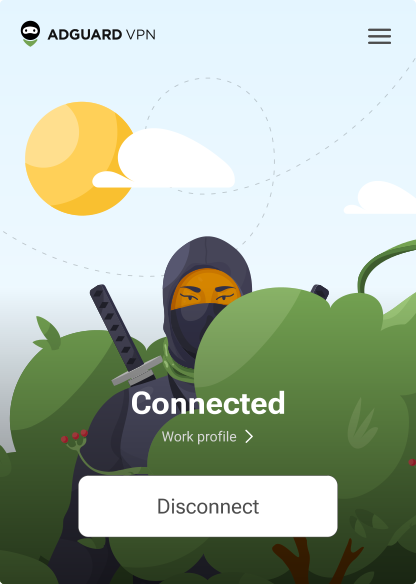
AdGuard VPN
Is airport Wi-Fi safe with VPN? Yes, using a VPN when connecting to airport Wi-Fi significantly increases the security of your data. Airport networks are typically open to everyone, making them an attractive target for cybercriminals looking to intercept sensitive information such as logins, passwords, and financial data. A VPN creates an encrypted connection between your device and the Internet, making your data inaccessible to outsiders. This encryption prevents man-in-the-middle attacks that are common on public networks. Even if attackers try to intercept your data, they will not be able to decrypt it.
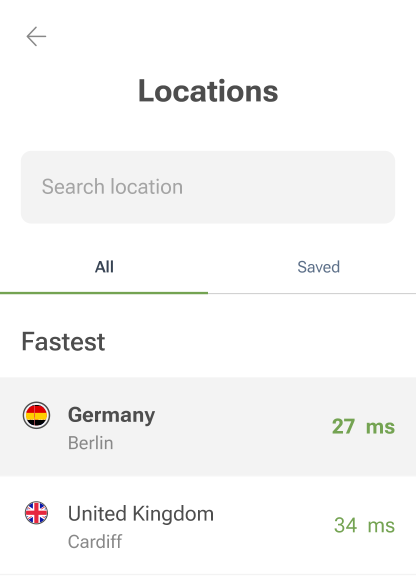
AdGuard VPN is a service that adheres to a strict privacy policy and ensures that your information is not recorded or shared with third parties. It protects your sensitive information, hides your IP address and geographical location, and effectively blocks intrusive banner ads through DNS servers.
Advantages of AdGuard VPN
Strong AES-256 encryption: AdGuard VPN's proprietary protocol provides a high level of privacy and complete anonymity.
No-logging policy: AdGuard VPN does not collect or store user activity data.
DNS servers: Users can increase security and better manage traffic by choosing a DNS server that blocks ads and protects against malware.
Kill Switch: If the VPN connection fails, the Kill Switch feature disables the Internet connection.
QUIC support: QUIC is a cutting-edge protocol that improves the connection quality on mobile devices or when connecting to public Wi-Fi hotspots.
Conclusion
Airport Wi-Fi may be convenient, but it’s far from secure. Using public networks leaves your device vulnerable to cyberattacks such as data interception, phishing, and malware. To protect your privacy, it's important to take basic precautions: avoid connecting to unsecured networks, use a VPN to encrypt your data, turn off automatic connection features, and avoid visiting sites that contain personal or financial information. The combination of these steps will help minimize risks and keep your Internet connection safe at airports.